Managed registrations
Symposium takes into account the different needs that arise when registering for an event. There may be several reasons why a user does not want to register for the event personally, or one user may want to register a group of people, with or without including themselves.
For example, a lecturer wants to register a group of students and does not want to ask each student to register individually, because questions may come up and answering each one would be tedious. It saves time if the lecturer, who knows the procedure, does it.
That is why Symposium allows managed registrations. The difference between a personal registration and a managed one is that in a personal registration users register themselves, while in a managed registration the user registers someone else.
How to create a managed registration
First of all, the managing user needs the consent of the people they are going to register in order to use their data and register them for an event. Before registering anyone, make sure you have the explicit consent of every participant.
- Find the event and click “Enroll”.

- Select the number of tickets you need. In this example we select one for another person.

- Turn on the switch to indicate that the registration is for someone else.

- Fill in the form that opens with the details of the registration manager. Accept the privacy policy consents and continue.
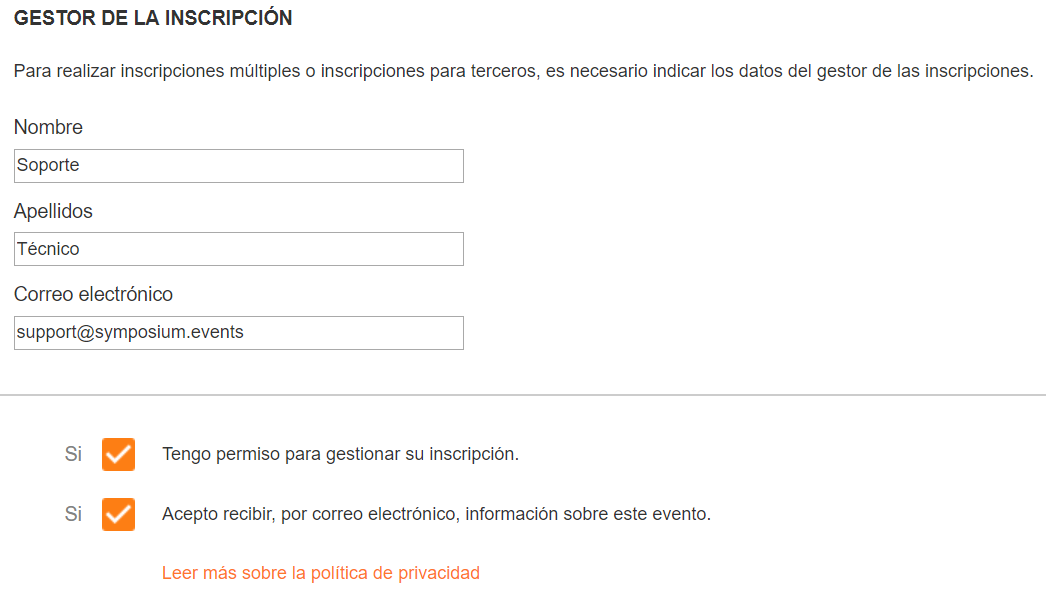
Fill in the registration form (bearing in mind that it is on behalf of another person).
When completing the registration, the manager has two options:
Have all communications about the event and the registration sent to the manager’s email address. In this case the manager receives the registration in their user panel and takes care of managing it entirely.
Enter the email address of the person being registered, so that messages reach the attendee and not the manager. From then on, the recipient manages the registration that the manager made on their behalf and transferred to them.

Managing these registrations
If the registration manager takes full charge of the registration, they can manage it from their own user panel. The event appears in their private panel > My events. Each card shows the role the user has in the event; for this event, the manager takes part as “Registration manager”.
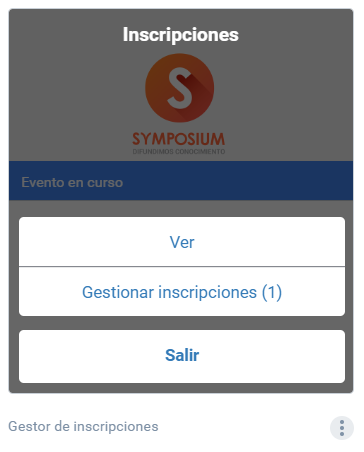
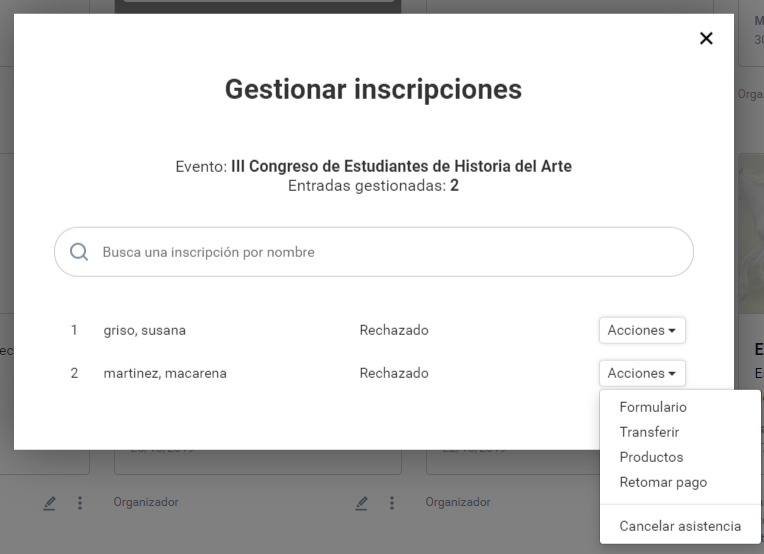
This user can act on managed registrations as if they were their own. They can:
- Open and edit the registration form
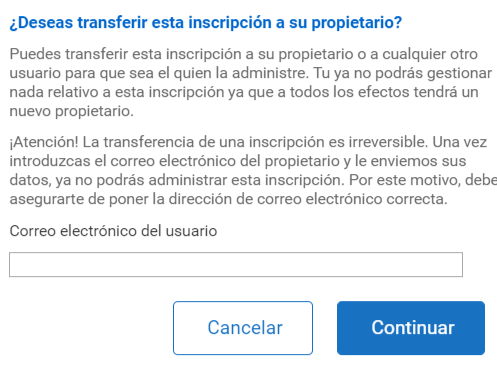
- Transfer the registration to its final recipient
- Add products
- Change the payment method
- Download the invoice
- Cancel the registration
Transferring a managed registration to its recipient
The manager can transfer the registration at any time by entering the recipient’s email address. This decision cannot be undone: once the registration is transferred, the manager loses all ownership of and permissions on it.