Registering for an event
Registration for an event is done from the event’s website, although there is also a shortcut if we find the event from the instance’s home page.

To register for an event you do not need to be signed in to the platform, but a series of criteria must be met:
- The organizer must have created at least one registration type for the event
- The registration period must be open
- The availability period of the registration must be open
- At least one of the registration types must be visible
- If the event has a maximum capacity, it must not have been exceeded
- If the registration is paid, the event must have a payment receiver enabled
If the above criteria are met, registration will be available and the button will be shown.
Selecting registrations
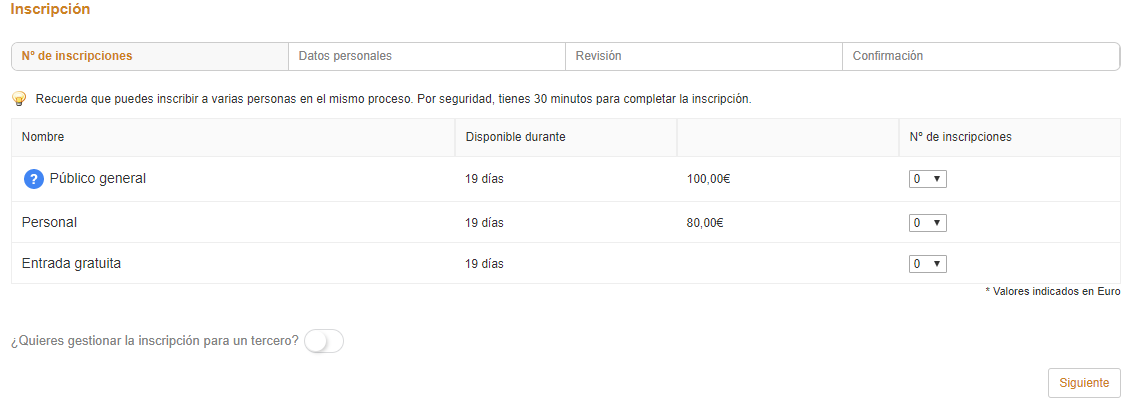
The registration window will show the available tickets, the availability period, the price if they are paid and a selector to indicate the quantity. Normally users select one ticket for themselves, although the platform allows them to select more than one, on the understanding that the user will manage these tickets for other people.
You can read more about managed registrations here
Personal data
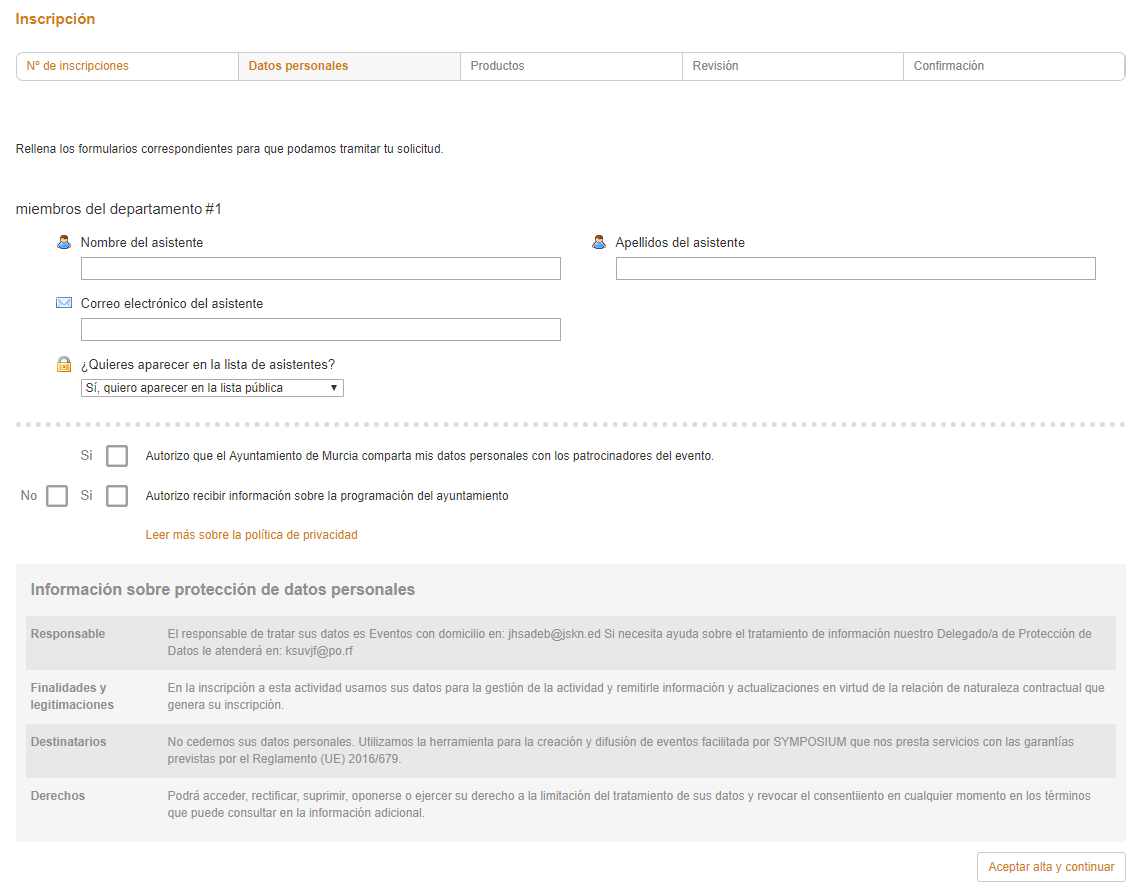
Once the ticket has been selected, the user will have to complete the registration form. This form may vary from one event to another, depending on the questions each organizer has configured. However, the minimum required details are the attendee’s first name, surname and email address. Finally, the user will have to accept the privacy policy set by each institution in order to complete the registration.
Review and choice of payment method
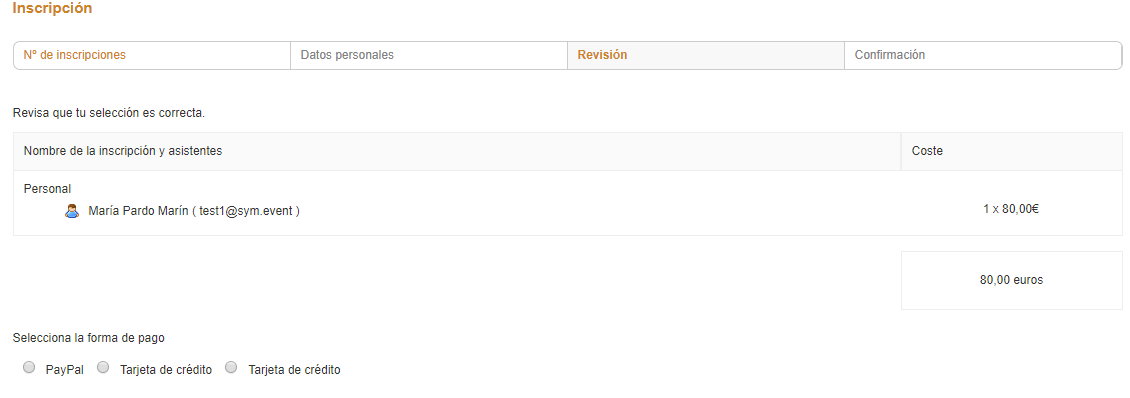
If the tickets the user has acquired are paid, the next view will show a summary of the selected registration and the total to pay. The section below shows the available payment methods and the option to request an invoice.
Payment method and buyer’s contact address
Once the payment method is selected, the user is asked to provide an address for the buyer. This can be the same one entered for the registration, or the contact email of the institution that will process the payment.
Once the details are entered, click “Finish” to complete the process.