Social networks
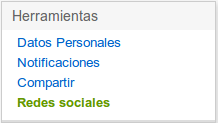
SYMPOSIUM by Emagister lets you link your Eventos account with the best-known social networks, so you can use the credentials of any of them to sign in to Eventos. Click “Social networks” in the settings menu of your user account to start linking your accounts.
Connected social networks
From this section you can see a list of the social networks you have already linked to Eventos. By clicking your username on one of the social networks you can access your user profile on the selected social network. In addition, if the linked social network allows it, you can configure the publication of comments by ticking or unticking the “Publish comments” box.
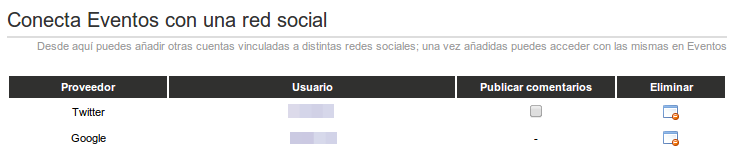
Finally, you can remove the link with any of your accounts at any time by pressing the Remove button available for each of the linked social networks.
Link a new social network
To link your Eventos account with a new social network, click the “Add identity” button.
A new tab will open asking which social network you want to connect with, from all those available.
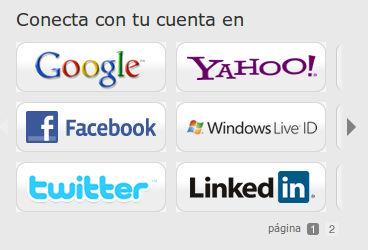
After clicking the social network you want to link your Eventos account with, a new window will open asking you to sign in with your credentials for that social network. For example, if you wanted to link your Eventos account with your LinkedIn profile, the following sign-in screen would be shown:
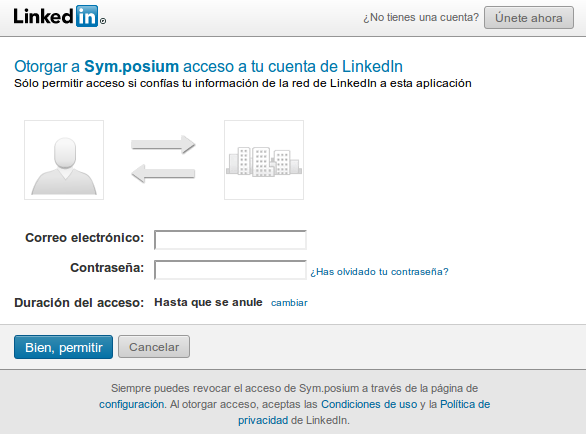
Finally, after successfully signing in to the social network you are going to link, Eventos will redirect you back to the Social networks menu, where you can check that the new social network has been added to the list of linked social networks.