Manage event payments
The event payment management tool lets you control all the payments received for a given event. Only a financial administrator or a platform administrator can access this menu from the financial management panel.
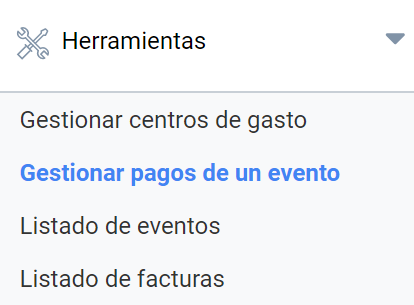
To manage a payment, first find the event you want to look up by its ID or title, and then click the “Search” button.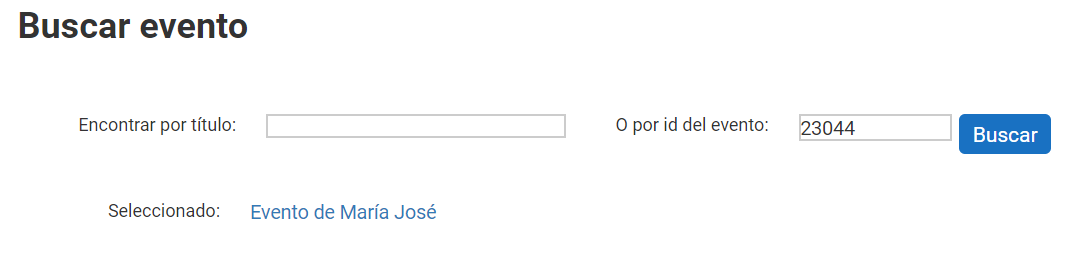
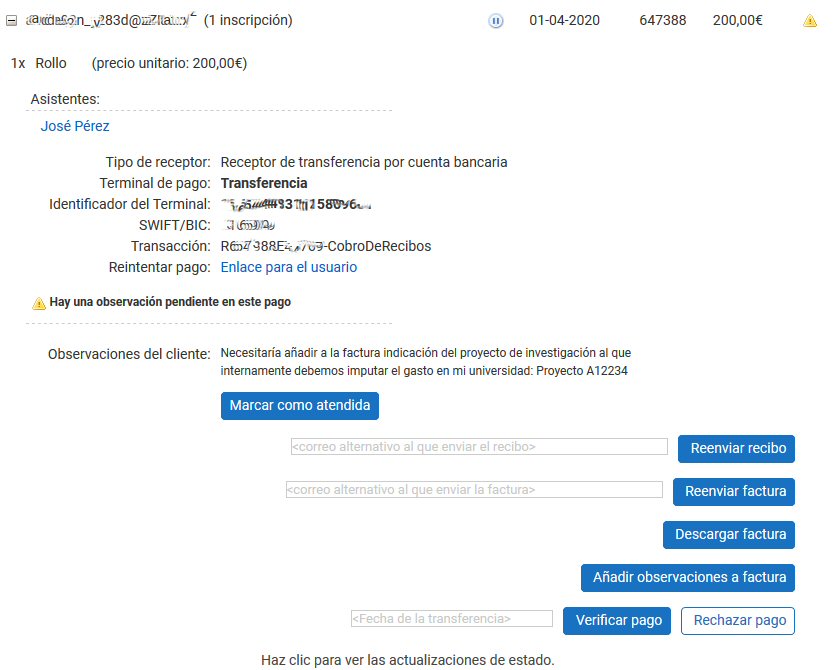
You will get a complete list of all payments received for the event, showing the following details at first glance:
- Buyer: Buyer’s email and the number of associated registrations. The registration process allows multiple registrations to be made and paid in a single payment in the same process.
- Status. The status icons show whether the payment is pending, accepted, cancelled (the financial administrator can cancel a payment) or rejected (for electronic payments automatically rejected by the bank).
- Date. Registration date.
- Receipt number. Unique receipt identification number. The attendee has this number and can quote it if there is any problem.
- Amount. Total amount of the registration, which may vary depending on whether one or several registrations were made in the process.
- Attendee’s Remarks. Attendees can leave notes when requesting an invoice. These notes become alerts for the financial manager, shown as a yellow triangle to the right of each payment. These remarks are initially Pending attention. For each one, the financial manager can mark it as Already dealt with, or set it back to Pending attention.
To get more details about the payment and perform actions, click the icon to expand the information about the transaction.
Resend receipt
You can send the payment receipt again to the buyer’s email address. Alternatively, you can enter another email address to resend the receipt to.
Resend invoice
If the buyer has requested an invoice, you can resend it to their email address or enter another address to receive it.
Download invoice
As a financial administrator, you can download the invoices for the payments received.
Add remarks to the invoice
The financial manager can add extra text to the invoice in the form of a Remarks field. This content will be printed at the bottom of the document.
Verify or reject the payment
For bank transfers, the financial administrator would review the bank statements of income; in the description of those statements they should find the transaction code (since the registration process instructs attendees to include it) and compare it with the one shown in the registration details.
Once a payment has been verified it can be cancelled (due to an error, a refund, etc.). In that case the system lets you enter the reason. The system can be configured to ask for a password in these cases (rejection of a confirmed payment) to try to minimise the risk of accounting errors.
Export to Excel file

You can export the payments for a given event to an Excel file using the button to the right of the event title.