Frequently asked questions
How can an administrator delete an event, even if it has attendees?
My event shows the registration button but it cannot be clicked. What is happening?
I cannot see where to register for my event. How do I do it?
What happens if an error occurs during registration and a payment cannot be completed?
Deleting an event
To delete an event we must go to our Organizer panel. By clicking on our username in the top bar we go to the user section, and from there we can access the Organizer panel by selecting the corresponding tab.
Once inside, we will see a list of our events, split into upcoming events and past ones. Next to the event title we will find the VIEW, EDIT and DELETE buttons.
When we delete an event that has attendees, they will receive an email telling them that the event has been cancelled.
NOTE: An event that has received any payment cannot be deleted. For security reasons, payment data is kept in the tool for a while to cover claims and other issues.
Deleting an event as a platform administrator
Sometimes it may be necessary to remove an event even when it has attendees and has received payments, for example when running tests and demonstrations. Below we explain how a platform administrator can unilaterally undo any kind of operation. NOTE: Modifying a real event is strongly discouraged, since it will create data inconsistencies and it will be impossible to provide support in the event of claims and other issues.
Precondition
To delete an event or put it back into draft mode, the following conditions must be met:
- The event must NOT have any attendees
- The event must NOT currently be within its registration period
How to remove the registrations for an event
If the registrations for an event must be removed, the Administrator will have to impersonate the attendees one by one and cancel their registrations.
To impersonate a user, we need to know the email address they registered on the platform with. It is important that it is the attendee’s own email address, which must not be confused with the contact email of their registration. To see the email addresses of the users registered for our event, we go to the attendee list. There we can click “Print / Export to Excel” to get all the information about them, including their email addresses.

Next, we impersonate the attendees one by one using the “Username or email” option and the data obtained from the list. Once impersonated, we go to their list of attendances to CANCEL the attendance at the event we want to delete. If the attendee has made a payment, they will be asked for confirmation to cancel their registration. We must accept the confirmation to be able to remove the attendance completely.
Once we have cancelled the attendance of all the attendees, we move on to the next step.
Closing registration for the event
For registration for the event not to be in force, we must change its registration dates. We do this from the Relevant dates section. We set the registration closing date to a day in the past and click Save.
Our event now has registration closed and we can go ahead and delete it or set it back to draft.
Back to Draft mode
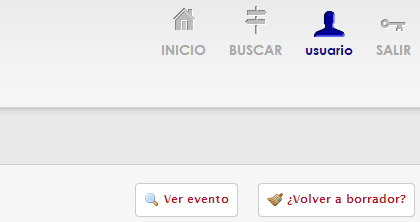
An event in draft mode is invisible to users, so it effectively hides any test content. To return the event to Draft status, once the previous steps have been followed, we will find the “Back to draft?” button at the top right of the screen.
Deleting the event
If we prefer to delete the event completely, we can do so from our list of events. Remember that we can ONLY delete an event if it has not received any payment. If our event has received any, we will have to settle for returning it to draft mode.
Registering for the event
On an event page, usually in the header, there is a button with the text “Enroll” that lets us start the registration process. It is normally larger than the other elements and is at the top of the event page, close to the title and the header image, although a template may show it somewhere else.
This button is only shown if a series of conditions are met:
- We are within the registration period
- There is at least one registration whose own registration period is also in progress
- If our event is paid, it must have a payment receiver assigned
Therefore, to check whether our data is correct, we must check, in order, that:
- In the Relevant dates section, within the Tools section, we have set suitable Registration opens and Registration closes dates.
- Next, from Registration, in the Attendees section, we check that in User registration system we have selected an option other than “No registration”.
- In the same section, further down, we find the Enrollments block. We must check that the registration we believe should be available has the right dates. We do this by clicking the pencil icon shown to its right.
If, even though the data is correct, you cannot see the “Enroll” button, check that you are not using a custom template that contains an error. In the Design section, go to the Templates tool and select one of the system templates (Modern, Classic, Elegant or Compact) to see whether this solves the problem.
Registration with dinner
Suppose we are organizing an event with free registration. At the end of the event, attendees can go to a dinner costing 10 euros. How can Symposium help me organize it?
In the Registration option of the menu, within the Attendees section, we will find everything needed to organize a case like this, also using the Products option.
First we configure registration for the event. From the Registration option, we select Free as the User registration system. Next, we can define other parameters if we see fit, such as the capacity. Finally we confirm that a free ticket has been created in Enrollments and that it will be available during the period we consider appropriate.
Now, in the Products menu option, within the Attendees section, we create a new product, which we will call “Closing dinner”, for example. We can enter a short description, an image and the price: 10 euros. Finally, we can configure how we want our attendees to purchase the “dinner”:
- “Stock units” lets us define a maximum capacity, in this case. For example, if our booking is for 20 people, we would enter that amount as the stock.
- “Available until” is useful if we want to close dinner sales at a certain moment. For example, if we want to confirm the restaurant booking 3 days in advance. That way, even if not all the available units have been sold, the product will no longer be on sale.
- “Maximum per enrollment” determines how many dinners a single attendee can buy. If, for example, we want each attendee to be able to bring a companion, we set 2 as the maximum. That way, when a person registers for the event they can buy 2 places at the dinner, and if they registered 2 people, they could buy 4, and so on.
All these parameters are optional and can be left empty so that they have no effect.
In this way, after selecting a ticket, attendees will see that they can purchase a place at the dinner and will pay for it with their registration. In addition, from the Products section we can export an Excel file with a list of the attendees who have bought the dinner to help us with the organization.
Registration with dinner without using the Products section
Suppose we are organizing an event with free registration. At the end of the event, attendees can go to a dinner costing 10 euros. How can Symposium help me organize it?
In the Registration option of the menu, within the Attendees section, we will find everything needed to organize a case like this, using the Capacity and Enrollments options.
First we configure registration for the event. From the Registration option, we select Payment as the User registration system. Next, we select the event capacity, if it has one. In our example, the event capacity is unlimited, although we only have 20 places for the dinner. Let us see how we can solve this:
- The first step is to leave the event capacity as unlimited.
- Next, we create a free ticket for our event and define its parameters as appropriate.
- Then we create a paid ticket, priced at 10 euros, and state clearly that it includes the dinner.
- As we want a maximum of only 20 places to be sold, we set that as the quantity under the “How many?” prompt.
- In addition, to be able to confirm the booking 3 days in advance, we set the availability period accordingly so that this ticket is not available after the corresponding day.
Done. Our attendees can now choose simply to attend our event or also purchase the dinner from Symposium by selecting the second ticket type. For our convenience, from the List option in the same Attendees section, we can export to Excel the list of which attendees have bought one ticket or the other.
The registration form
Suppose we are organizing an event with free registration. At the end of the event, attendees can go to a dinner that will be paid at the restaurant itself. How can Symposium help me organize it?
To solve this case, we will use the Enrollments and the Registration forms available in the Attendees section.
First we configure registration for the event. From the Registration option, we select Free as the User registration system. At the bottom, in the Enrollments block, we configure the parameters we consider appropriate for our registration. In this example we will keep the name “Free registration” to refer to it.
Next, in the Registration form option of the menu, we create a new question for our registration. The steps to follow are:
- In the drop-down, select our registration “Free registration”
- As the field type, select a Yes/No question.
- In the question text, enter “Will you attend the dinner?”
- And tick the “Is it mandatory?” box, which forces the user to answer in order to continue with their registration.
Done. When the user registers, while entering their personal details, they will be asked whether they will attend the dinner and must answer in order to complete their registration.
In the same way, we can add a short text question to ask how many diners will come with them, or any other information we need, such as whether they prefer meat or fish, for example.
From the List option in the Attendees section we can export an Excel file with all our attendees’ answers, so that we can organize the dinner properly.
Capacity per registration
Suppose we are organizing an event that has two rooms with different capacities, which we want to fill. In our example, Room A will have a capacity of 45 people, while Room B will have a capacity of 20 people.
From the Attendees section, in the Registration menu option, we can create two registrations that cover this scenario. After configuring the User registration system appropriately, we scroll to the Enrollments block to start the process:
- First we create the “Registration for Room A”, which we configure according to our needs. In our example, we set the Available quantity to 45 units.
- Next we create the “Registration for Room B” with its corresponding parameters. Following the example, we set the Available quantity to 20 units.
With these simple steps, registration for our event will be limited to those two options, which in turn will only be available until the defined quotas are reached. In addition, from the Attendees section we can export an Excel file detailing our attendees’ data, including the selected registration among other information.
What if, in the previous case, as well as the per-room limits I wanted to limit the overall capacity to just 45 people?
Suppose that in the previous example we want to limit the total number of attendees to 45. That is, we want to allow Room A to fill up with nobody registered in Room B. Or, if Room B fills up, only 25 people to be able to register for Room A.
To achieve this we will use the Event capacity tool, available in the Registration menu option within the Attendees section.
Once inside the Registration option, we will find the Event capacity block in second position. This block lets us define the overall capacity of the event, as a total limit on the capacities of the different registrations we have created.
Simply by entering the quantity (45 in our example) we will limit the total number of attendees at our event, even if the total number of places available across the registrations is higher.
Handling payment errors
During the registration process the platform stores the related data as it goes. Once the final review step is reached and the user clicks the Payment or Confirmation button, the data is confirmed and saved as pending. From that moment on, all the data relating to the registration and the payment to be received has been stored correctly in the system.
If an unexpected error occurred and the payment were never received, several mechanisms would come into play to resolve the situation.
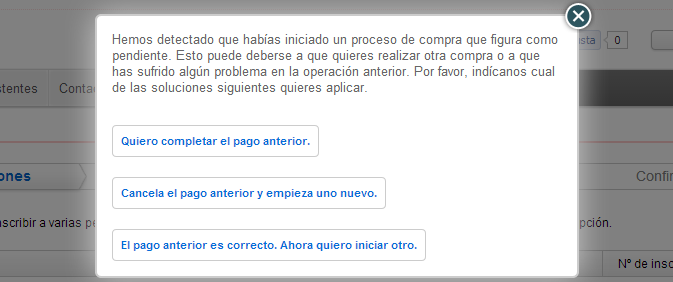
First, if the user is still connected to the website, when they try to register again the system will detect that they have just made a registration that has not been completed. At that moment, a dialog will offer them the option to resume that registration, cancel it or start a new one as normal, resolving the issue on the spot.
In addition, the system periodically searches for pending payments. When it finds one, it sends an email to the address given as responsible for the payment, reminding them of the status of the registration and the pending payment. That email contains two links to the platform that allow the registration to be completed or cancelled respectively. This email is sent 5, 24 and 48 hours after the registration was started.
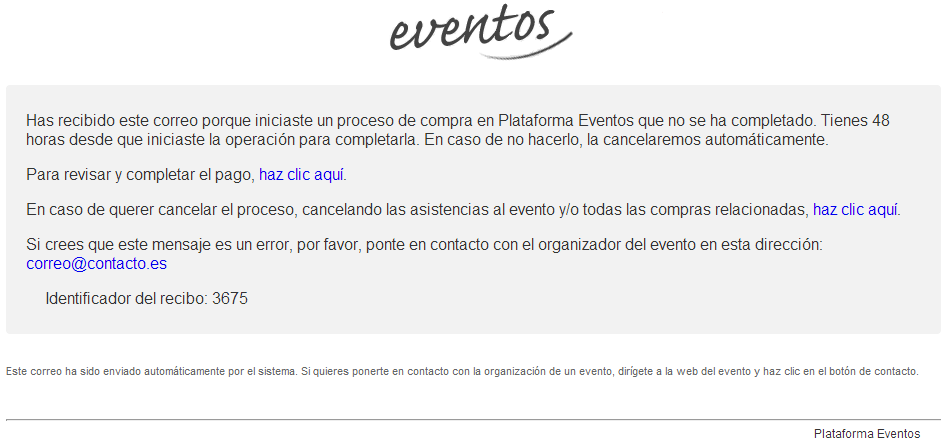
If the person responsible for the registration does not confirm or cancel it, the system will cancel the registration automatically after 72 hours.
When a paid registration is cancelled, whether manually by the user or automatically by the system, no data is deleted. The system will show the attendees’ registrations exactly as they were made, but marked as cancelled. Likewise, the payment, if any, will be marked as cancelled, indicating whether it was cancelled manually by the user or automatically by the system.
In this way, there will be a record of the whole process to deal with any claims or issues.