Events manager
When you log in to the platform with your email and password, or with any of the other sign-in methods, you enter your private area, and the first panel you see is called “My events”. Depending on the roles you hold on the platform, you will find more or fewer additional buttons.
The My events panel contains a list of all the events you are related to in any way, whether as an Attendee, Organizer, member of the Scientific committee, Reviewer of scientific documentation, or any other role. From this panel, platform Administrators and Financial managers also have access to their control panels.
Event filters

For some platform users, the list of events they are involved in can become very long. For example, organizers can build up a very extensive history of events they have managed with Symposium. To make it easier to keep track of and manage events, there are several event filtering and search tools:
- Text filter: an event search engine based on the search terms you type;
- All my events: removes all applied filters and shows the complete list of events you are involved in;
- Events that I am registered in: shows only the list of events you registered for as an Attendee;
- Events that I organise or participate in: shows only the list of events in which you are involved with some role, whether as an Organizer, as a member of a Committee or with any other role.
Upcoming events
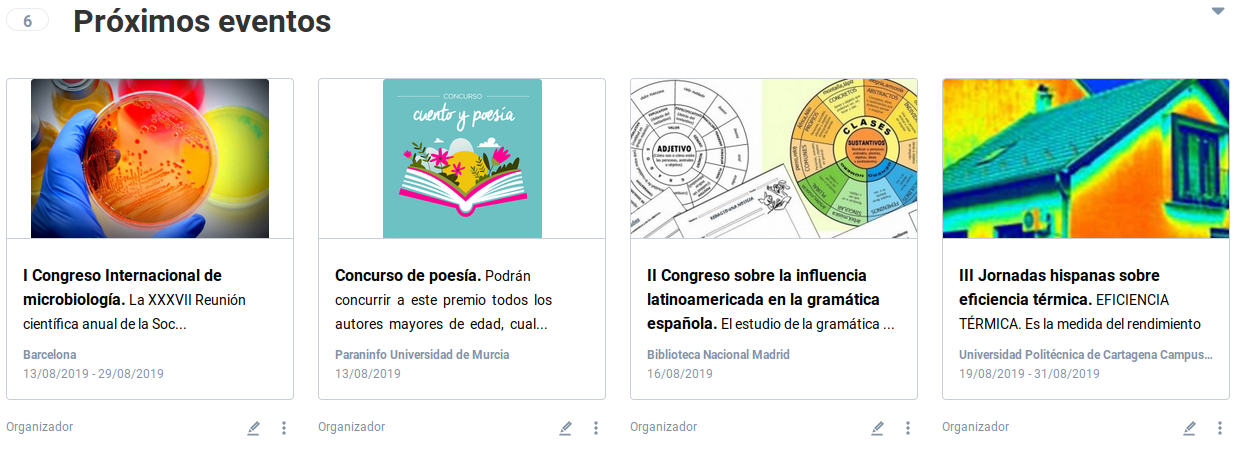
This section lists the events that will be held soon and in which you are involved through some role. The list can be filtered with the tools described in the previous section. For each event, a card is shown with its image, title, the first words of the Description field, the dates on which it is held and the venue.
User options
Below each card, the role or roles with which you take part in the event are shown. The Edit button appears when you have permission to edit the event. The menu button will show options to act on the event according to those same roles.
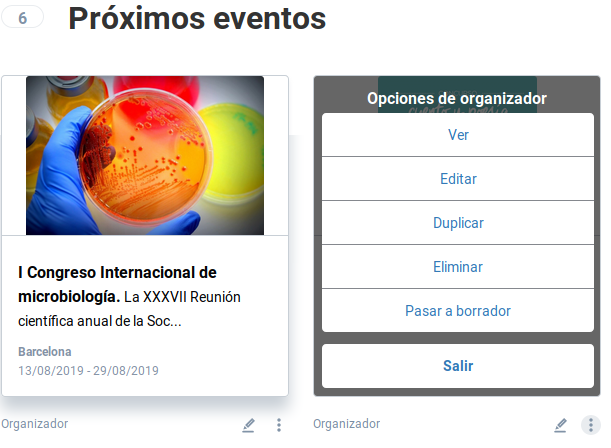
Organizer menu
As an Organizer user you will be able to view the website, edit the event, duplicate your event and create a new edition, and finally publish it or switch it to draft mode, depending on its status.
Attendee menu
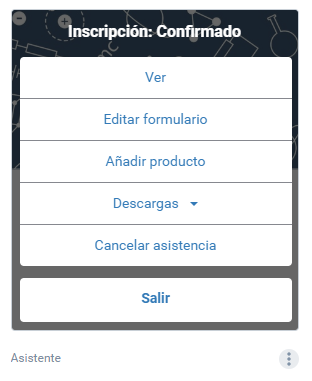
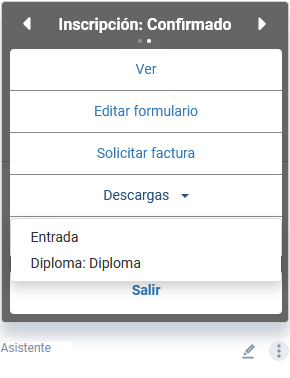
As an event Attendee user you will have the option to view the event website, edit your answers to the registration form, and add products to your registration (when the event has stock). From “Downloads” you will be able to get a PDF with your ticket and QR code for access control. You can only download the QR code if the event has its issuing configured. Likewise, from this section you will be able to download the certificate that accredits your attendance at the event, if the organizer issues it. Finally, you can cancel your attendance at the event.
 |  |
Registration manager menu
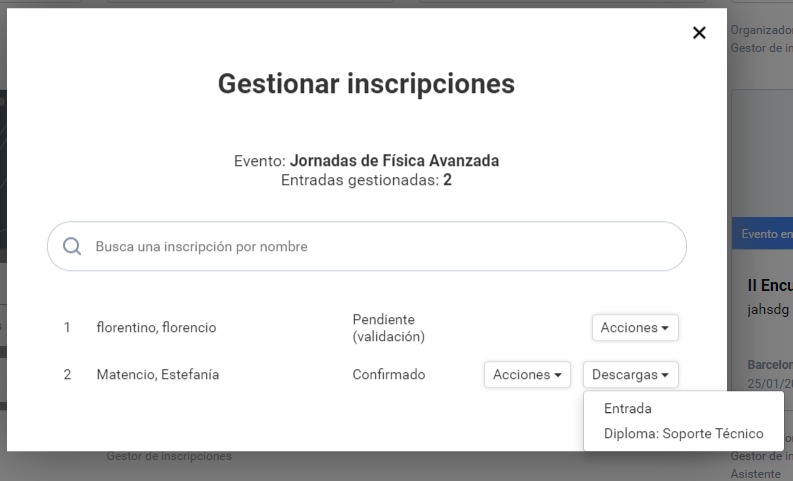
As a registration manager you have access to registration management.
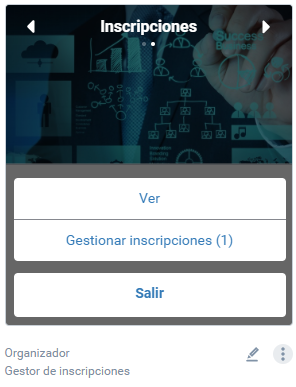 In the modal of your managed registrations you will see up to two buttons: Actions and Downloads.
In Actions you will find the management options available to you as a manager.
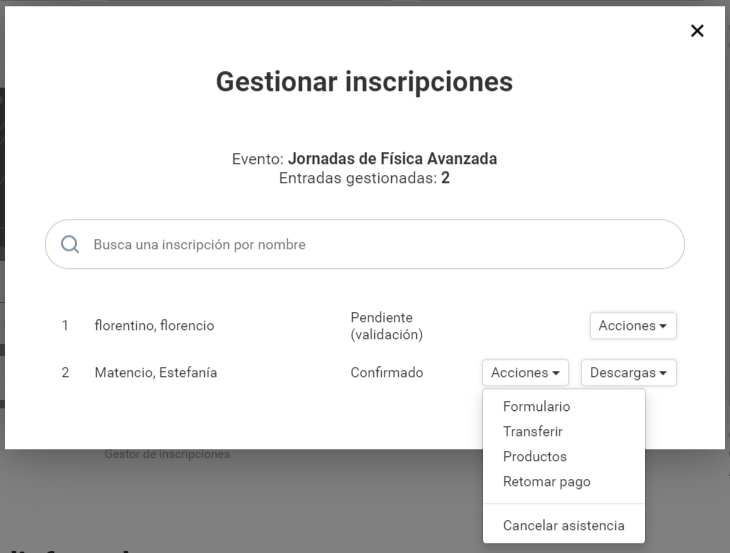
In Downloads you will be able to download the PDF with the tickets and the event QR code for access control, and download the attendance certificate, if the organizer issues it.