Map of places
You can configure various options about the event venue and other places of interest associated with it, such as restaurants, accommodation, public transport and other locations that may be useful to your event attendees. To do so, access the places of interest menu by clicking “Map”, available in the “Tools” section of the Organizer panel.
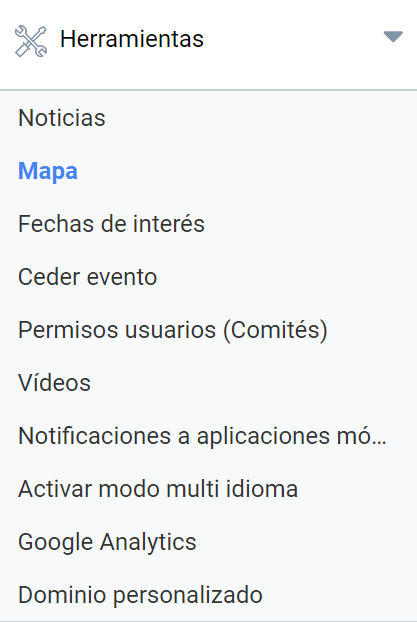
Managing the event’s places of interest
From the “Map” menu you can perform several actions related to the places associated with your event. You can change the location of the event venue and add a description that expands the information about this location. You can also mark on the map other places of interest for event attendees.
Event venue
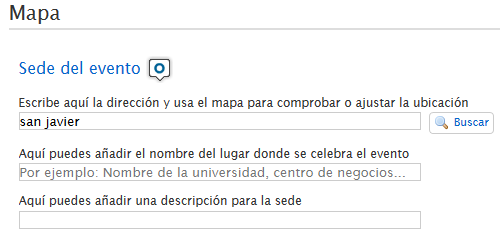
You can change the address of your event venue by typing the new address in the text field provided. Click the “Search” button to the right of the text field to save the new location of the event venue on the map. This way you can check that the address is correct.
There are two more fields:
- Name of the place where the event is to be held: this is used to identify the venue more precisely so that the map shows it that way. Therefore, what you enter here will match what appears on the map.
- Venue description: a text field to help attendees identify a building, an esplanade or, in general, any detail that makes it easier to find. This data will not be shown on the map as a point of interest.
You can save the changes made by clicking the “Save” button at the bottom right of the menu.
The platform Administrator may have set up a number of fixed places of interest for Events. If so, in the map box you will find a block on the right showing a list of those places so you can select them more quickly.
More places of interest
You can use this option to place new places of interest on the map, so that event attendees can find out which services are offered near the event venue.
The buttons for controlling the map are at the top left of the map.
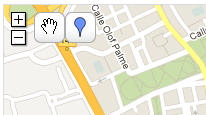
Use the hand button to move the map and place it in the desired position. Click the balloon button and then on a place on the map to set a new place of interest. When you do so, a menu will open where you can specify a name and a description for the new place of interest, as well as select the icon with which you want it to appear on the map.
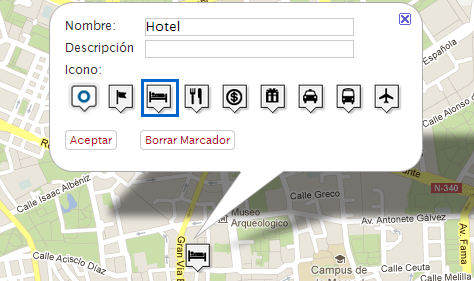
Click the “Accept” button to save the changes once you finish configuring the new place of interest. If you do not want to save it, you can delete it using the “Delete Marker” button. The new point of interest will be visible on the map and will offer the information entered to visitors of the event page.