Relevant dates
When you create an event you are asked for a start date and an end date, but you may need to define more relevant dates. This is done in the Tools > Relevant dates menu.
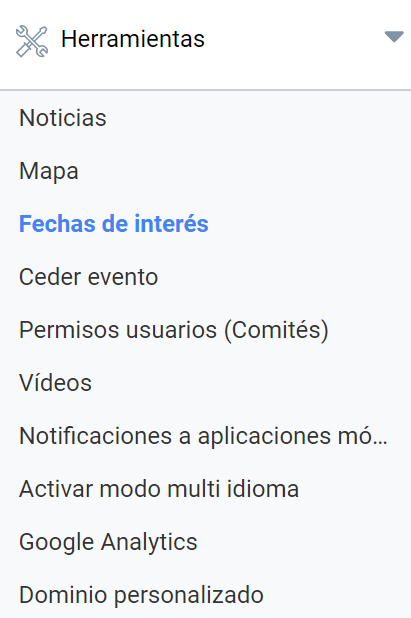
Adding relevant dates
To add a date, click Add date. Select what this date corresponds to in the Date type list. A short list of generic types is available, as well as the option to define a custom date type:
- Abstracts submission period
- Deadline for communicating abstracts acceptance
- Papers submission period
- Customized
The first three then ask you to enter the deadlines with date and time. The Customized type asks for a name for that type and a description, which can be left blank or filled in with text.
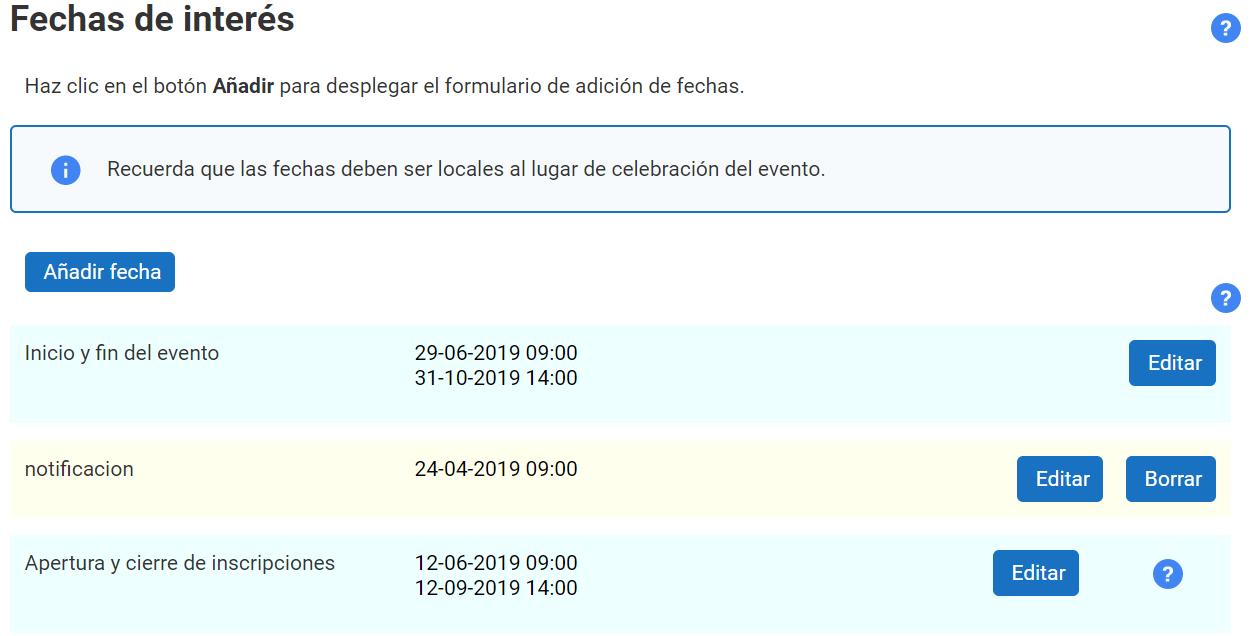
You can also edit or delete a date with the corresponding buttons on each date in the list.
Last updated on