Committees. User permissions.
You can manage the administration permissions other users have over your Event by assigning them to organizing Committees. For each Committee you can manage which permissions it has over the Event, dividing the organization tasks quickly and effectively.
You will find this tool in Tools > “Committees”.
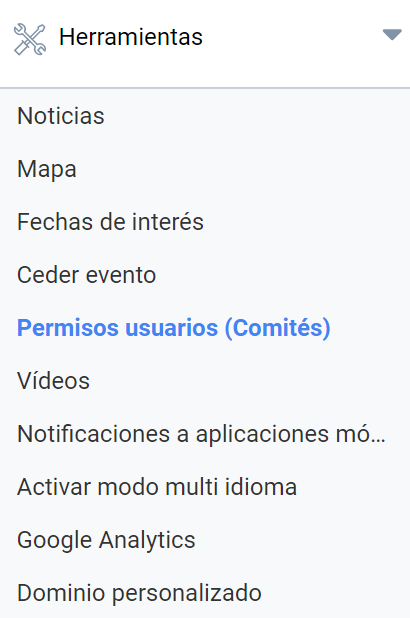
Committees
You can create groups of users with different permissions, ranging from “Administrator” (who would have the same permissions as the event Organizer) to “Scientific committee” or “Organizing committee” (which have different permissions assigned by default).
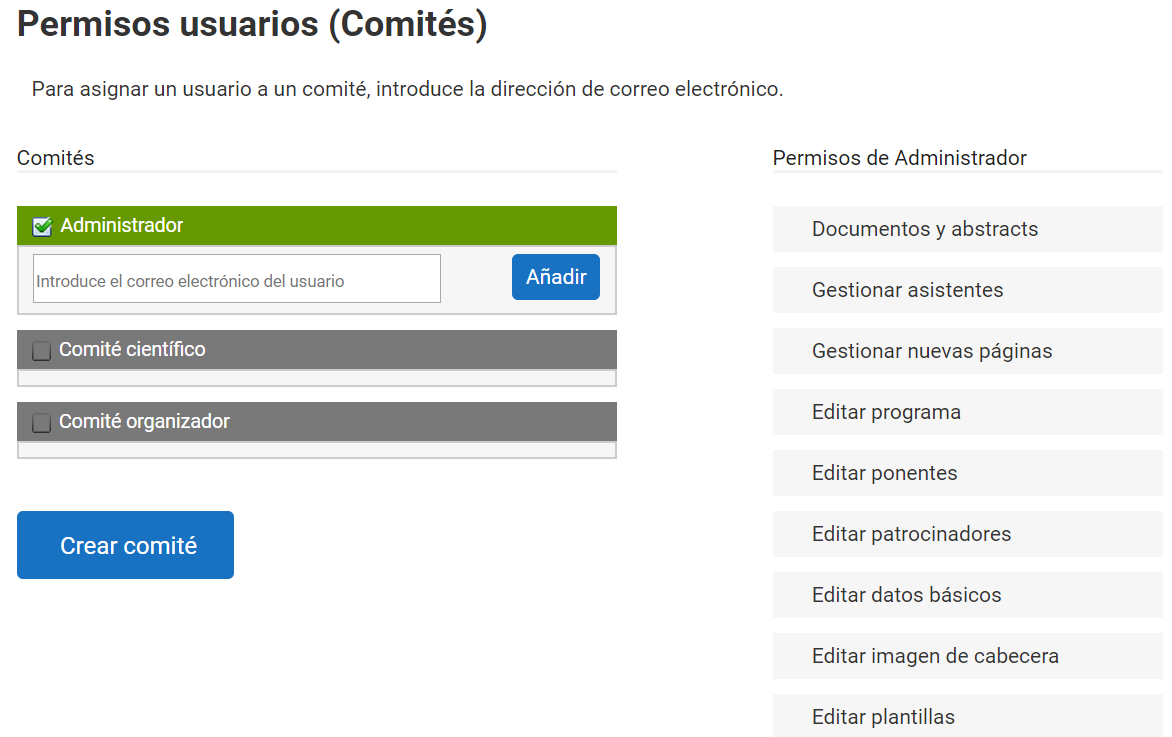
Administrator committee
If a user needs to have all permissions over the Event, they must be added to the “Administrator” Committee. From then on, that user will share all permissions with the Event Organizer, including the ability to invite other Administrators.
Scientific committee
Appointing a Scientific committee enables certain users to access the Scientific documentation menus. They will be able to access Abstracts and Papers, launch a Call for papers, set the categories or Tracks of the Papers and moderate the public comments of the categories in which they are enabled. This means that the members of the Scientific committee can evaluate the documentation received.
Organizing committee
A platform user can be included as a member of the Organizing committee if they need to take part in the management tasks of an Event, that is: attendee management, including creating Registration types, and editing the Schedule, Speakers, Sponsors and Organizers. They will also be able to create new custom pages.
Create committee
You can also create a new Committee, that is, a new group to which the necessary permissions can be assigned. To create a committee, click the “Create committee” button. A new text field will open where you can type a name for the new Committee. In addition, the right-hand column will be enabled with the list of permissions that will be granted to the users of that new Committee. To do so, tick the box corresponding to the permission you want to assign to the Committee. Finally, click the “Add” button.
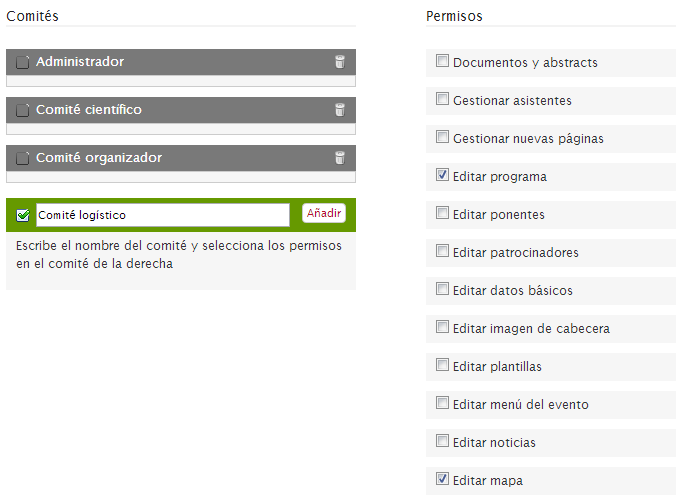
Afterwards, within each committee you can add the email addresses of new members to send them an invitation to join it. Once they accept it, they will see the Event in their “Organizer panel” and will be able to edit it, but limited to the sections designated in the committee’s permissions and without access to the others.