Bookings
The Bookings menu lets organizers request spaces and resources for their events and check the bookings they have in progress.
Creating a booking
The following information must be filled in:
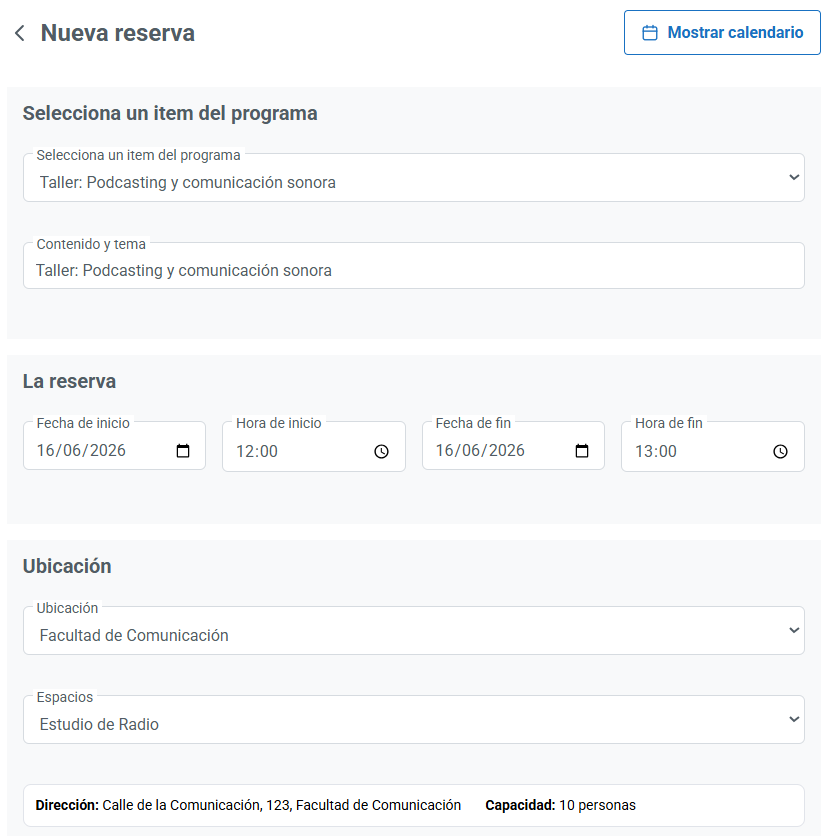
- Select a schedule item: optional. This field will only appear if there is content in the Schedule section of the event. If there is, selecting an item copies its data to the booking.
- Content and subject: can be typed manually. If an activity from the Schedule has been selected, it is filled in automatically.
- Start date and time: can be edited manually. As with Content and subject, if an activity from the Schedule has been selected it is filled in automatically.
- End date and time: can be edited manually and, like the start date, can be copied automatically from a Schedule activity.
- Location: selector of the venue or building where the activity will be held.
- Spaces: room or space available within the selected location. Note that it will only show the spaces that are available for the dates and times entered.
The booking can include the resources associated with the space, such as chairs, technical equipment or additional equipment, always subject to availability. It works much like a shopping cart. For example:
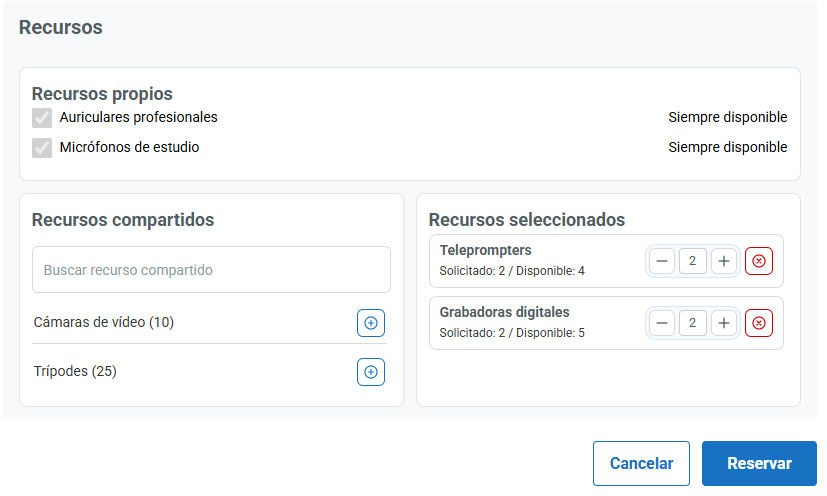
Once the information is complete, click the Book button to send the request. Spaces or resources that are already blocked by other requests in the same time slot cannot be booked.
Booking statuses
Bookings can be in the following statuses:
- Pending: the request is awaiting validation and holds a reservation of the resources. It therefore has priority over any new request that may come in.
- Accepted: the booking has been approved by the administrators.
- Rejected: the request has not been approved by the administrators, and the spaces and resources are immediately released for new requests.
From this screen you can filter bookings by status and quickly check the information of each request.
Bear in mind that status changes are managed exclusively by users with the platform administrator role, from the Bookings menu.
Modifying or deleting bookings
From the list of bookings you can also manage pending and accepted requests:
- Modify a booking to update the Content and subject field or the Associated resources. If the dates or times of the booking need to be changed, you will have to delete the request and create a new one.
When a booking that has already been accepted is modified, the system automatically generates a new request in pending status linked to the original booking:
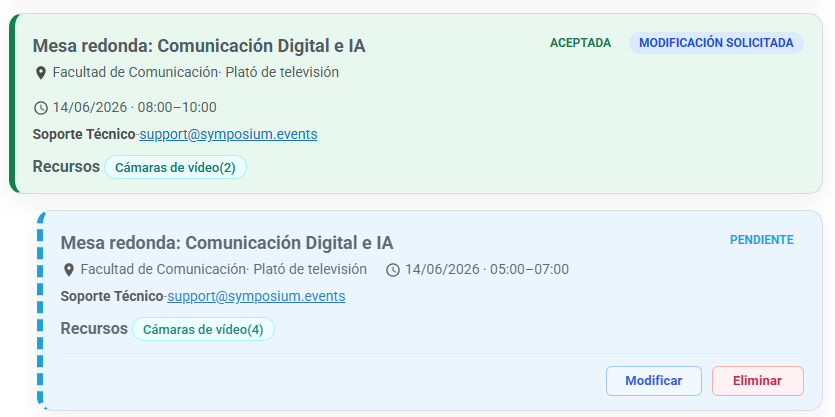
Once the administrators approve the modification, the original booking will disappear and be replaced by the new version.
- Remove a booking to cancel the request.
You can create as many bookings as you need, as long as spaces and resources are available.