Scientific documentation upload form
Users submit scientific documentation through a form on the Event website, which differs depending on whether they are Abstracts or Papers. This form is defined by the Symposium system with some default components, but you can add more controls or remove some of those that appear by default. A documentation Upload form is defined from the Scientific Docs > Upload form menu.
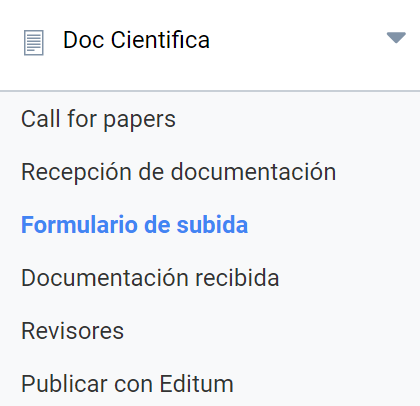
When you open that page, a set of controls is offered to add functionality to the Upload form and, further down, a list of the fields it already contains.
Current fields
Initially, a box titled Authors is shown with a list of the fields that will appear in all upload forms. Two of them are always mandatory, plus three others that are shown at first but can be hidden:
- Author’s full name: mandatory;
- Author’s contact email: mandatory;
- Author’s public name: optional, enabled by default;
- ORCID Identifier: optional, enabled by default;
- Author filiation: optional, enabled by default.
The information the applicants enter there will be visible to Reviewers. If it needs to be hidden for an anonymous evaluation, you must enable an option found in another menu, Scientific Docs > Received documentation.
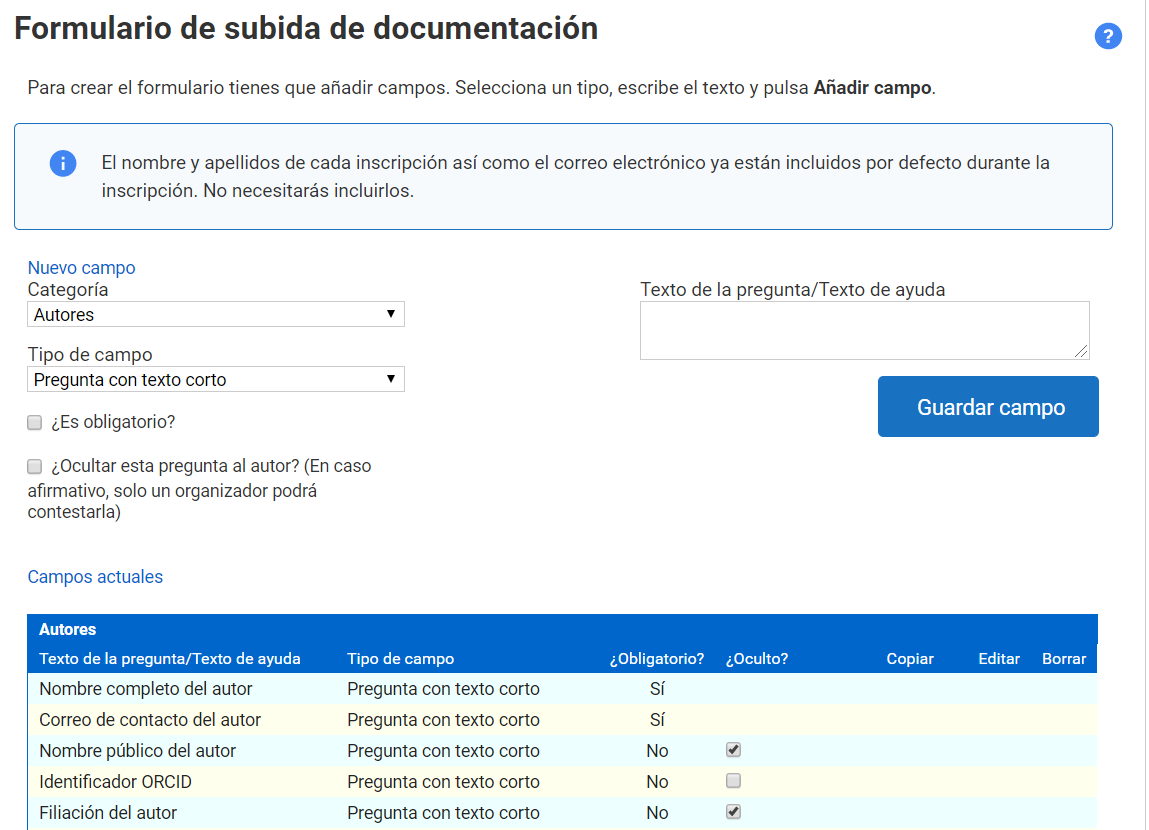
Fields can be hidden simply by ticking their checkbox in the “Hidden?” column. These default fields cannot be modified. If other functionality is needed, hide them and create new fields that do what is required.
Creating a New field
Multi-language configuration
Creating a new field in any language always affects all the Event’s languages, because as many copies are made as there are languages. However, you will have to translate its configuration into each language separately. If you do not, it will appear in all of them with the text of the language in which you originally created it.
On the other hand, editing a field in one language does not affect the others at all. This makes it possible to translate and adapt each one.
Customizing a field
You can create a field that appears in two or more Categories, but not in all of them. To do so, create it only once and link it to a Category. Then find it in the fields table and click the Copy button. The application will ask in which other Categories it should appear.
Custom fields can be edited or deleted, using the specific buttons for that purpose.
Creating new fields for the Upload form consists of:
- Linking it to a Category: the new field will only appear for documents to be uploaded to a specific Category or Track. If you choose Authors, it will always appear in all Categories, although the answer will only be visible in events that do not have Anonymous review enabled.
- Choosing the field type:
- Short text question
- Long text question
- Yes/No question
- Single choice selection
- Multiple choice selection
- Date
- Attachment
- Country selection: a drop-down list with country names in alphabetical order
- Help text: this last one is not a field to fill in; it lets the Organizer show text in the documentation Upload form to help users if they need it.
- Configuring the chosen field type: depending on the type of field added, you will have to enter a text as a title and possibly set a series of options to choose from or a button to upload documents.
Additional options
Ticking the Required? checkbox prevents the website visitor from submitting documents without first filling in that field.
The Hide this question from the author? option means that it is not the visitor who has to fill in the field, but the Organizer, without the visitor necessarily knowing about it. It is useful for internal notes such as “Is a VIP attendee” or similar.
If a new field is created linked exclusively to one Category or Track, it will only become visible when the visitor who wants to submit a document selects that Category on the Event website.