Received documentation
Symposium offers detailed control of an Event’s scientific documentation. A fundamental part of this functionality is the management of the documents that users who want to take part send to the organizers. Symposium follows academic standards, and an Event can accept Abstracts and Papers. The former are summaries of the latter, which are the scientific works to be presented at the Event.
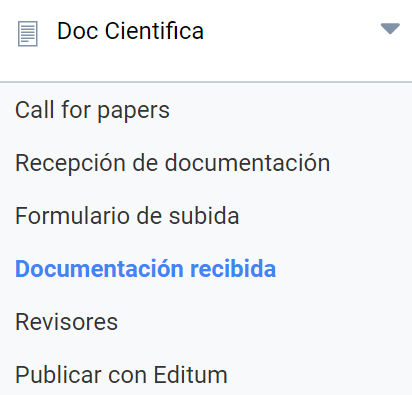
Received documentation is managed in the Scientific Docs > Received documentation menu.
Although these contents can be evaluated by members of the organization, made up of the Event Organizer and the members of the Organizing Committee, they are often entrusted to a selected group of platform users who make up the Scientific Committee.
Users submit documents to the Event, whether Abstracts or Papers, and must associate them with a Track. Tracks have a designated owner, who will receive a notification email for each document received. If no owner has been designated, the Organizer will receive all those notification messages.
A complete list of the emails generated by Symposium is available in Email communications.
Enabling Anonymous review
At the beginning of this section there is a checkbox that Organizers may want to tick, at their discretion, to enable document anonymity. If enabled, Reviewers will never be able to see who the author of the documents they have to evaluate is. This feature is valuable in scientific Events.

Buttons to export the content
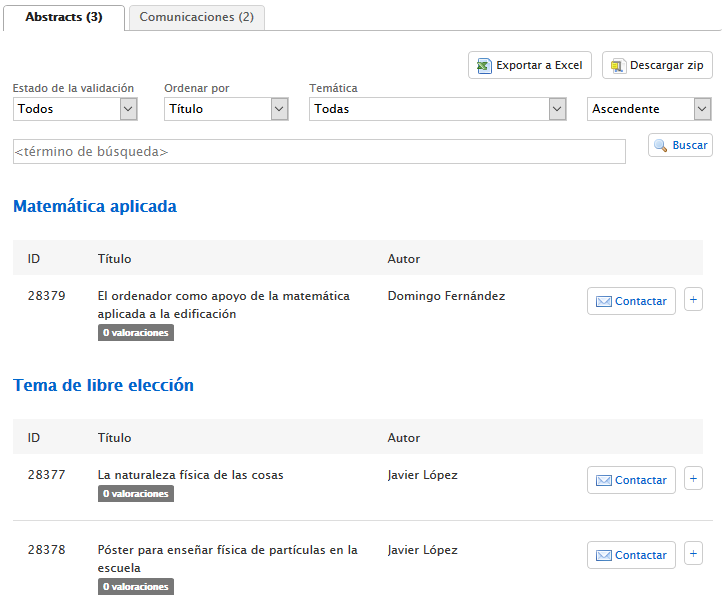
Next, this page is organized in two tabs: one shows the collection of Abstracts received, ordered by Track; the other shows the Papers in the same order.
At the top of each tab there are two buttons:
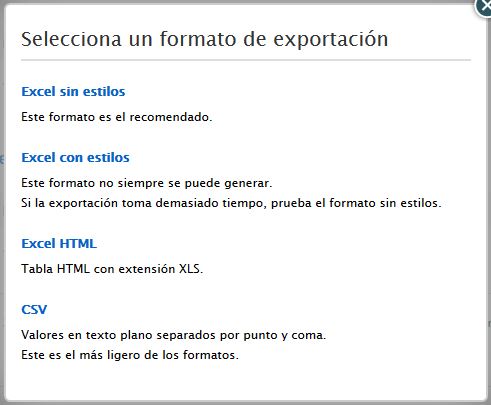
- Export to Excel: produces a document with the full content of the documents, in a format readable by several kinds of applications such as spreadsheets or web browsers, and all the other fields the authors had to fill in to submit them. To obtain this information you must expressly accept a data protection clause.
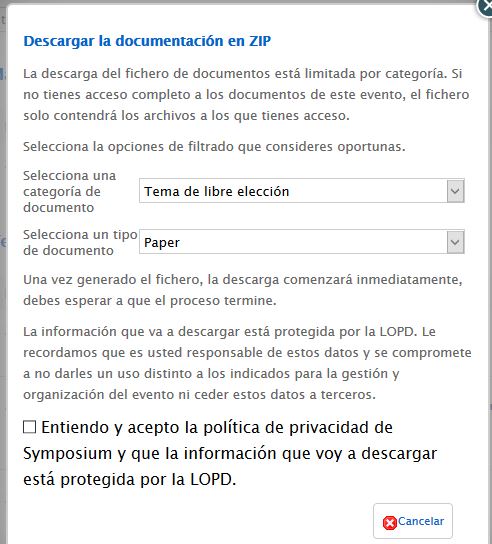
- Download ZIP: produces a Zip archive file with the documents of a chosen Track. Users who want to obtain these documents will be limited by the permissions the organizers have given them. If you want documents from several Tracks, repeat the process as many times as there are Tracks.
Content filter
Sometimes an Event’s scientific documentation becomes very large and the list very long. You can organize that content with the filter controls:
- Validation status: shows only the documents that are Pending, Accepted or Rejected
- Sort by: Title (sorted alphabetically), Identifier (sequence number of each document), Date
- Track: choose among the available ones
- Ascending or Descending (for when alphabetical sorting is chosen)

Besides the list filter fields, there is a box to type specific terms to search for in the documentation, with its corresponding Search button.
List of documents
Abstracts
The list of Abstracts is organized by Tracks or Categories. First, a summary list is shown and for each Abstract it shows:
- ID: a sequence number
- Title
- Author, when Anonymous review is not enabled
- Score and number of ratings received, as long as it has already received some, and depending on whether more than one Reviewer is assigned to the Abstract
- Contact: to send an email to the author
- + button: expands the visible content of the Abstract, which in turn shows: - Date - Document type - Form +, which expands the custom fields set in the Upload form - Content of the Abstract - Rating, by Range (drop-down list) or by Rubric rating (a button that opens a panel with the previously designed criteria and levels) - Assign the rating to Reviewers, when Individual review is enabled in the Track; if it has already been rated by all those assigned, it shows the score the work has obtained - Status: to decide whether the document is approved, rejected or kept on hold - Comments: to add public comments and moderate existing ones, if they are enabled for the Track - Cancel sending: to delete the Abstract completely - Change category: to assign the Abstract to another Track, if appropriate - Edit submission: to show the Abstract submission form on the Event website with the possibility of editing it
Papers
Very similar to the Abstracts panel, it is initially organized by Tracks or Categories. A short list of Papers is shown with:
- ID: a sequence number
- Title
- Author, when Anonymous review is not enabled
- Score and number of ratings received, as long as it has already received some, and depending on whether more than one Reviewer is assigned to the Paper
- + button: expands the visible content of the Abstract, which in turn shows: - Date - Document type - Form +, which expands the custom fields set in the Upload form - Download to get the file with the Paper - Rating, by Range (drop-down list) or by Rubric rating (a button that opens a panel with the previously designed criteria and levels) - Assign the rating to Reviewers, when Individual review is enabled in the Track; if it has already been rated by all those assigned, it shows the score the work has obtained - Status: to decide whether the document is approved, rejected or kept on hold - Comments: to add public comments and moderate existing ones, if they are enabled for the Track - Add activity: turns a Paper into an entry in the Event Schedule without having to go through the Content > Schedule menu. - Cancel sending: to delete the Paper completely - Change category: to assign the Paper to another Track, if appropriate - Download Abstract: offers the Abstract of that Paper for download - Edit submission: to show the Paper submission form on the Event website with the possibility of editing it
Some functions common to Abstracts and Papers
- Change the document Status (always changed manually): - Accepted: the document is approved as official content of the Event. For an Abstract, it also means the corresponding Paper can be submitted - Rejected: the opposite of the above; the document will not be part of the Event. For an Abstract, it means its corresponding Paper cannot be submitted. - Pending: awaiting later review
- Score: related to the first two, but not automatically. A Reviewer can evaluate a document as configured, by Range or by Rubric.
- Download the document
- View and publish comments, when its Track is configured to accept public comments
- Assign Reviewers, when Individual review has been configured for its Track
- Assign the rating to a Reviewer: to individually assign the evaluation of a document to a Reviewer, the Individual review option must first be enabled in the Track the document belongs to, and there must be at least two Reviewers for that Track to choose from. In addition, a Rating method must be defined there.
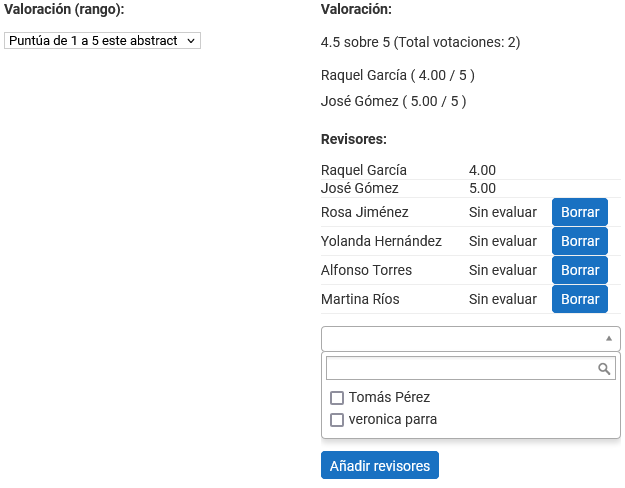
If a work already has individual Reviewers assigned, a list of them is shown. The Event Organizer can also see the score each of them has given. Other Reviewers cannot see the scores given by the others. Individual ratings are also detailed in the export file and, again, are only visible to Organizers.
To assign one or more Reviewers, tick their checkboxes and click Add reviewers. If you later want to add other Reviewers, the list will only show those who have that document’s track and are not yet Reviewers of that particular document.
To remove Reviewers assigned to a document, just click the Delete button. You can only remove them from that document’s assignment while they have not yet submitted a rating. If they have already evaluated it, the Delete button will no longer be available.
- Moderate comments: only Scientific Committee members can moderate comments on papers, provided that comments have been enabled in the corresponding Tracks. You can add a Comment or Show existing ones. These public comments are shown and managed directly on the Event front end, never in the back office.
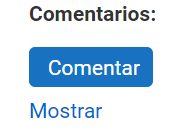
The ability to record annotations as comments is available in two modes, chosen by ticking or leaving unticked the “This comment is an internal note” option. By default, comments are Internal notes and the scientific authors will not receive any notice about them.
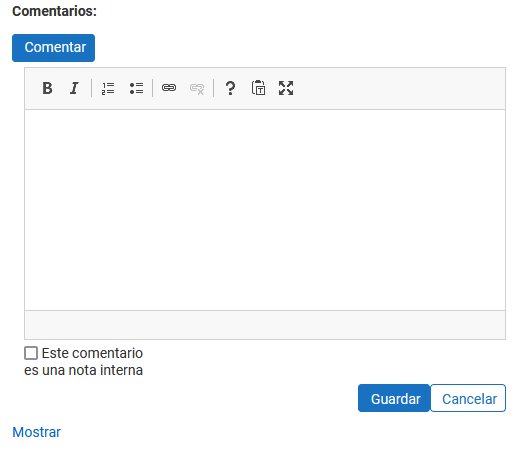 Clicking the Comment button opens the editor for new comments. The editor allows some styling: bold, italics, ordered lists and links to other pages.
By default, comments are an internal note.
If the “This comment is an internal note” checkbox is unticked, an email with the comment will be sent to the author, and the comment will also be saved.
The Show button expands the list of comments associated with the received work. All comments on a work are visible to the event organizers, committee members with access to the documentation, including the Scientific Committee, and the Reviewers who can read each document.
- Cancel sending: this action is not reversible. Once a document has been deleted, it cannot be recovered.
Action specific to Papers: add to the Schedule
In an Event it can be useful for a received Paper to become part of the Schedule. This is common in scientific Events and saves management work. When a Paper is accepted, you can click the Add activity button. Controls will appear that let you add an activity to the Event Schedule on the fly without having to go to the Content > Schedule menu.
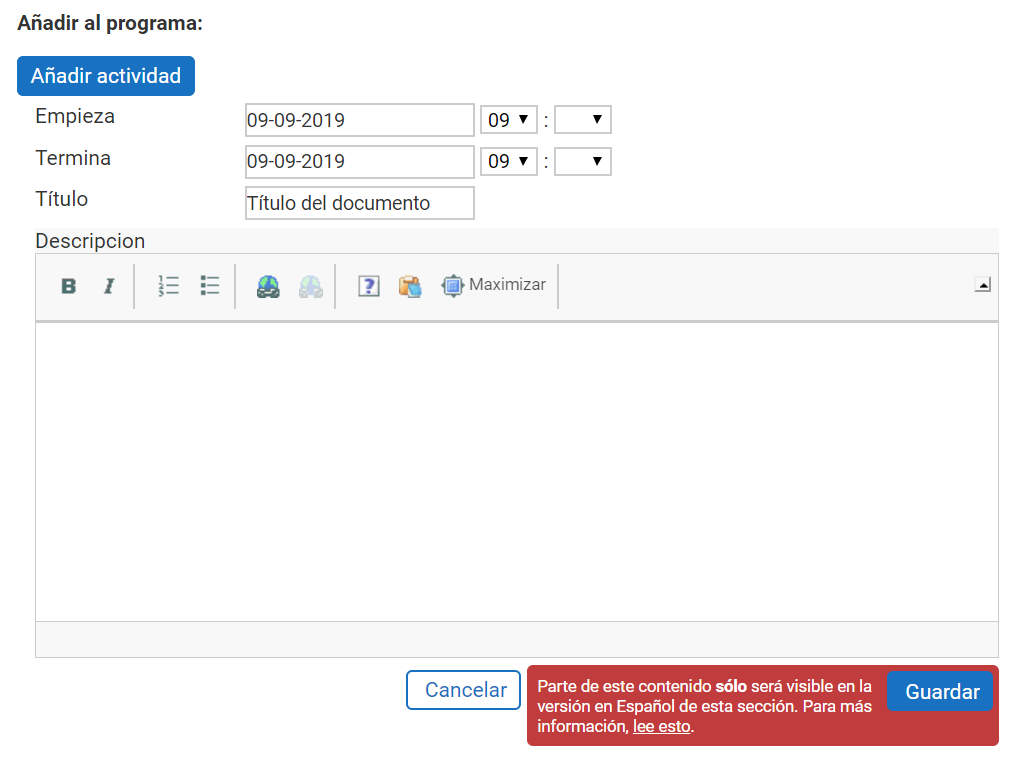 In addition, the Symposium application will fill in the activity title by copying the title of the Paper, although it can be changed. Start and end dates and a description must be entered. In multi-language Events only the dates will be saved for the other languages. The title and description must be edited manually in the Schedule of each Event in the corresponding version of each language.