Event templates
Symposium lets you customize the graphic style of your Event’s main page by using predefined templates that can be applied easily and immediately. This way you can give your Event the identity and look that best match its topic or your personal preferences.
To access the template selection menu, click “Templates”, available in the “Design” section of the Organizer panel.
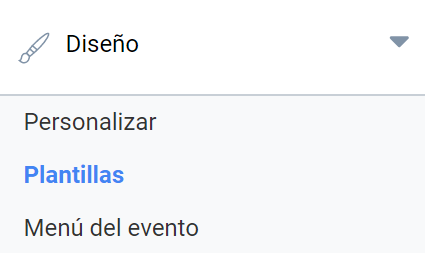
Applying a template to the Event
The Templates menu shows all the templates available on the platform, divided into sections so that you can easily find the template you want to apply to your Event. The platform Administrator can decide which templates are shown here and which are not; that is, they can determine whether some templates that exist in Symposium are available or not to be applied to an Event.
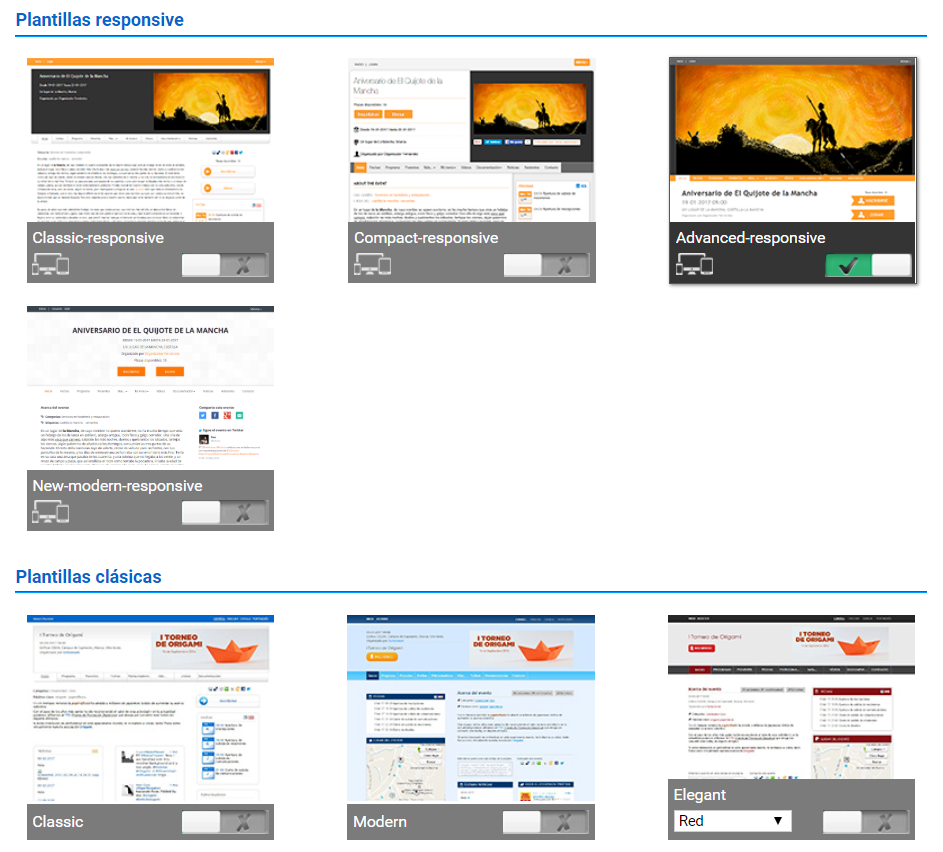
The green switch shows the template currently applied, while for the rest of the templates the switch is gray. By clicking these switches you can activate the template in question, which will be applied immediately to your Event.
Previewing a template
Hover the cursor over a template to enable a link that, when clicked, will show a preview of an Event with that template applied. Use this option to get a better look at the details of a template before deciding whether you want to apply it.
Selecting a style
You can select the template you want to apply to your Event page by clicking the switch associated with each of them. When you click the switch, a confirmation message will tell you that the selected style has been applied to the Event successfully.
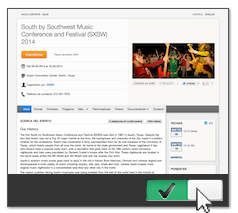
If the template is customizable (see Template settings), a highlighted message will tell the user so.