New event template system
Symposium offers a set of very flexible event templates that provide plenty of room for customization. They are responsive templates and adapt perfectly to all kinds of screen formats, both for computers with large screens and for mobile devices.
Main advantages
- Responsive templates adapt to the resolutions of different devices: computers, tablets and smartphones
- Their appearance can be configured in real time, seeing the visual changes live
- A specific version of a template can be created per event, allowing greater customization
How do I use the new templates?
Activation
The new responsive templates can be activated from the same place as the previous ones, the Design > Templates section, inside the event editing menu. Make sure the name has the -responsive suffix and the multi-platform icon.
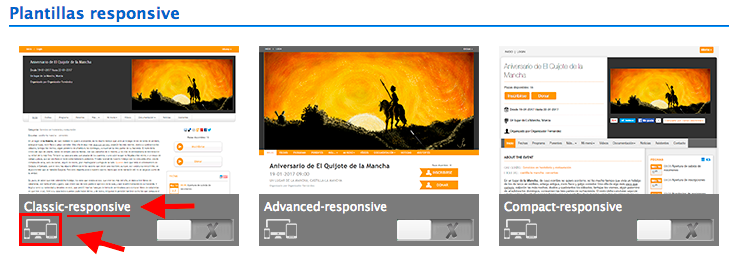
Customization
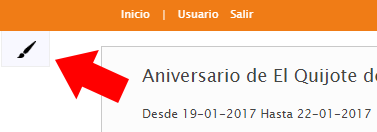
Once the responsive template has been selected, to modify the colors we must click the View event button at the top of the editing page. On the event page that has just opened, we will find a brush-shaped icon at the top left.
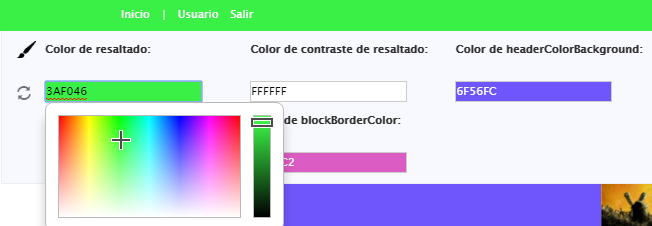
Clicking it opens a color editor. To modify a color, just click the colored box and an editor with a full color spectrum will open. Once you select your color by dragging the cross to the desired color in the range and choose its brightness level, the template will be updated to show the result of your selection.
To stop editing the colors, click the brush icon again. If you want to restore the default colors, click the restore icon (two circular arrows).
Header image
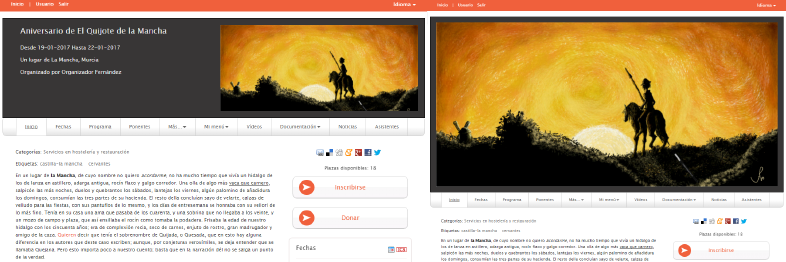
It is now also possible to use header images with no size limit. In the Design > Customize section we can upload an image and indicate that we do not want to crop it.
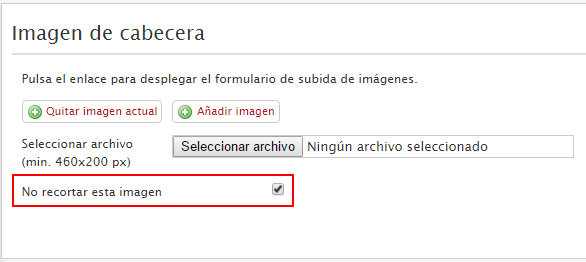
This way we can choose whether we want to use a header image as a logo or use it at a large size as a poster.
How do I create a template?
To create a template you must download an existing one. We recommend downloading the classic-responsive template and modifying it according to your requirements.
You will see that the .zip package you download contains the following file structure:
plantilla.zip
    /js
      - script.js
    /less
      - styles.less
    /partials
      - ficheros.ptl
    /templates
      - ficheros.tpl
JavaScript
The /js/script.js file lets you run your own JavaScript code.
To detect navigation between sections and run specific code for each one, you can listen to the render.handlebars event as follows:
     $('body').on('render.handlebars', function (e, template) {
          // your code
     });
The template variable can take the following values: abstract, accepted_abstracts, attendees, dates, detail, donations, files, main, news, programme, section, speakers, sponsors, tickets, upload, videos.
CSS / less
The /less/styles.less file lets you modify the template styles. You can use the full power of less technology: variables, mixins, etc.
Remember that our main.less file includes, among other things, the styles needed to incorporate Bootstrap as a base. You can check all the available components and styles on the Bootstrap website.
Handlebars files
The .tpl and .ptl files are the templates and partials that Handlebars uses to render the page content.
The .tpl files are the templates loaded when entering each section. You can modify their content, but you must keep the names of these files, otherwise the different sections of the event will stop working.
The .ptl files are the partials, pieces of code that can be rendered inside the page as needed.
Structure
The main file main.tpl is the file through which the page is accessed. It contains the main layout of the elements.
This is its content in the classic-responsive template:
{{> overlay }}
{{> navbar this }}
<div id="content-wrapper">
    {{> header this }}
    {{> menu this }}
    <div id="content" class="container">
        {{> detail this }}
    </div>
</div>
{{> footer this }}
Line 1 loads the overlay partial. A partial is loaded with the syntax
partial append nombre-del-parcialData callback lets you append the content of a partial to the end of the content of a DOM element. Data contains the objects needed to load the partial correctly. After loading, the function received in the callback method is executed.