Customize
The Customize section of the Events manager offers several tools to modify the look of the Event website and, in part, its functionality. You can hide sections of the event website, include code, choose a header image for the page and customize the template to the point of designing one completely different from those supplied as standard with Symposium. Note that some of these tools require advanced knowledge of website design and layout.
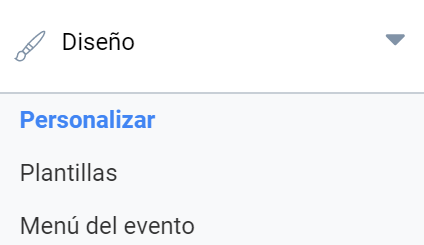
This section is accessed from the Design submenu.
Information panels
Here you can decide which sections of the Event website you want to hide, leaving visible the ones that interest you most. Depending on the type of Event you have, some sections may not be of interest to you, or you may only want to show them from a certain point in time. Simply tick the checkboxes of the sections you do not want to be shown and click Save.
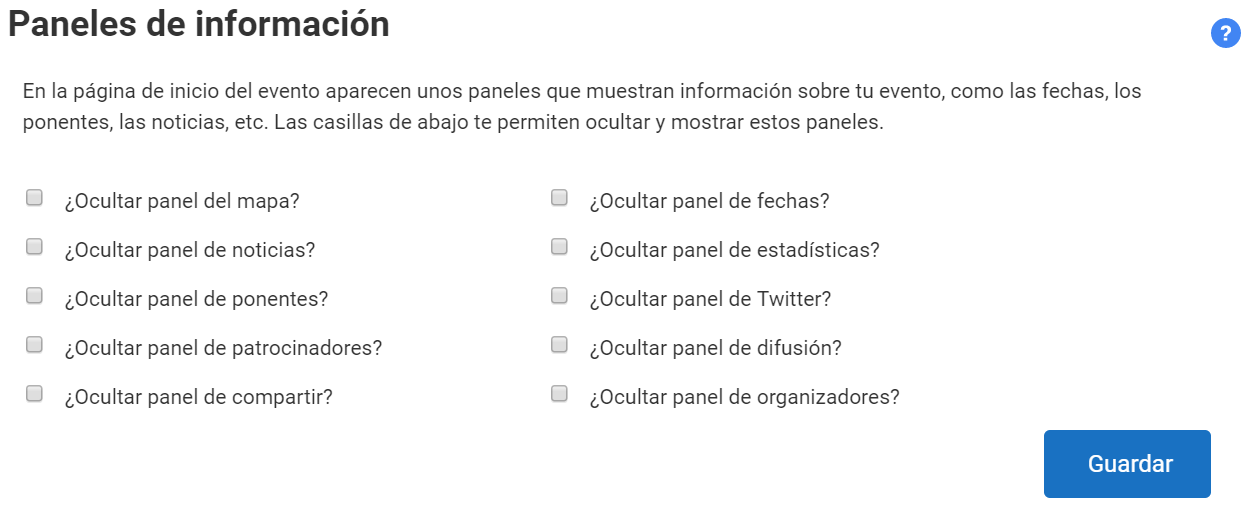
Once you have selected the panels that will not be visible on the home page, click the Save button to apply the changes.
Include HTML in the template
This section was designed in response to some very specific needs for customizing an Event without affecting others at platform level. Blocks of HTML content, styles or functions can be written here.
As the manager itself warns, this section must be handled with extreme caution to prevent an error in the code from seriously breaking the display of the website or making content disappear.
Header image
Among the many event design options offered by SYMPOSIUM by Emagister, one of the most decisive when it comes to giving an event page its personality is the header image.
Editing the header image
You can remove the current image, add a new image or select the one you want from those previously uploaded to the portal.
Uploading an image
To be able to select a header image, you must first upload it to SYMPOSIUM. Click “Add image” and “Select file”. An image file larger than 460×200 pixels is required, which you must already have on your local computer.
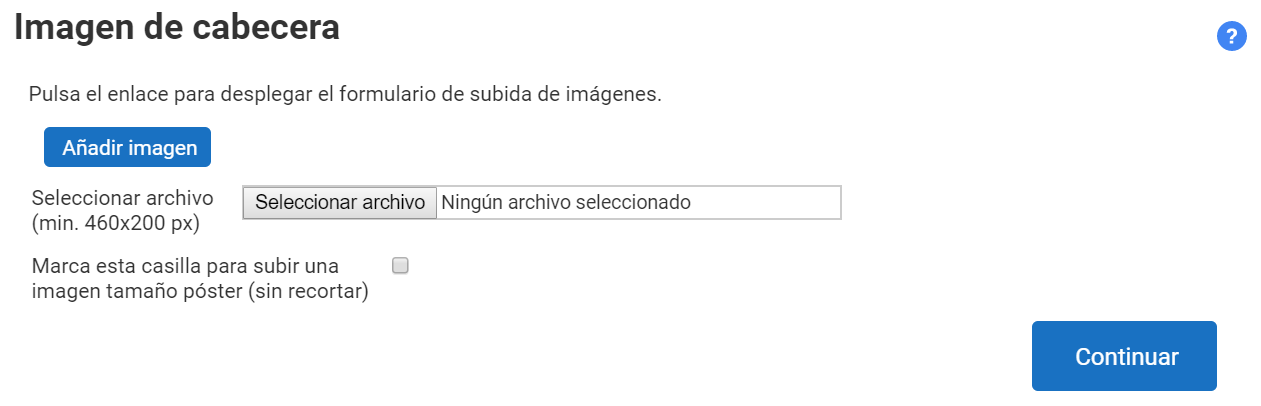
There is a checkbox called “Check this checkbox to upload a large image (without cropping)” that has an important function.
- If it IS ticked: after uploading the image, the cropping mini-application is not shown and the image will be shown on the page exactly as uploaded, so it must already be cropped to the dimensions you want to show. We recommend a minimum width of 1200 px. If it is smaller, it could be rescaled, making the image lose sharpness.
- If it is NOT ticked: after uploading an image, a mini-application will appear to crop it, and it will be shown on the website at its size according to the template
This table shows what is seen in the Events manager and what result each of the options gives on the website. This result depends greatly on the template chosen. An advanced-responsive template has been used for the example.
| “Without cropping” checkbox | How it looks in the Manager | How it looks on the Website |
| Ticked | 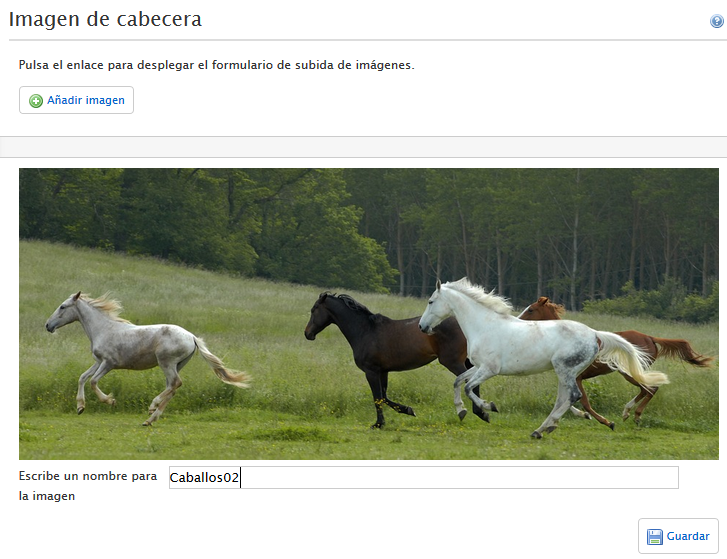 | 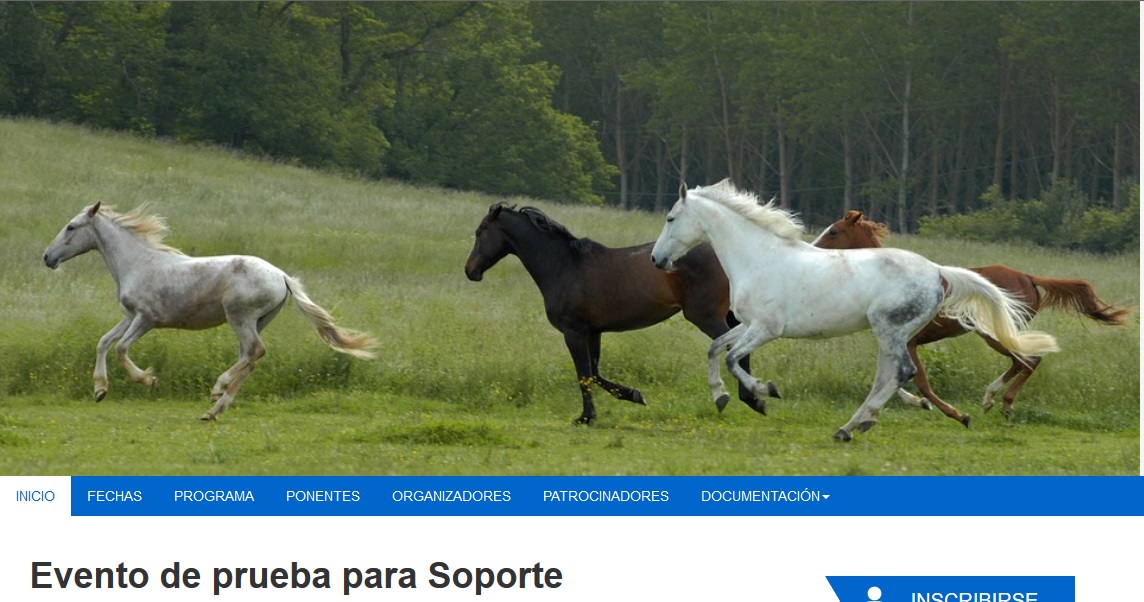 |
| Not ticked | 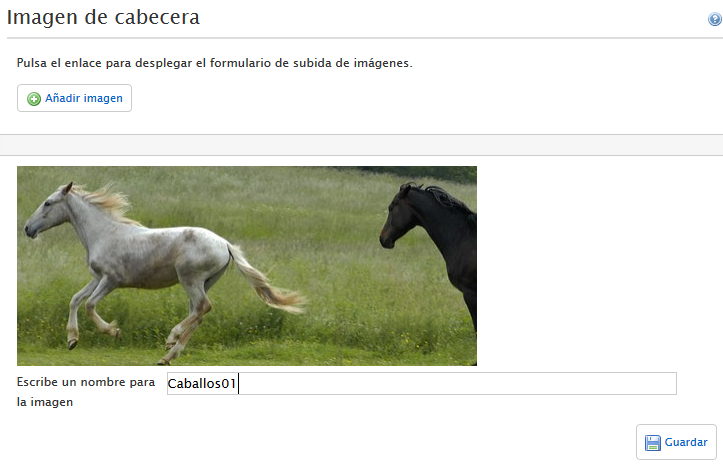 | 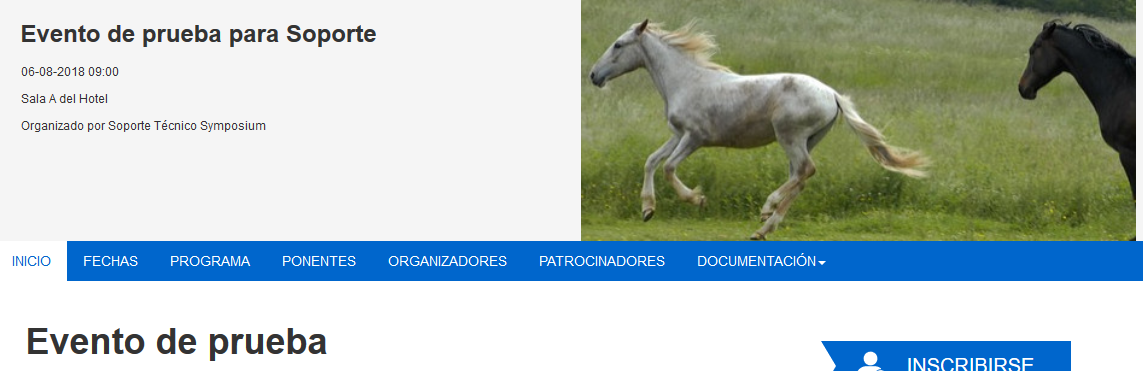 |
Cropping the image
When the checkbox is left unticked, the mini-application to crop the image will appear after uploading it.
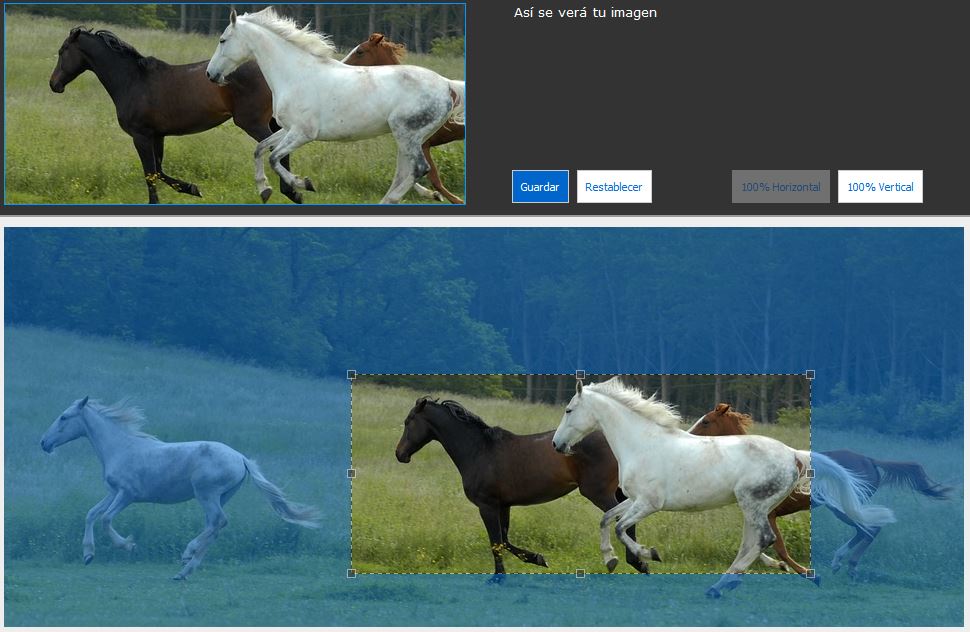
You can select the region of the image you want to show. For the image to fit correctly with SYMPOSIUM themes it must have certain aspect proportions, which is why a rectangular region must be selected. Once this is done, click the “Save” button.
When you return to the previous window, choose a name for the image (it can be the same as the file already has or a more descriptive one) and click Save again to finish editing.
Selecting the active image
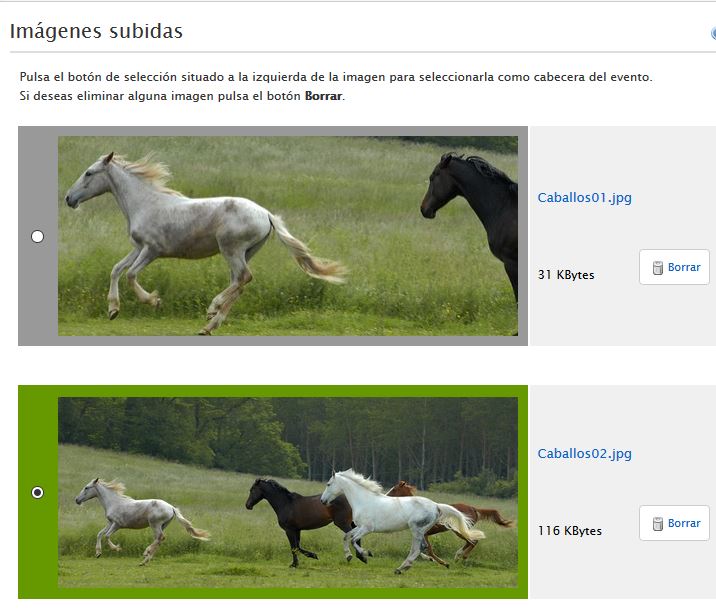
From all the images that have been uploaded, you can select the one you want by clicking the round button to its left. The selected image will be marked in green.
Event template
This tool allows advanced editing of the look of the Event website, and advanced knowledge of web page design and layout is advisable for a correct and satisfactory result.
With the Download button, you can get on your local computer a copy of the base template of the website selected in the Template menu. You will get a .zip file with the complete structure of this template and a README.txt file containing instructions for the designer or layout artist.
Once the look of the website has been customized, it can be uploaded again in the section immediately below, Customize template. Just select the already modified file on your local computer and upload it. The changes will affect the Event website as a whole, so once again the involvement of qualified technicians is recommended.