My events
In the “My events” menu of your private manager, you can see and access the events you organize or in which you take part in some way, either as an attendee or as an organizing member.

Layout of the “My events” panel
This panel shows all events, past, ongoing and upcoming, organized into sections to make management much easier for you.
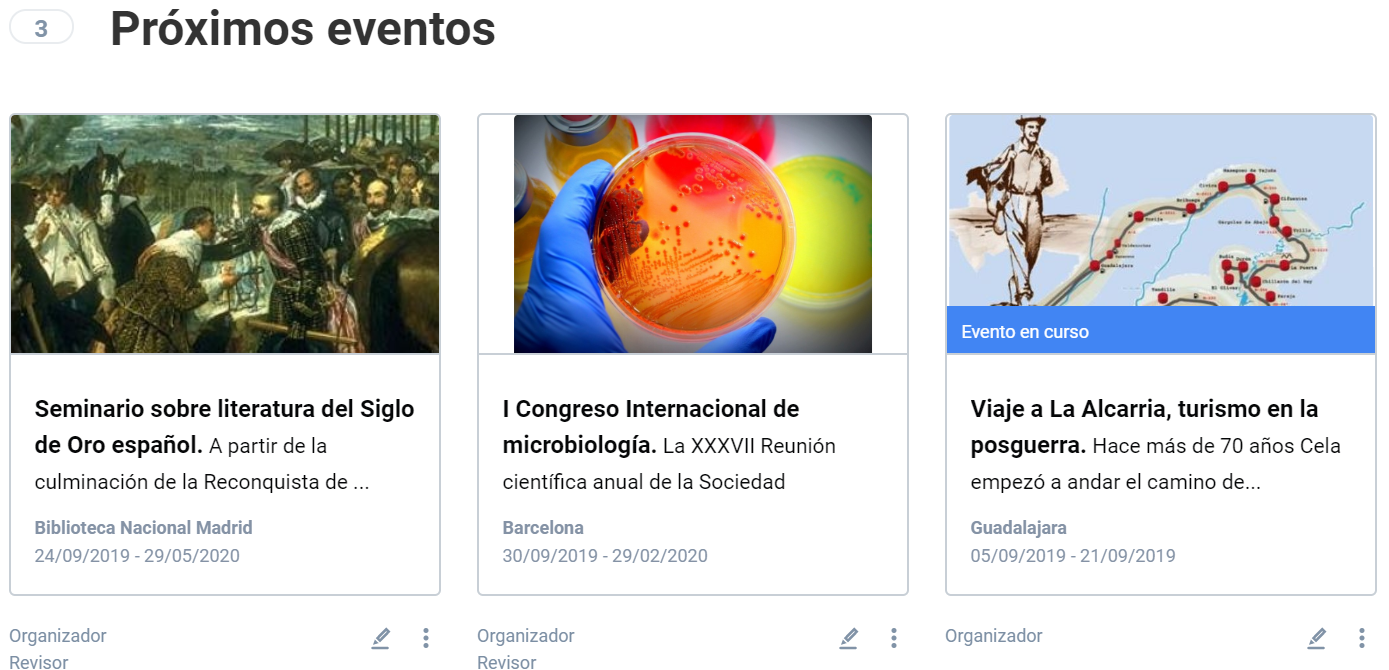
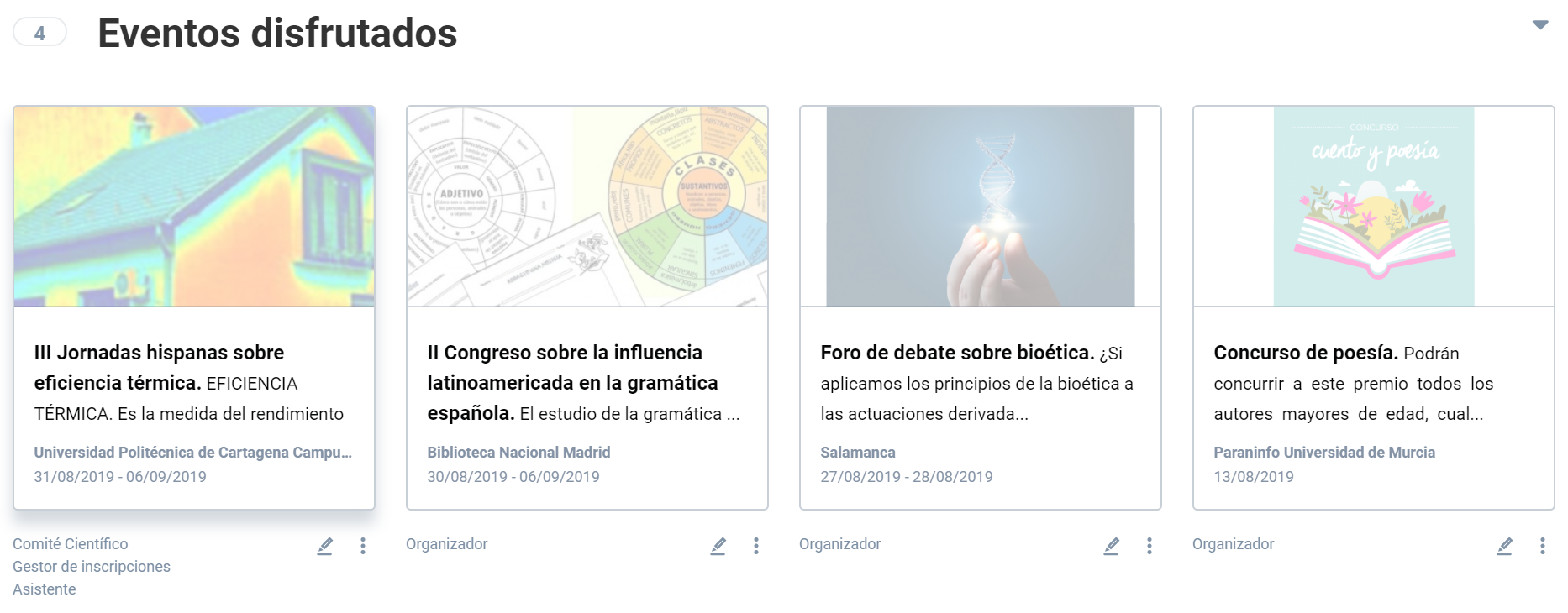
You can locate an event or a set of events by entering keywords from the title or description of the events in the search box included in this same panel. You can also use the filter buttons to see:
- All my events: all the events you organize and/or attend are shown here.
- Events that I am registered in: only those events in which you have your own or managed registrations.
- Events that I organise or participate in: only the events in which you take part with a participating role are shown.

Below the event card, two icons appear:
- Edit: from this icon you can go directly to editing the event. If you click on the card, you will go to the event preview.
- Menu options: depending on the role with which you take part in the event, a number of options will appear that let you act on the event. As an Organizer you will be able to:
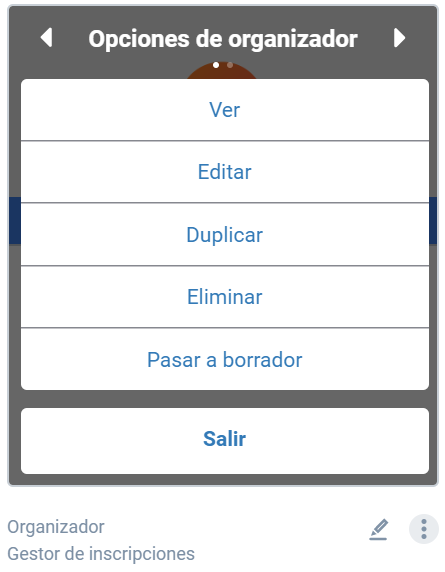
- View: Lets you browse to the event website
- Edit: Lets you access the event editor
- Duplicate: lets you create a new edition of the event keeping the same characteristics.
- Remove event: Lets you delete the event if certain conditions are met
- Move to drafts: Lets you revert the published event to draft mode. This option is only valid for site Administrators who organize events.
Last updated on