Creating an event
Symposium is a management platform that integrates multiple tools and features that it makes available to you so that you can create and customize events according to your needs.
To start creating a new event, you must be an event Organizer. This role can be created by a platform Administrator from the Administration Panel.
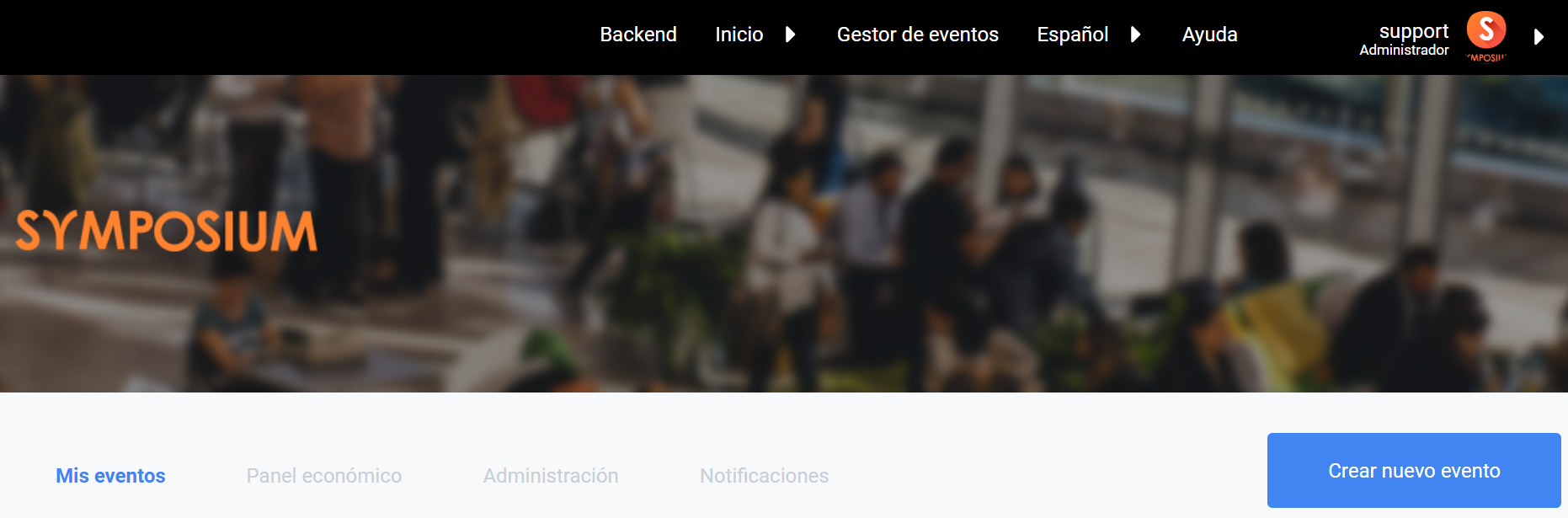
Log in to your private panel with the Organizer account and, in the “Organizer panel” tab, you will see the “Create new event” button.
You can also find the option to create an event in “I want to create an event”, accessible from the “Services” section in the menu at the bottom of the screen.
Creating an event is a process made up of two parts:
- Event registration form.
- Advanced editing of the event, customization, content editing, etc.
Event creation form
The form for creating a new event collects the data and settings needed to publish an event directly. This form is divided into three sections: Basic details, Topic and Additional settings.
Basic details
This first section is for entering the basic details of your event.
- Configure the visibility of your event

If the event is public, it will be accessible to any visitor who searches for it in any search engine. If, on the other hand, it is private, it will only be accessible through the specific URL that is generated and that the Organizer can give to interested users.
- Select the original language of the event

You will have to specify in which version you will enter the first contents of your event. This option is used to check that the text entered in the original language matches the one indicated. It can never be used as a translation tool.
- Enter a Title
** **The title of your event cannot exceed 100 characters.
- Specify a Description for the home page of your event. There is more information about the editor here.
**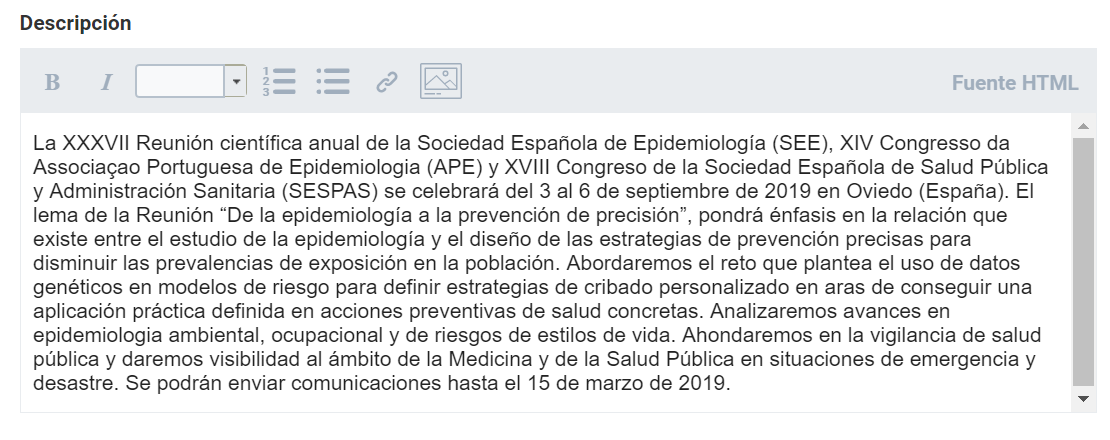 **This text editor is intended for entering the event description, which will appear on the main page. You can apply different styles and fonts without limitations, as well as copy and paste text from Word or web pages, upload images and insert blocks of HTML code by clicking the “HTML source” editor.
- Optionally, you can enter a short description for search engines:
It must be a text of no more than 50 words and it will be used to improve the event’s ranking in search engines. This snippet will not be shown on the event website, so you can include as many tags and keywords as you need to improve the website’s organic ranking.
- Enter the dates on which the event will be held:

- Enter the location of your event
Define a location for the event. To do so, you can use your browser’s location, by authorizing the pop-up notice that appears in your browser window, or search for the location on the map.
The Administrator of your institution’s account may also have created a list of standard locations. If so, you will see two fields: “Directory of locations” and “Location”. Optionally, you can assign your event one of the locations created by the platform Administrator to specify the venue of the event even further.
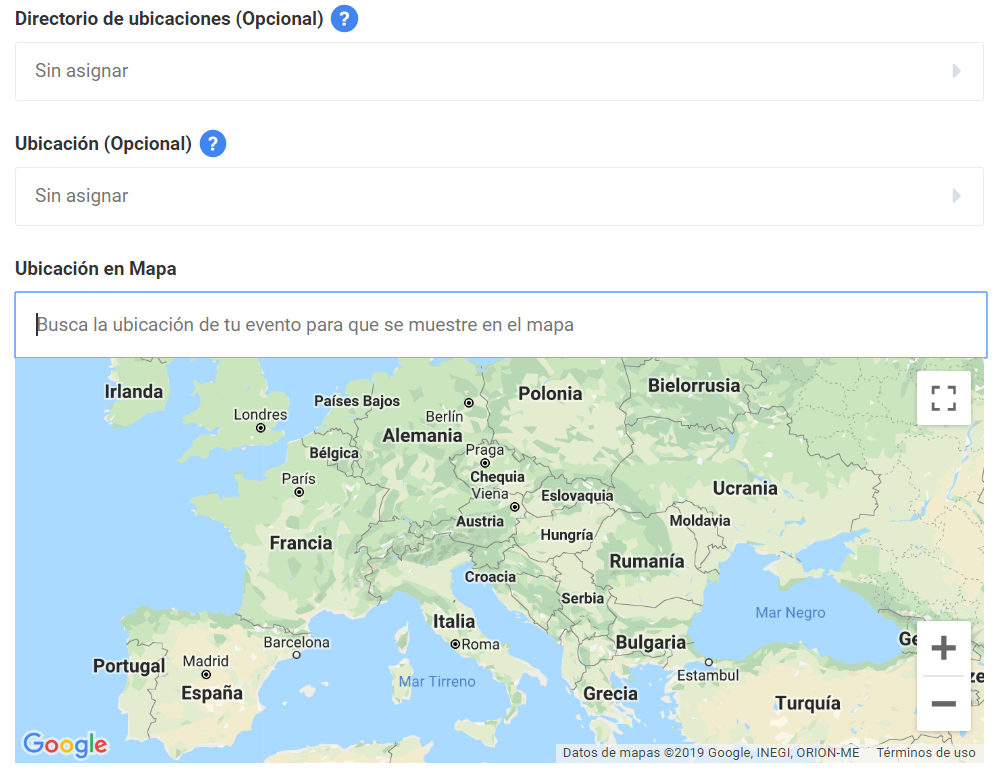
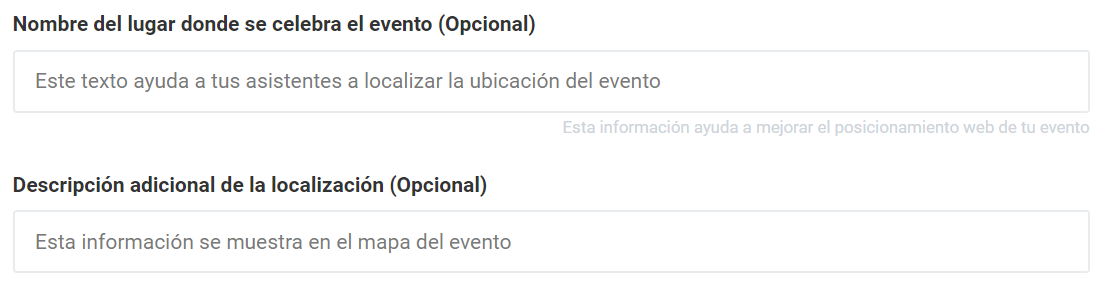
In addition, to be even more specific, you can add the name of the place where the event will be held. The text you enter will help improve the event’s search engine ranking.
- Upload a header image
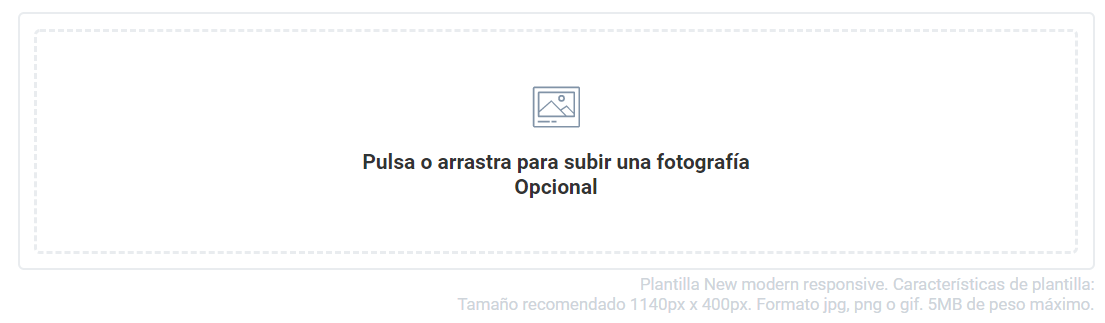
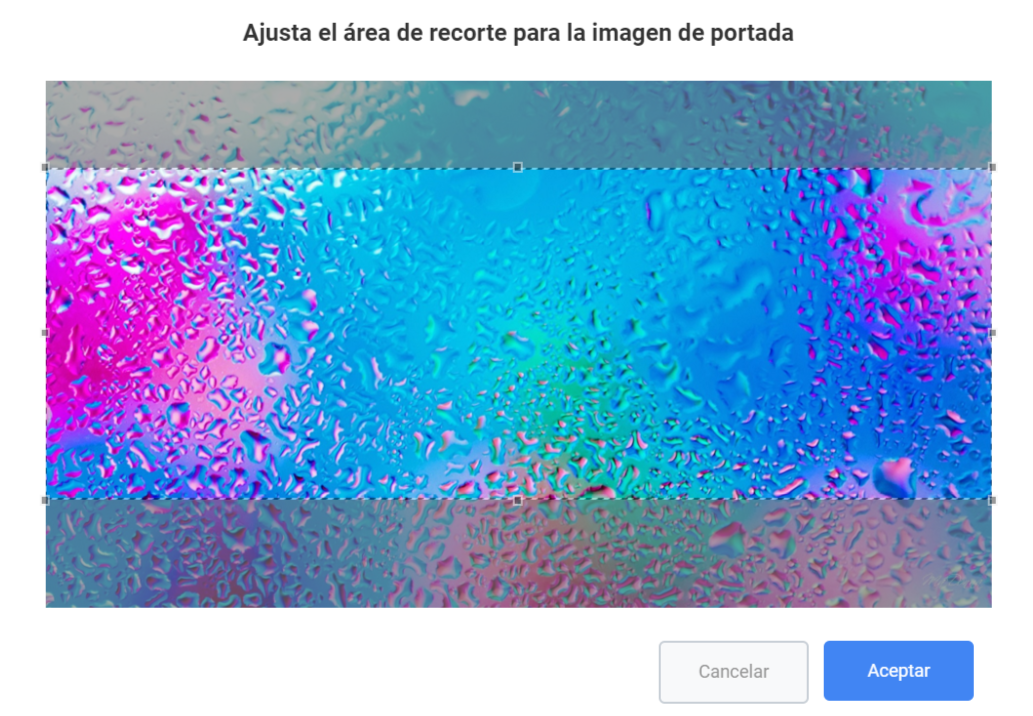
Upload or drag a header image for your event directly and then adjust the crop area you want to define. Bear in mind that the recommended image size varies depending on the template you use for the event. The maximum size of an image file in jpg, png or gif format must not exceed 5MB.
Topic
This block is for indicating the topic and type of the event.
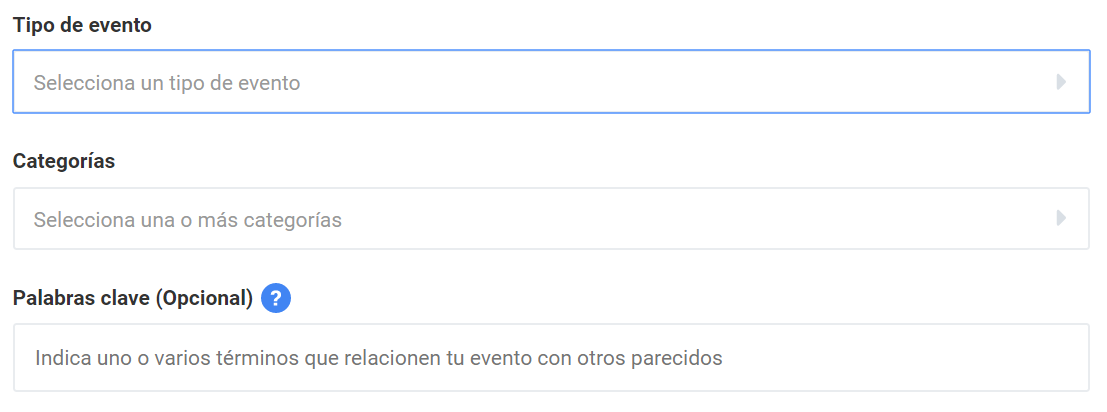
Indicate the type of event you want to hold. The platform has a list of predefined event types, but if none of them fully fits what you need, the platform Administrator can create new custom event types.
The next step is to define the categories your event belongs to and enter keywords, so that the event can easily be found with the platform’s search engine and can be related to other events of the same type or topic. This data will also help the Event have a better impact on search engines such as Google and be easy to find.
Additional settings
In this last section you will have to configure the final settings of your event:
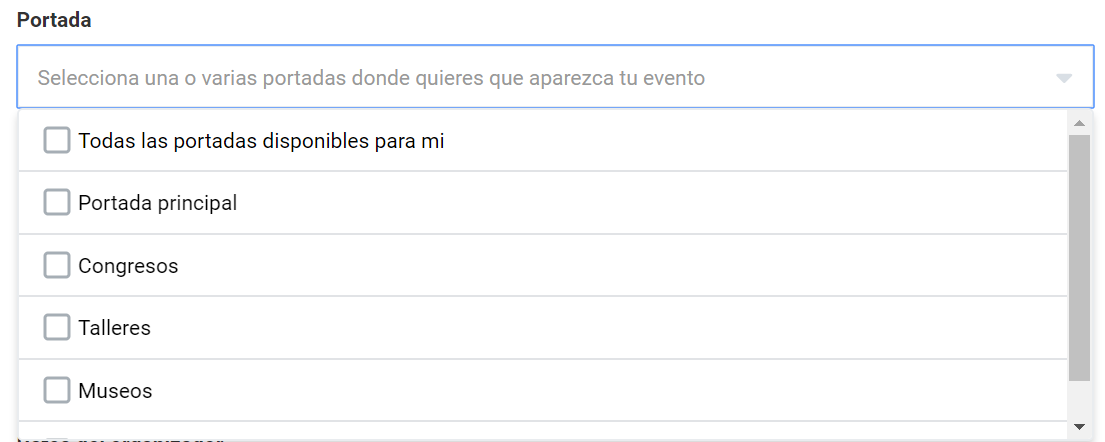
Cover If more than one cover has been configured in your instance and the event is not private, you must select at least one of the covers on which you are authorized to publish.
 - Presentation format There are two event formats:
Standard event: an event that has its own website with all the management options, including templates, registration management, attendees and scientific documentation. All the tools and sections available on the platform can be used for this type of event.
Agenda event: a very reduced version for events that only need a presence page in the institution’s agenda to announce an action or activity of interest. This type of event has no menu with sections.

- Web address
Optionally, you can add a set of descriptive words to the URL to customize it as much as possible and achieve a better search engine ranking.
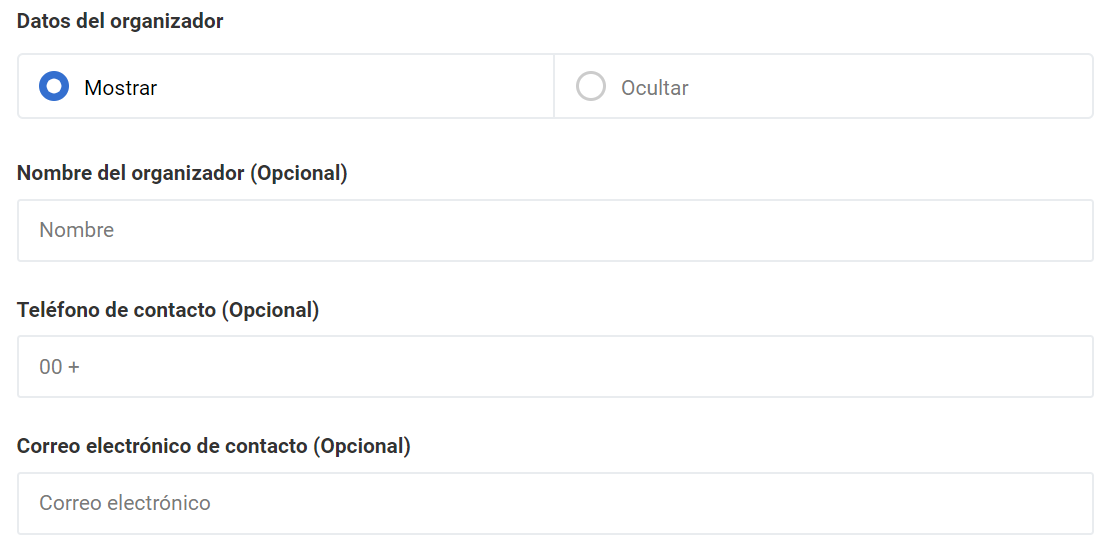
- Organiser details
You can also decide whether you want the organizer’s name to appear in the event description and specify a contact phone number and email address, as well as define a custom web address for the event so that it is easier to remember.
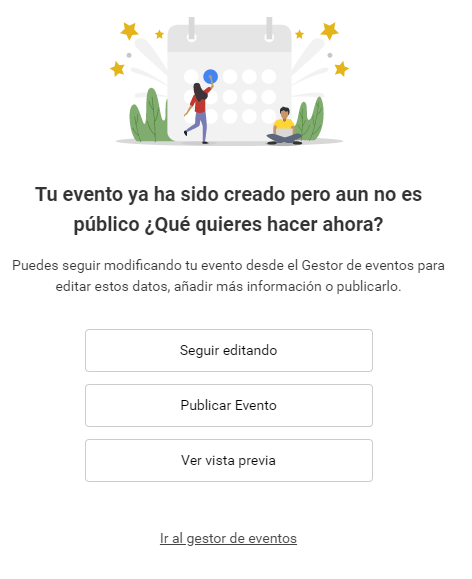
When you finish filling in the form with the required data and click “Next”, the following modal will appear with the options to:
Continue editing the event in a more advanced way with the manager’s tools.
Publish the event directly with the data entered in the creation form.
Preview the event.
Advanced editing and publication of the Event
Now that you have created a basic event structure, you can enter more detailed information using the Event Editing Panel, located on the left. You can also preview the Event to check how it will be shown to the public once you publish it.
When everything is ready and you consider it is the right time, click the “Publish Event” button to make it visible to the public and start promoting it.
You can edit the Event even when it is published from your Organizer panel, by clicking the Edit icon you will find in the bottom corner of the event card.

Advanced editing
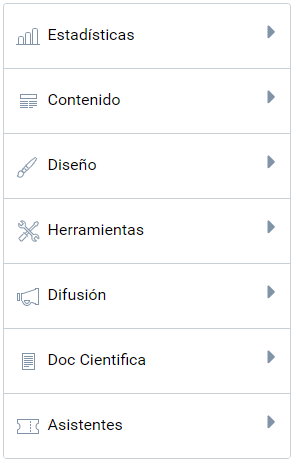
Broadly speaking, the Event editing panel includes the following menus:
Statistics
- Event summary
Content
- Customization and upload of the content and tabs of the event menu.
- Organizers, speakers, sponsors and schedule of the event.
Design
- Design of the event website.
- Assignment of style templates for the website and customization.
Tools
- News management.
- Map of the Event venue and places of interest.
- Option to transfer ownership of the event to another user.
- Video upload.
- Configuration of dates and an event calendar.
- Option to send notifications to attendees through the mobile App.
- Creation of committees and assignment of user roles in event management.
- Activation of multi-language mode to create versions of the event in other languages.
- Option to assign a custom domain to your event website.
Promotion
- Event promotion options, comment system and metadata for search engines.
Scientific documentation
- Management and review of scientific documents uploaded to the event.
- Repository of papers received by the event for evaluation.
- Assignment of reviewers and scientific papers
- Creation of custom document upload forms
Attendees
- Creation and configuration of registrations, capacity, waiting list and specific deadlines.
- Management of the attendee list.
- Product sales.
- Attendance control through the QR reader of the Organizers App.
- Bulk registration of user groups.
- Tools to send announcements to user groups and customization of a welcome message.
- Creation of event certificates and badges.
Important note: you can reuse a past event to open the event dates again, as long as no more than 90 days have passed. Otherwise, the best option is to create a new edition of the event by duplicating it.