Schedule / Videoconference
In the event configuration, in the Content menu, you will find the option to:
- edit the Schedule of activities proposed for the event;
- and book videoconference rooms within your event.
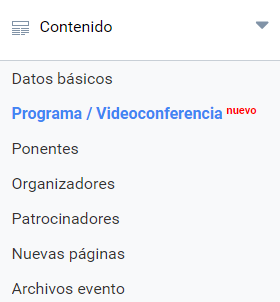
Event activity schedule
There are two tools for putting together a Schedule of activities in Symposium, and they are not mutually exclusive:
- The free text editor. There is more information about the editor here.
- The schedule editor
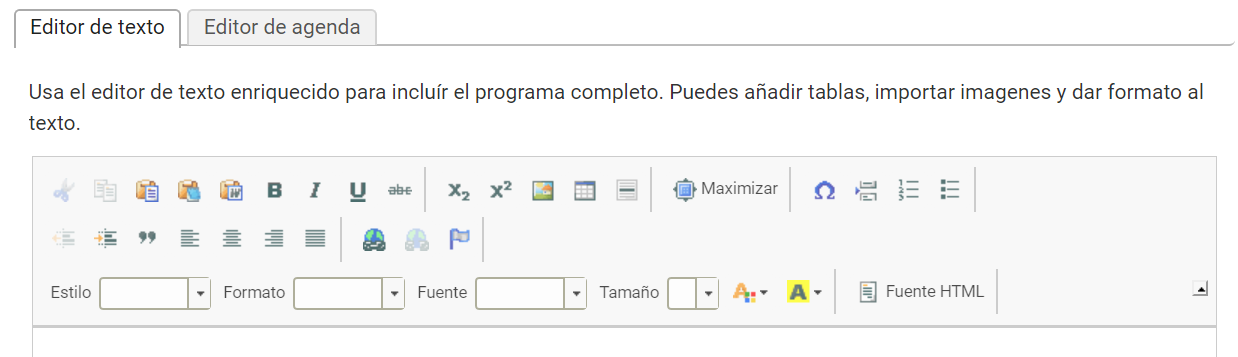
Text editor
This panel contains a text editing component with the basic functions typically found in a word processing application such as Word or similar.
Below the editor there is a “Copy original content” button. Its function is to remove the content of the editor and replace it with the content of that same box in the Event’s default language. If there is already written content, it will warn that it may be deleted and replaced by the other language. If it is used while editing the Event’s main language, using that button will have no effect. It is important to bear in mind that when an Event is configured as Multi-language, the activities must be created and saved in each of those languages so that they appear in the Schedule section of the corresponding Event website.
When you finish editing the text, you must use the Save button so that the content is recorded in the database. If the Event is configured as Multi-language, the Save button will be shown inside a larger box with an alert warning that the content will only be visible in the version of the website in the language you are working in. You will need to fill in that same panel in the other languages in which you want the activity to appear.
Schedule editor
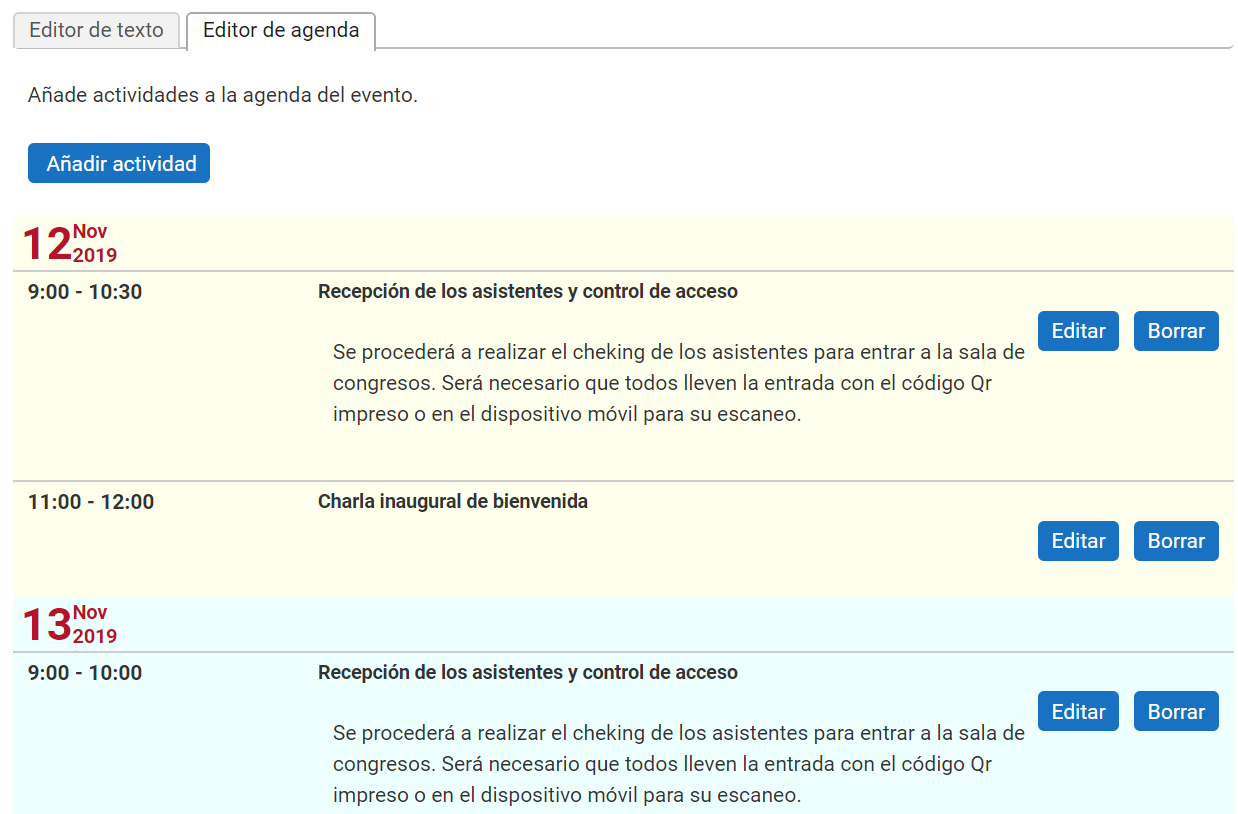
This editor lets you create a Schedule by registering each activity that takes place during it. The activities will be shown in the Event calendar.
The first thing shown in this section is the “Add activity” button, which opens the form for registering new activities.
Below it there is a list of the activities already registered, as they will be shown to website visitors. Schedule items can be edited or deleted as appropriate using the buttons that appear to the right of each one.
In any case, we recommend giving priority to the Schedule editor to register the Schedule items, because it gives greater control over the content and the way it is then shown to website visitors.
The Event web page will first show the free text of the Text editor with the formatting set by the Organizer, and then the collection of items saved with the Schedule editor, which will have the general look of the website. Subsequently, the Event web page will first show that free text and then the collection of items saved with the Schedule editor, with the general look of the website.
A good practice may be to use the free Text editor to introduce the Schedule and its objectives, or to make any notes or clarifications visitors may need. It is advisable to use few artistic formatting elements so that it does not clash with the look of the website.
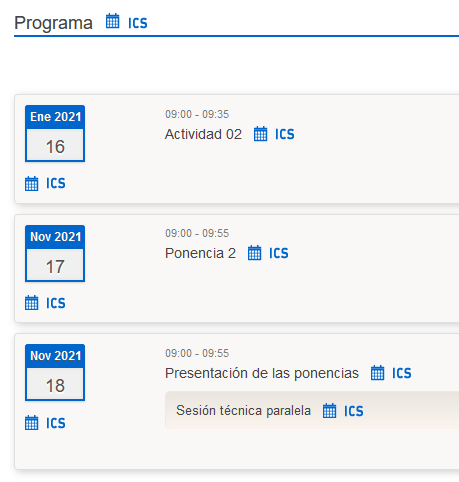
Integration with Google Calendar and other personal calendar applications
The Schedule activities are shown in a specific section of the event web page, according to the look of the template applied to it. Two icons appear in different places on that page: one looks like a calendar, the other shows the letters ICS.
- Integration with Google Calendar: the calendar-shaped icon lets you add event activities to your Google Calendar.
- Integration through an ICS file: the button with the letters ICS lets you download a text file that can be imported by all personal calendar management applications, such as Microsoft Outlook, Apple iCal, Evolution, KOrganizer, Lotus Notes, Lightning for Thunderbird and many others.
Depending on which button you use, you will be able to integrate:
- all the activities of the event Schedule
- only the activities of one date
- only one individual activity, including parallel sessions
Videoconferences
Symposium provides a Zoom webinar room for up to 100 participants at no additional cost. It is also possible to have a larger-capacity room or several additional simultaneous rooms. Ask us at https://symposium.freshdesk.com/.
Room booking
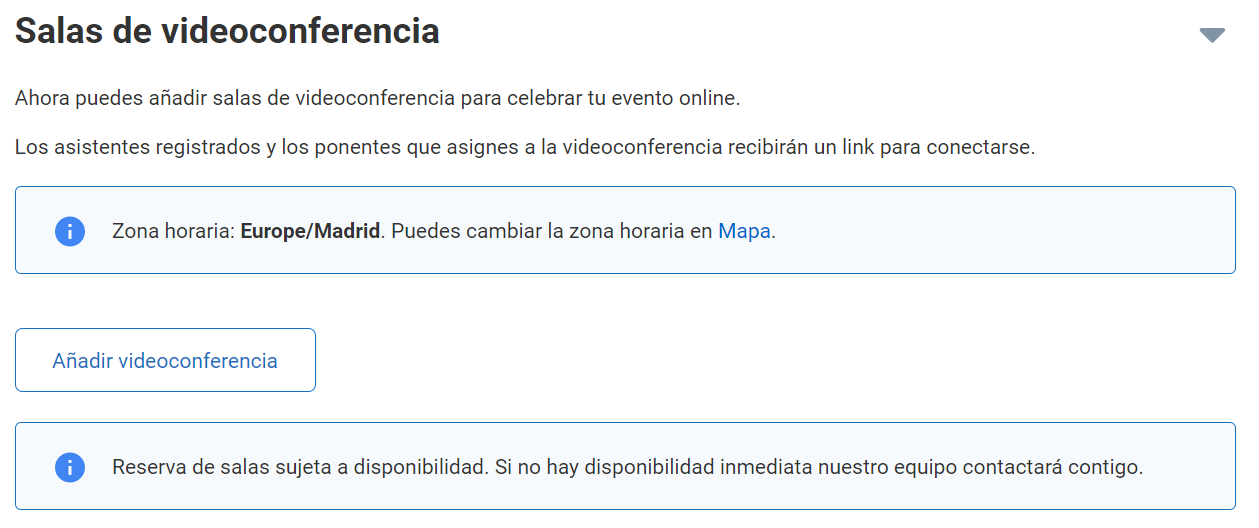
Videoconference room booking is subject to availability. To request one, click “Add a videoconference”. Make sure the event time zone is configured correctly so that the dates and times are correct.
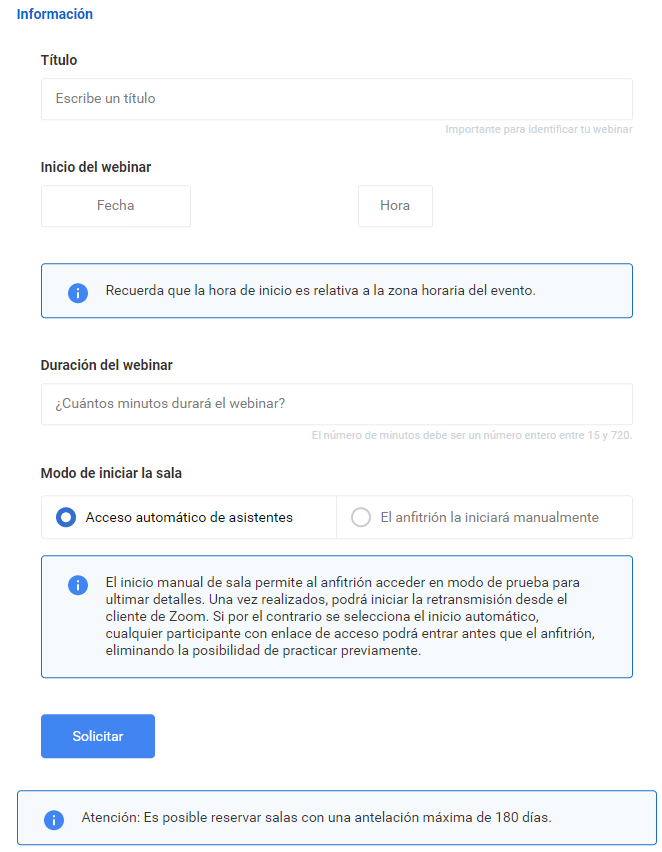
Fill in the form indicating the date and time (in minutes) for which you need the room. It is important to bear in mind that the schedule of a room that has already been requested cannot be modified. Instead, you can delete it and make a new request, although during that interval the room will be free for other possible requests.
Configure the room start mode:
- Automatic access of assistants: once the room has started, attendees will be able to join.
- Test session: the host can choose to start the room manually in order to open it and run tests before officially opening it to the rest of the participants.
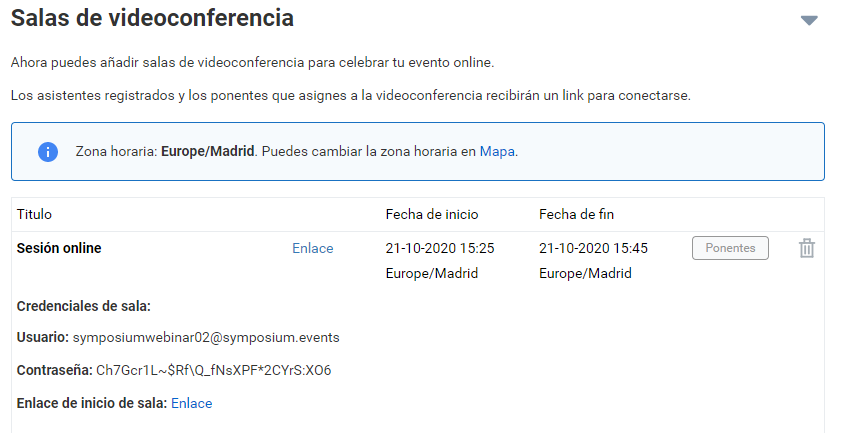
The room booking request is processed instantly. If there is availability, the request is approved and the attendee link is generated so that you can share it.

If the selected time slot is taken, you will receive a pending request notice. We will process this request to arrange a room.

In addition, you can send invitations to users so that they appear as speakers and can take part in the videoconference by sharing their screen and video and turning on their microphone.
How do I start the room?
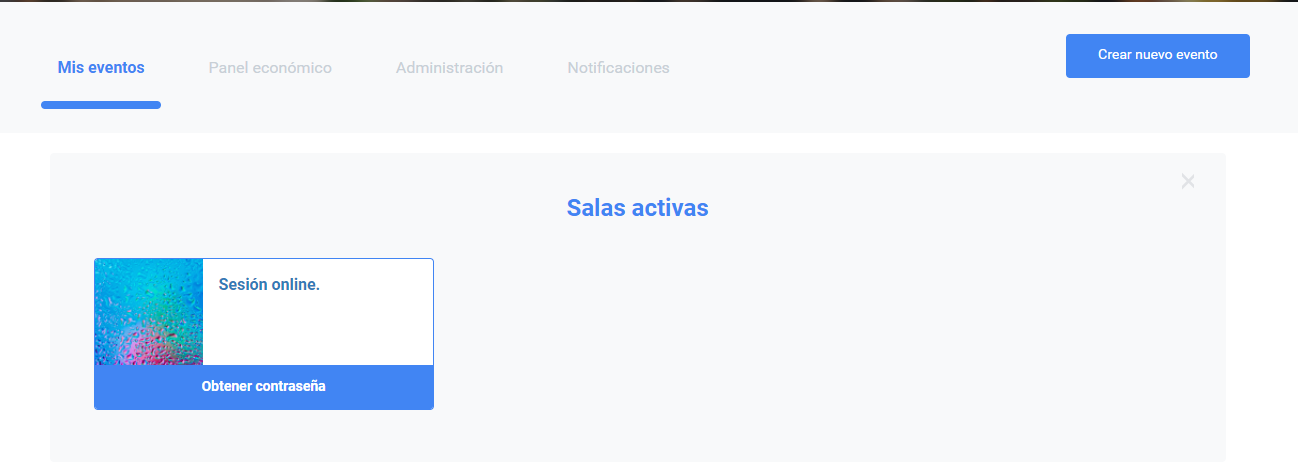
On the day of the event, half an hour before it starts, you will receive an email with the Host credentials to log in at https://zoom.us. You can also check the host credentials and link in this same section where you booked the room.
Fifteen minutes before the scheduled session ends, you will also receive a reminder email so that you can wrap up the conclusions of the webinar. You can end the session from the Zoom application or let our platform take care of it a few minutes after the end time.
Sharing access with attendees
As with the Host, half an hour before the session starts, Symposium will send an email to all confirmed attendees with the link to join the session. They will be able to join through the link using the browser version of Zoom or by downloading the Zoom desktop application.
Attendees will also have the link and PIN to access the meeting in their private user panel.
Inviting speakers
The invitation message to speakers is instant. That is, as soon as a speaker is added to the room from this section, they receive the invitation with the link to the session. However, they will not be able to access the meeting until the host has started the room.