Speakers
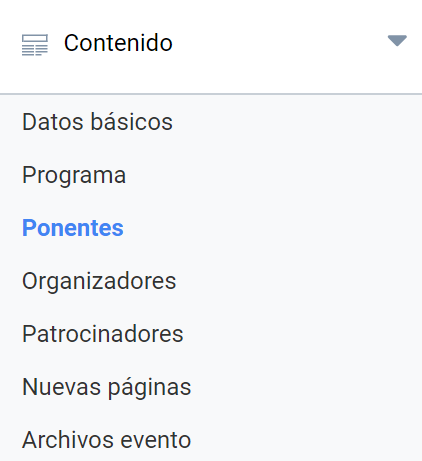
The Speakers editor is very similar to the Schedule editor. It is located just below it, in the Content menu block of the Event editor.
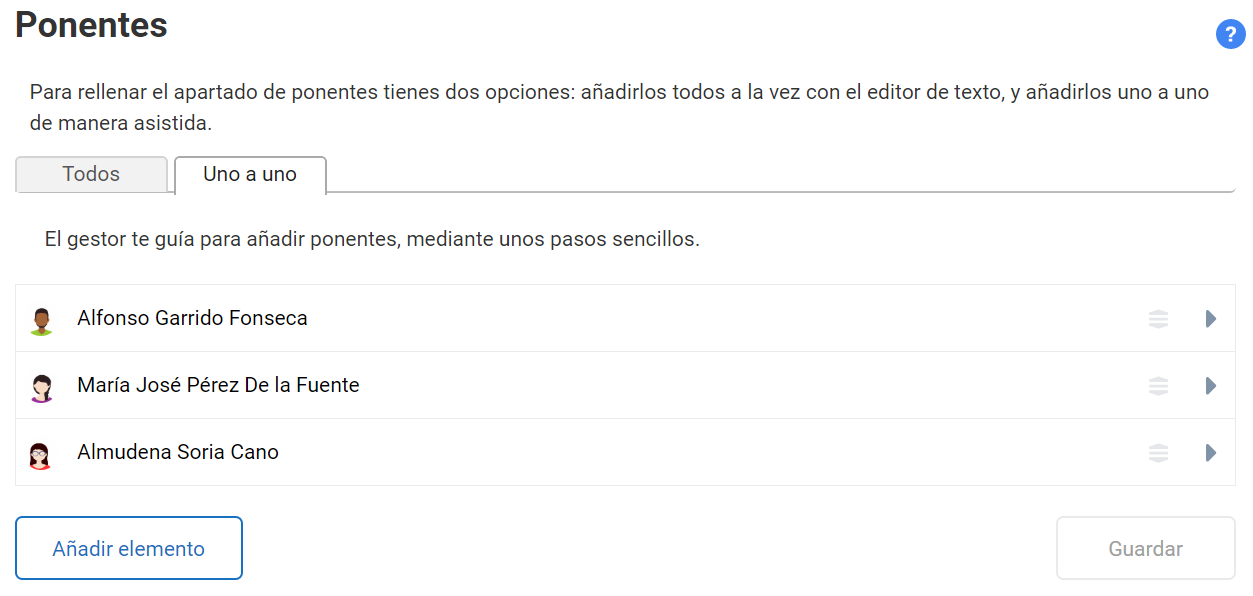
In this section you can add all the Speakers at once using a rich text editor, or add them one by one. Speakers will be visible both in the “Speakers” tab of the Event and in a side widget of the “Home” tab.
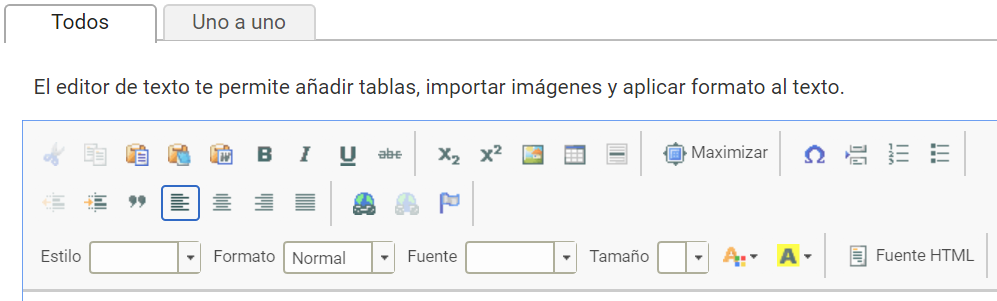
Text editor
This panel contains a text editing component with the basic functions typically found in a word processing application such as Word or similar. There is more information about the editor here.
Below the editor there is a “Copy original content” button. Its function is to remove the content of the editor and replace it with the content of that same box in the Event’s default language. If there is already written content, it will warn that it may be deleted and replaced by the other language. If it is used while editing the Event’s main language, using that button will have no effect.
When you finish editing the text, you must use the Save button so that the content is recorded in the database. If the Event is configured as Multi-language, the Save button will be shown inside a larger box with an alert warning that the content will only be visible in the version of the website in the language you are working in. You will need to fill in that same panel in the other languages in which you want the activity to appear.
Adding Speakers one by one
Initially, this tab will show the list of existing Speakers, if any, and an Add speaker button. Clicking “Add speaker” opens a form. Type the Speaker’s email in the Email box and click Search speaker. If they are already registered as a user on your institution’s platform, the details will be filled in automatically.
You can also enter the details by hand, including a file with the Speaker’s photograph or an image they want to use as a badge.
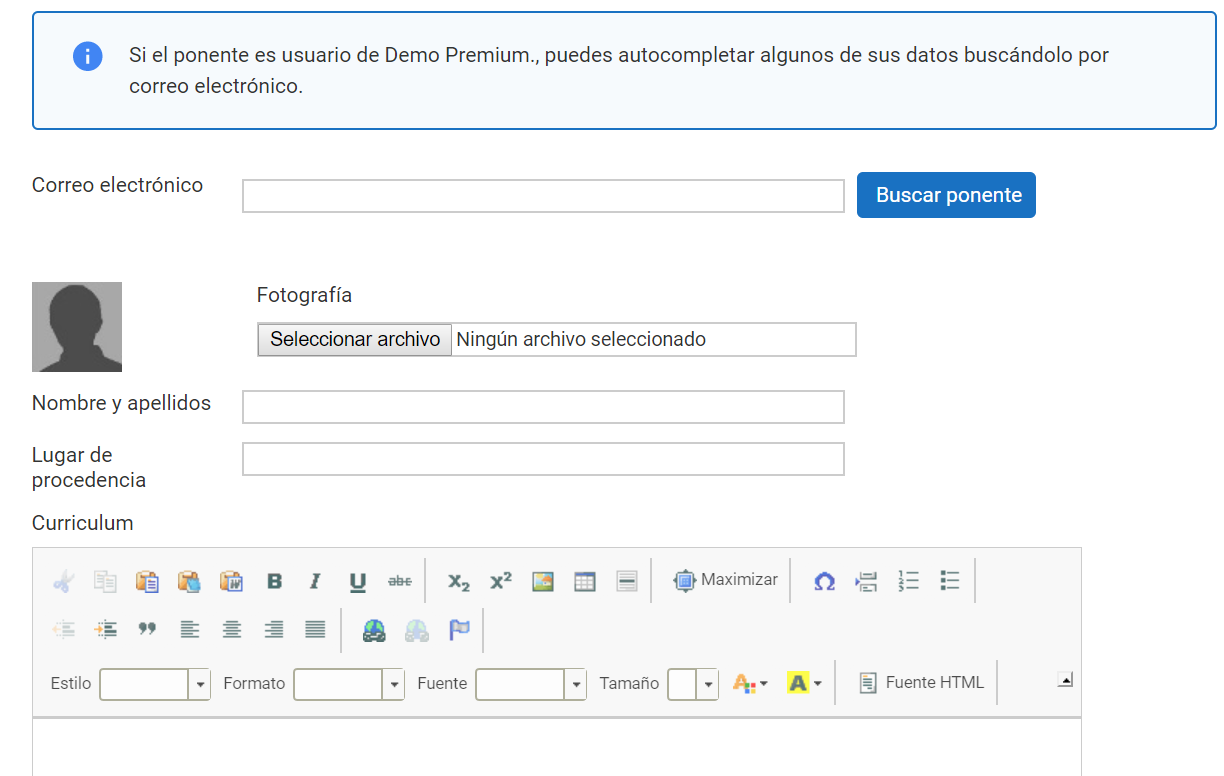
When you finish, click the Save button. Always bear in mind that in an Event configured as multi-language you will need to fill in the record as many times as the Event has versions.
As with the Schedule editor in the Schedule section, we recommend in any case registering Speakers using the One by one tab, since it gives greater control over that content and over how it looks on the Event website.
Ordering speakers
You can set the order of priority in which you want the event speakers to appear. When you have finished entering the details of all the talks, you will get a list. You can drag and drop any of the items to change the order as you see fit.