New pages
Symposium lets you add new pages with useful data and information about any aspect of the Event. You can use this feature to add to your Event any specific information that is not already categorized in the other sections of the Organizer panel.
For example, you could create new pages to add detailed information about places of interest such as restaurants or accommodation near the Event venue that have been added in the Map section using the “More places of interest” feature.
These additional web pages are created with a text editor, so care must be taken with the design, layout and style to prevent them from clashing with the overall look of the Event website.
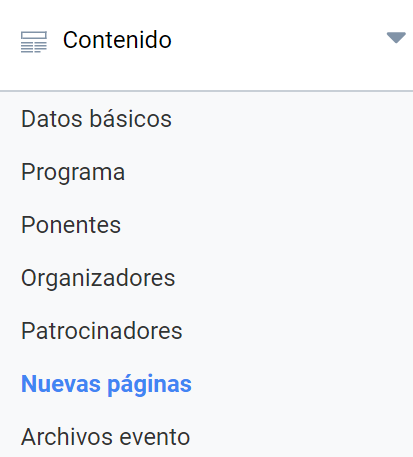
To access the menu for creating new pages, click “New pages”, available in the “Content” section of the Organizer panel.
Creating a new page
In the New pages menu, click the “Add page” button to open the form and start creating a new page for your Event. There is more information about the editor here.
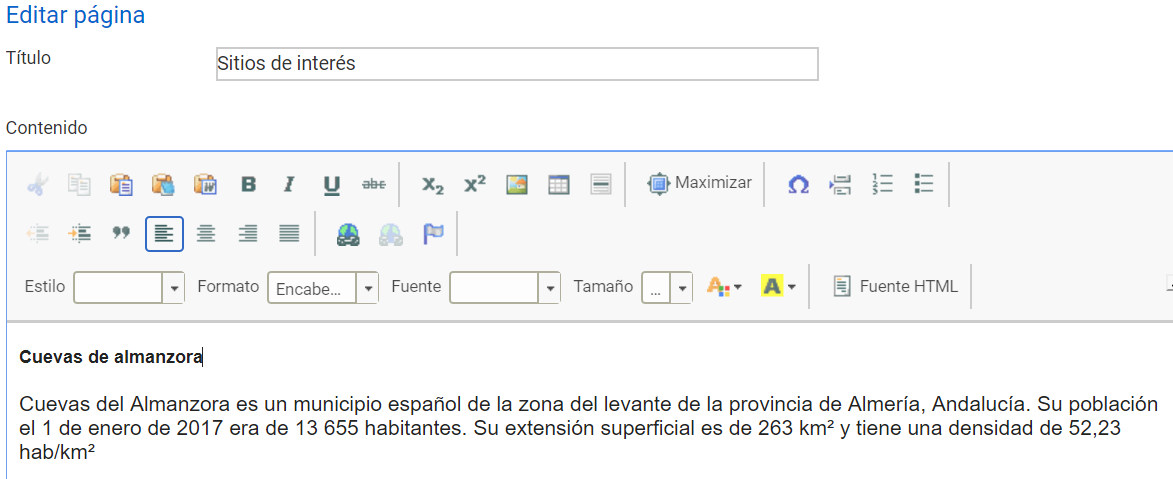
Type a title for the page and add content using the rich text editor. Do not forget to click the “Save” button so as not to lose the changes you have made.
Editing and deleting a page
If you are not satisfied with the content of a page you have created, or you want to add or update information, you can modify it using the “Edit” button to the right of the page title in the list of created pages.

Use the form that opens to make the desired changes to the title or content of the page and click the “Save” button again so that these changes are reflected on the page.
You can delete a page associated with the Event using the “Delete” button, next to the “Edit” button, which removes the Event page from the list of pages. Warning: deleting a page is an action that cannot be undone.
Creating a section for the live broadcast of the event
Broadcasting your events online can be an advantage when it comes to spreading knowledge and reaching your audience from any corner of the world; it can also be an alternative to cancelling the event due to mobility problems or natural causes.
If you decide to broadcast your event online, we suggest some alternatives on the Symposium blog.
You can create a specific section to tell attendees how to attend the event via streaming.
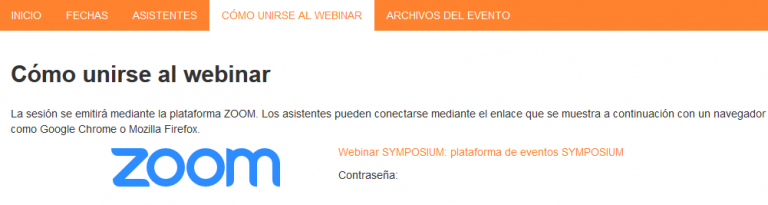
You can limit and control access to the broadcast to confirmed event attendees only. To do so, once the new section has been created, go to Design > Event menu and enable the “Attendees only” option. This way only confirmed attendees will have access to this section and will therefore be able to attend the event online.
