Integrated editor
When managing the content of event websites in SYMPOSIUM you will often come across an editor, from the new event creation form to the various sections that allow free content.
There are two ways to use the editor: the standard mode, which lets you use buttons to apply styles to text and insert image or video elements, similar to using a word processor such as Word; and the HTML Source mode, which lets you write or paste the HTML code of the page you want to show. The first mode is the standard one, and you can switch between them with the HTML Source button.
Most platform users, when creating and managing events, will prefer to use the standard mode.

You can type directly into the editor and apply the usual text styles, such as font color and background color, and make text bold, italic and underlined. There are buttons to format text as numbered or unordered lists and to align paragraphs.
In addition, there are specific buttons for creating web page content, such as inserting links in the text, and adding images, tables, symbols, videos or content hosted on other websites. They are described below.
Quick formatting buttons and button to remove formatting
As in a word processor, the editor provides several buttons to apply quick and simple styles to the selected text. These are the buttons for bold, italic, single underline, strikethrough, and subscript or superscript text.

There is a specific button to clear the formatting of the selected text. It can be very useful in scenarios where content has been copied and pasted from a word processor such as Word, or from other web pages. These texts usually carry their own style code which sometimes breaks the layout of the page being created. This is hard to fix without going into HTML editing mode.

Insert image
Opens a dialog box with the fields needed to include an image in the content. It is important to bear in mind that the image must be a file uploaded to the event server, or be on another public server on the Internet. If it is copied and pasted from a Word document, the image will not be shown later on the event website because the SYMPOSIUM server will not be able to access it.
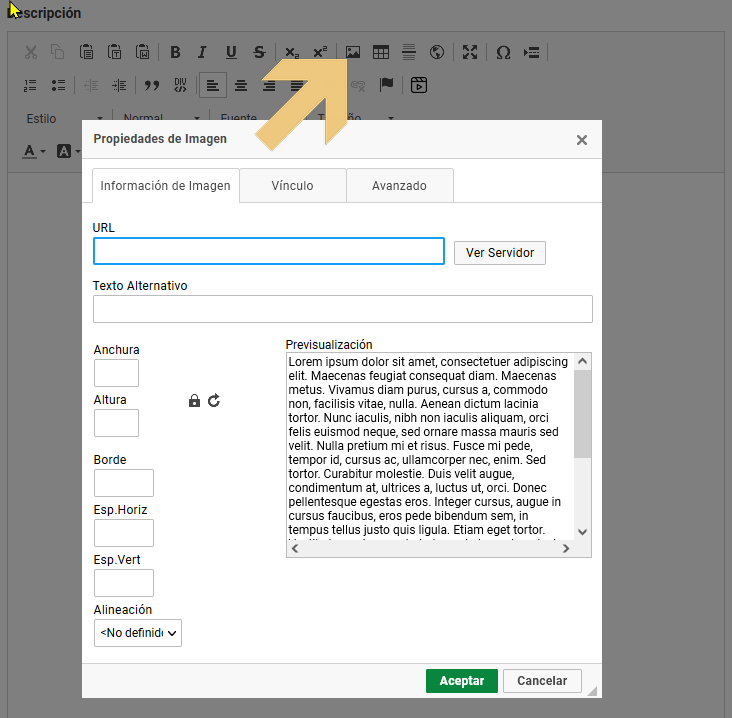
If the image you want to show is on the editor’s computer, it will have to be uploaded to the SYMPOSIUM server. To do so, use the Browse Server button. It will show a list of files already uploaded, if any, and the option to upload others. Just click the file you want to show, as long as it is an image, and the URL field will be filled in. It is advisable to include an Alternative Text to improve the accessibility of the website and, optionally, fill in the other fields.
Insert table
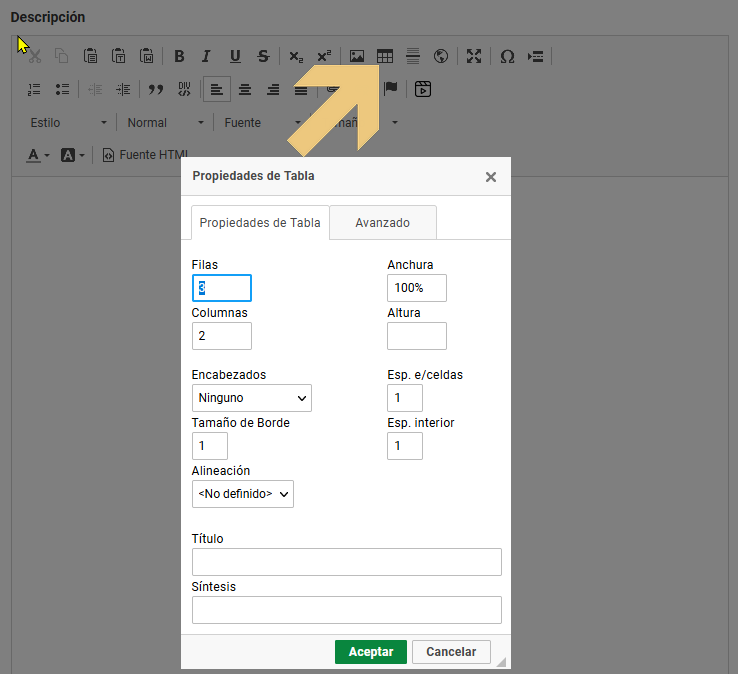
This is similar to the previous one. It consists of indicating how many rows and columns the table will have, as well as other standard attributes that the HTML language establishes for defining tables. These attributes can be changed later. You can right-click on the table in the editor itself to get a menu of options to modify it.
Insert content hosted on another website
There are two buttons for inserting content from other websites. In HTML, these elements are called iframes and, strictly speaking, they are a way of embedding in a web page another page that may be on any other website on the Internet. This is often used to insert multimedia elements from other providers, such as YouTube videos, or online presentations such as Genially.

One of the buttons lets you edit the attributes of the iframe in full detail. The other button only requires you to enter the URL of the content you want to link and automatically generates the iframe attributes. Although these tools can be used to insert YouTube videos, there is a specific one for this that does the same and also generates responsive content, so that the browser will know how to resize the video to fit screens of different sizes properly.
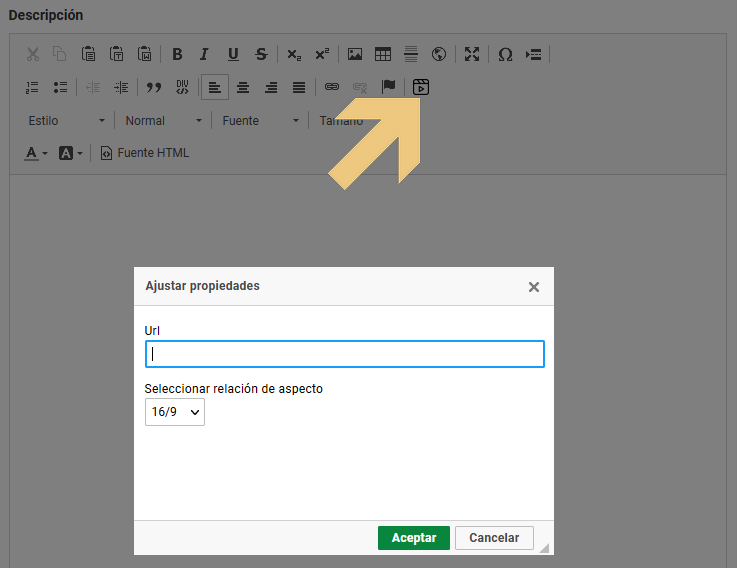
This button shows a panel that only asks for the URL of the video and its aspect ratio. More modern videos usually have a 16/9 aspect ratio. Older ones, like old tube televisions, have a 4/3 aspect ratio.
Inserting responsive videos from YouTube
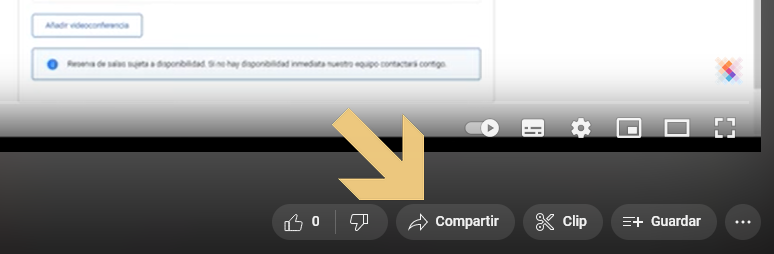
It is important to know where to get the link of the video you want to insert. If you want a responsive video, copying and pasting the web address of the video will not work. Instead, you must get it on YouTube by following these steps:
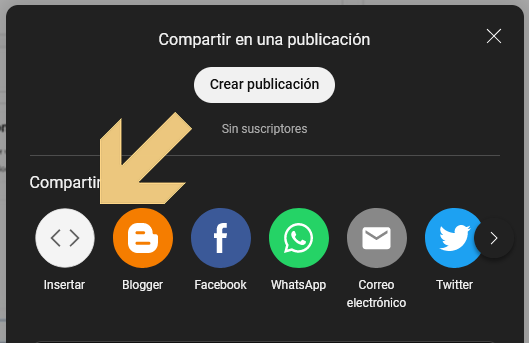
- Click Share
- Select “Embed” from all the options
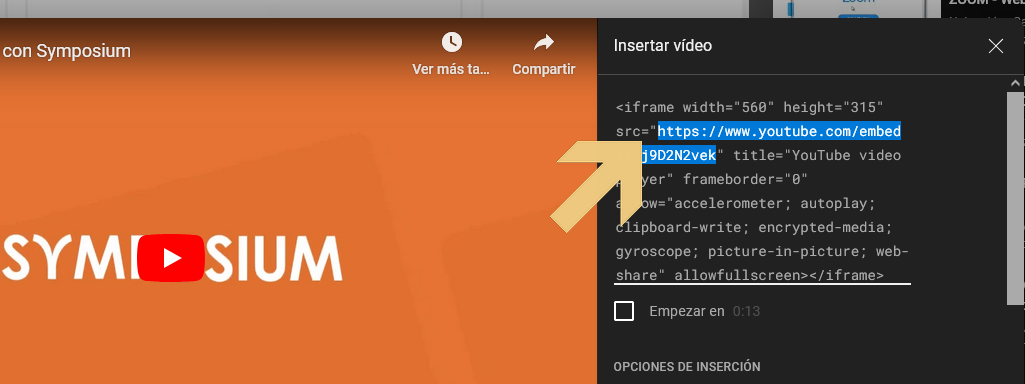
- In the block of code that appears, select and copy the quoted address of the src field
- Paste that URL into the field.
 |
 |
 |