Attendee list
An Organizer will need to manage the attendees of an Event, especially when attendance requires validation. In that case, you can accept or reject registrations individually or for a selected group of them. You can also revoke these decisions in either direction. You can even reject registrations that are validated automatically and revoke that decision later, if needed.
In addition to the usual attendee management tasks, this tool lets you obtain a list of attendees, both those who are confirmed and those who have been rejected, as well as those who have voluntarily cancelled their registration from their private panel.
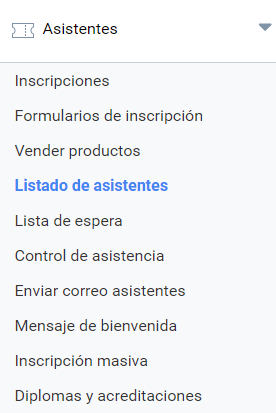
The Attending list panel
There are three sections in this panel:
- Filters to find specific attendees or groups of attendees
- Active attendances with their status (confirmed, rejected or pending)
- Canceled attendances by the registered attendees from their private panel
Filtering the list of attendees
Here you can view the list of attendees of the Event and sort it by name or registration date, or apply filters with the search fields to see only a subset of them. This is especially useful if the list becomes very long. In addition, if the Event is paid, you can also filter by payment status (confirmed, pending or cancelled).
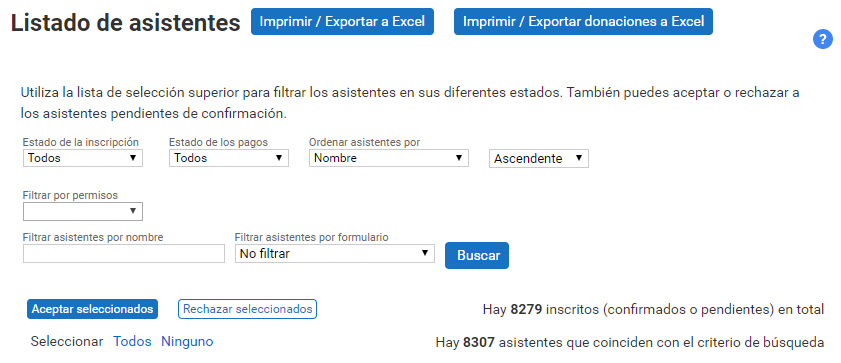
The header of this filter box contains the buttons to export the list, both in printable format and as a spreadsheet.
The information available in the list of attendees
Depending on how the Registrations have been designed, the list will look one way or another. The main difference comes from Registrations “With Validation”, since that validation action is performed by the Organizer in this very panel.

In a paid Event without validation, the registration has the same status as the payment because, when the payment arrives, the attendee is confirmed automatically. No manual intervention by the Organizer is required.

In a free Event with validation there is no payment status control, but manual confirmation of attendance is required in this panel. So, next to the registration status, two buttons are shown that let you accept and reject the applicant. Note that you can reject an attendee who had previously been accepted, and vice versa.

Finally, there may be an Event with Registrations that require validation and are paid. Here, regardless of the payment status, the registration can be accepted or rejected. This configuration can be useful when you want to check the attendees’ credentials before admitting them to the Event, so that they meet certain requirements.
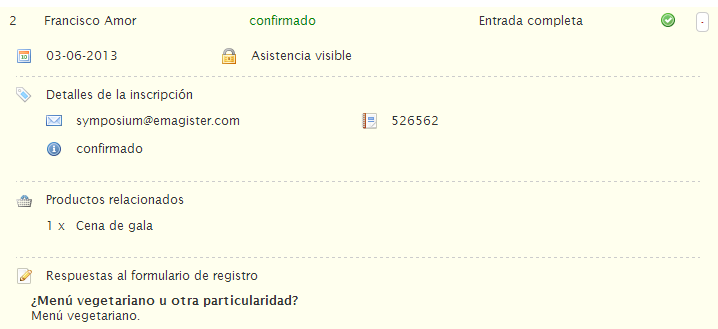
Clicking the icon with the + symbol expands the additional information of a Registration. It shows the date on which it was made and its visibility. The details show the contact email of the user who purchased the registration, the transaction identifier and the payment status.
If the attendee confirmed purchases of Products during the Registration process, they will also be listed in this table.
Finally, the attendee’s answers to the Registration form are shown, if custom fields were added, and there is even the option to edit those answers from this panel.
Editing attendee names
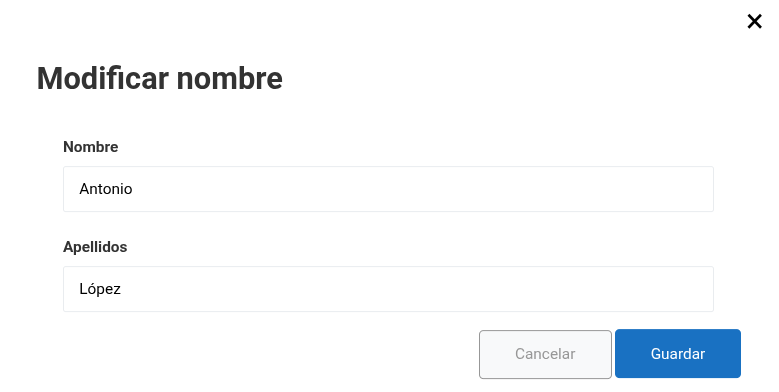
From the list of attendees, the Organizer can change the first and last name of any of them.
To make this change, just click the pencil icon (Edit name) next to the attendee you want to edit: A window will then open where you can update the First name and Last name fields. Once the changes have been made, click Save to confirm the change:
Exporting the information
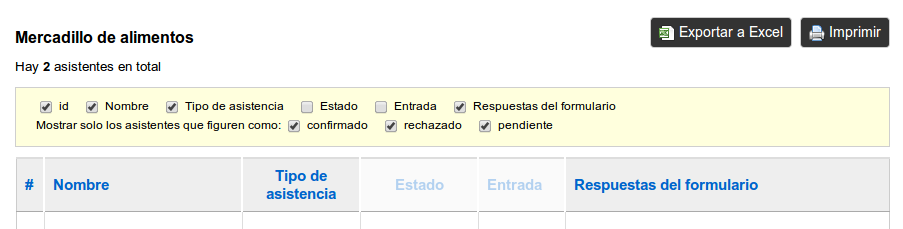
Click the “Print/Export to Excel” button to print the list of attendees, or to export it in Excel format to share it or keep a copy.
Using this option opens a new browser tab where you can indicate which fields you want to include in the export. After selecting how you want to share it, click “Export to Excel” or “Print” to perform the desired action.
Meaning of the icons
Different icons appear in the list of attendees depending on the attendee registration configuration and the registration status.
No icons: when the event is free, the list of attendees shows no icons, since the registration status does not depend on any payment.
 Not applicable: this icon indicates that there is no payment associated with the attendee because, even though the event is paid, the registration is configured as free.
 Pending: means that the user’s registration payment has not been made, so it remains pending.
 Accepted: indicates that the registration payment has been made by the user and validated.
 Cancelled: cancellation of the registration by the user themselves.
 Rejected: indicates that the organizer has rejected the user’s attendance at the event.