Registrations
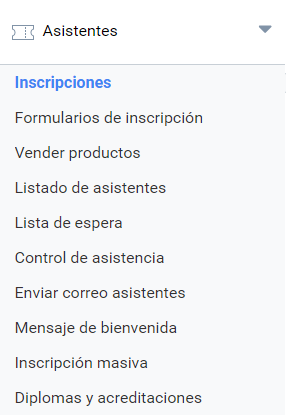
Symposium lets you manage how users can register for an Event, the period for doing so and how many attendees are accepted. Registrations are designed in the Attendees > Enrollments menu.
There are four registration types:
- No registration: declares the Event as open attendance with no control by the organization;
- Registration in another website: choose this option if registration for the Event is handled on some other website that you do not manage with Symposium;
- Free: allows attendance control without the need for financial management;
- Payment: the most complex registration type, which means attendees will have to pay for a ticket to the Event. With this selection, Symposium will give you many tools for financial and attendee control. From this menu you can manage everything related to registration for your Event and, where applicable, the sale of registrations for it. The menu is divided into different blocks where you can manage each aspect of this section.
You can find an explanation of the Symposium Registration flow in this article.
Registration type
In this block you can select the registration type you want for your Event. Once selected, save the changes by clicking the “Save” button.
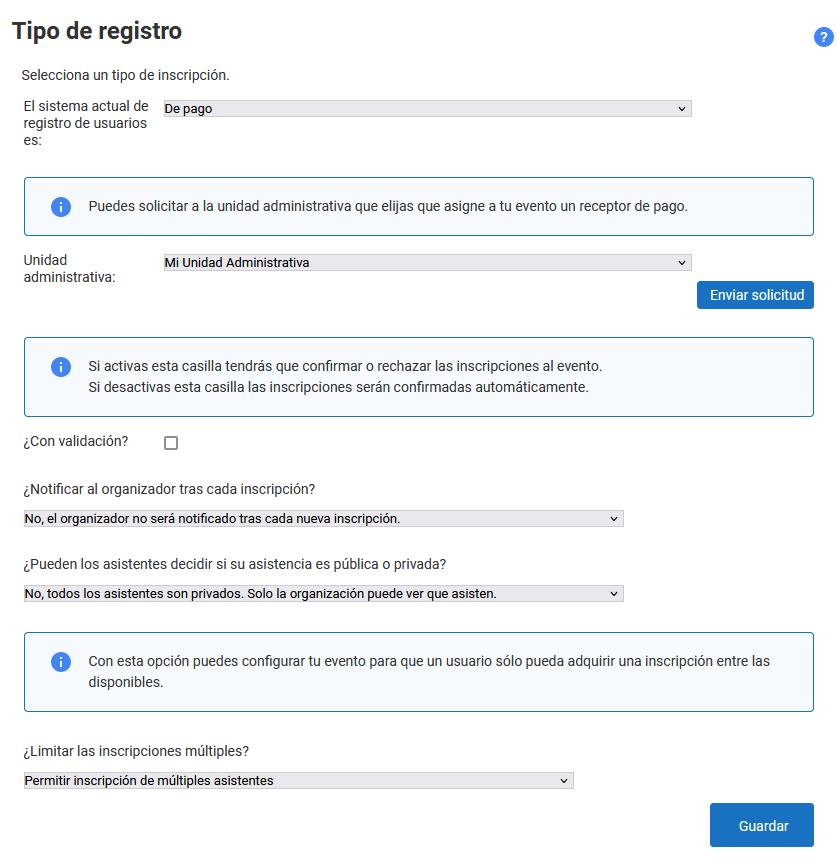
WARNING: If you change the registration type of an Event that has already been created, all the data of the registered attendees will be deleted.
Registrations are the tickets for the Event. You can create several Registration types as needed, and they can have a price or be free.
Once the registration type has been chosen, find the “Enrollments” box further down. You must create at least one Registration. You can create as many as you need, with the characteristics you see fit. For example, basic, VIP, adults, children… Each of them will have a name, a price and a currency if the registration type you chose before is paid, a number of tickets available for that type, and whether it will be visible to visitors or not.
You can create tickets that are not published, that is, tickets that website visitors cannot buy because they do not appear on the page, but which you will manage personally as invitations.
Validation
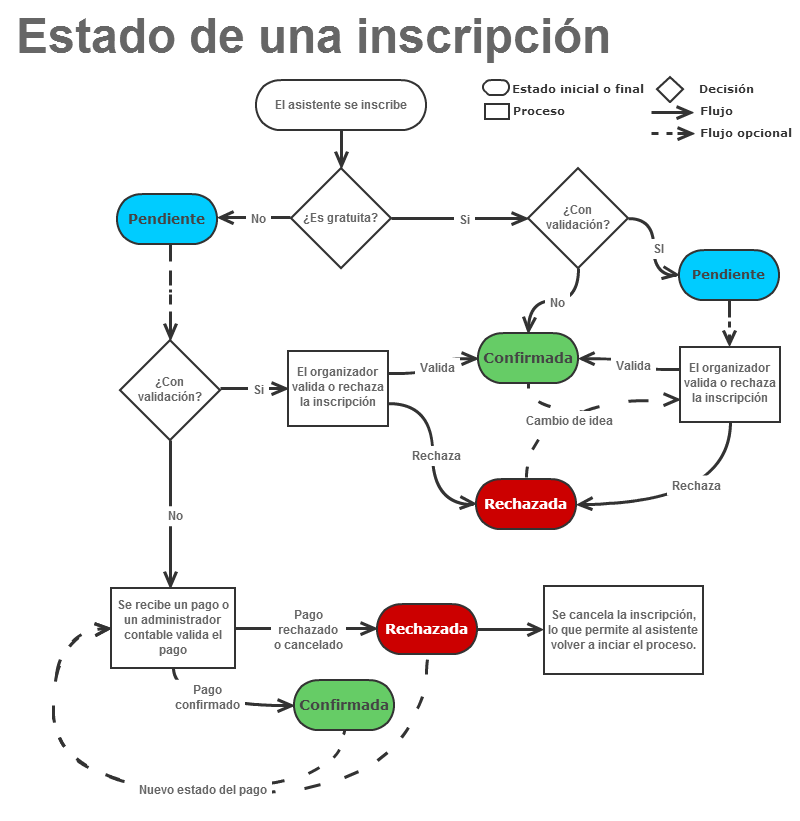
Validation lets the organizer manually validate attendees. The table below shows the behavior obtained when combining the different registration and validation types.
| Registration type | With Validation | Definition | When is attendance confirmed? |
|---|---|---|---|
| No registration | Registrations are not managed | Not applicable | |
| Registration in another website | An external link is given from which registrations will be managed | Not applicable | |
| Free | No | Management of free Registrations with no need for validation | The Registration is confirmed automatically |
| Free | Yes | Management of free Registrations that must be validated manually | The organizer manually confirms each attendee. Until then every registration is shown as “pending” |
| Payment | No | Management of free or paid Registrations with no need for validation | Free Registrations are confirmed automatically. Paid Registrations are confirmed automatically when the payment is received, but if it does not arrive they are shown as “pending” |
| Payment | Yes | Management of free or paid Registrations that must be validated manually | Every Registration is shown as “pending” until the Organizer confirms it manually, including paid ones that have already been paid for. |
A registered person must be Confirmed to count as a full Attendee. A rejected registration does not count towards capacity or any other statistic.
Privacy
Attendance at an Event can be public or private. Public means it is visible in the list of attendees to any visitor of the platform, while private keeps the registration hidden from anyone outside the Event organization.
The organizer can select the type of privacy they want for attendances. They can let each attendee decide whether their attendance is public or private, or, on the contrary, make all attendances private by default.
Administrative units
If you select “Payment” as the Registration type and Administrative units have been configured on your platform, you can ask one of the units to assign you a payment receiver. Do this only when you know which Administrative unit you belong to; if you do not know, check with the platform Administrators.
Limit multiple registrations
This setting applies only to the event you are editing. Your platform may let you choose whether to limit or allow multiple registrations. However, in some circumstances, the platform Administrators may have asked SYMPOSIUM to limit them in all cases. If so, this selector will not appear.
If you select Limit multiple registration, a user visiting your event website will only be able to make one registration and will not be able to register several people in the same process. This setting is directly related to an attribute that tickets (the registration types you design in your event) can have.
By default, SYMPOSIUM has logic that lets one person register several people in the same event. You can limit that possibility if you want more control over the number of registrations one person purchases in a session. However, keep in mind that the same person can complete a registration and, immediately or later, make another one for someone else.
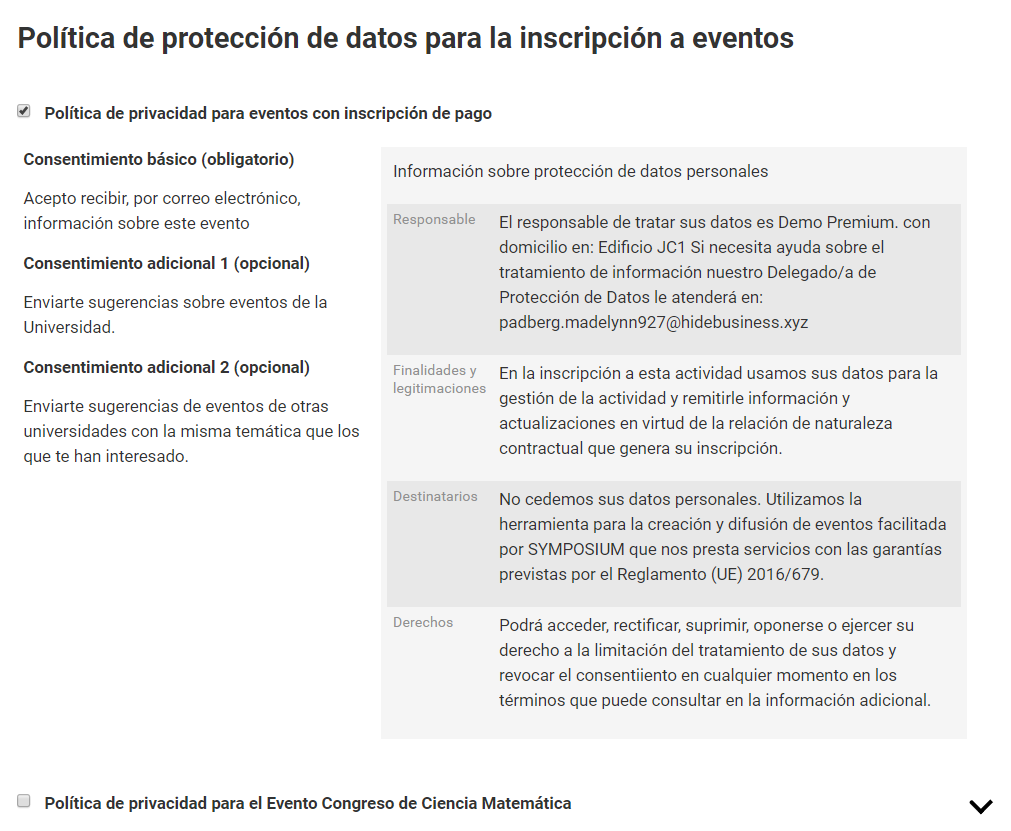
Data Protection Act - Processing of personal data
If your Event has user registration configured, you will need to select one of the Data Protection Act templates previously created by the platform Administrator.
Event capacity
In this block you can determine whether the Event has unlimited capacity or, on the contrary, there is a number of available registrations before capacity is reached.
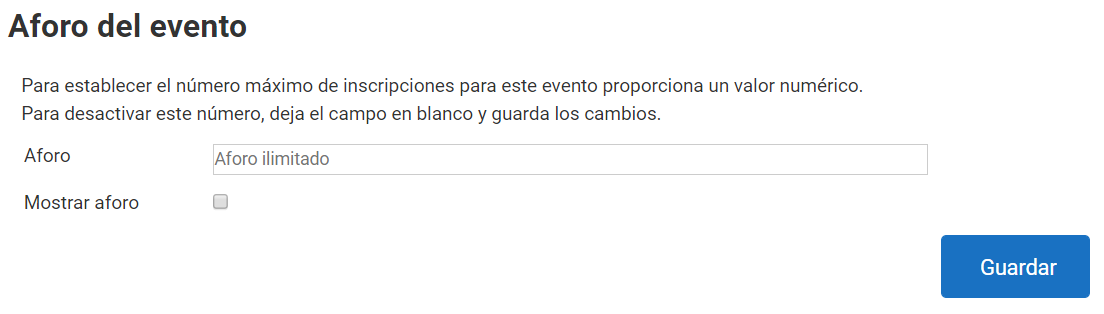
Enter the number of places available for the Event, or leave the text field blank if you want it to have unlimited capacity. You can also decide whether the Event’s capacity is shown on its main page or remains hidden, using the “Show capacity” checkbox. Finally, click Save.
You can change the capacity at any time, although there are restrictions.
- The new capacity can never be lower than the number of registered attendees, if there are any.
- The new capacity can never be lower than the sum of validated attendees plus attendees pending validation, when manual validation is enabled.
- The new capacity can never be lower than the sum of validated attendees plus pending ones plus registrations with confirmed payment, even if these correspond to cancelled registrations. For the latter to stop counting, those payments must be rejected first.
Registration dates
In this block you can set the period during which Registration or the sale of Registrations for the Event will take place, by selecting start and end dates.
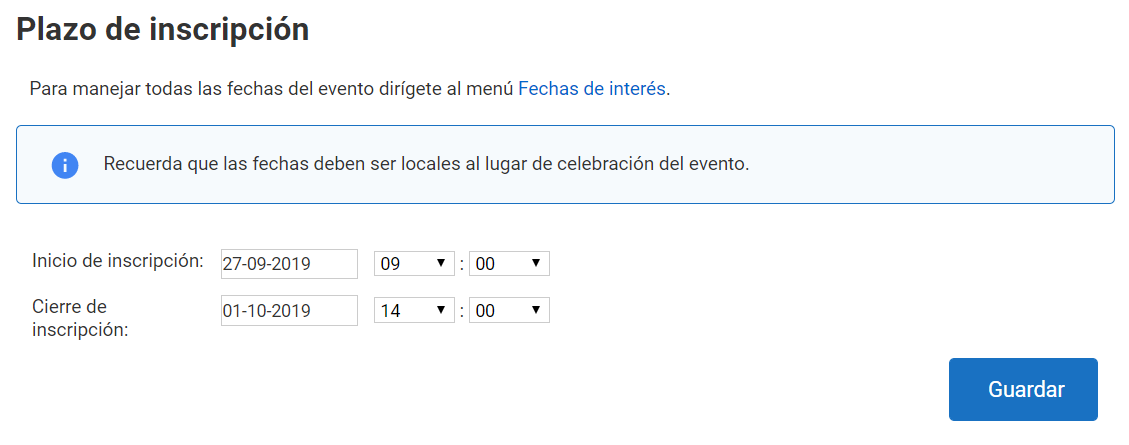
As stated in the notice box, keep in mind that the dates and times you enter must be the local ones of the venue. Symposium supports different time zones.
Enrollments
Here you can manage everything related to the tickets for the Event. At the beginning, a notice box shows the payment methods available for the Event. These accepted payment methods are configured in the Administration panel and do not depend specifically on an Event. If you need another payment method to be accepted, please contact the website Administrator.
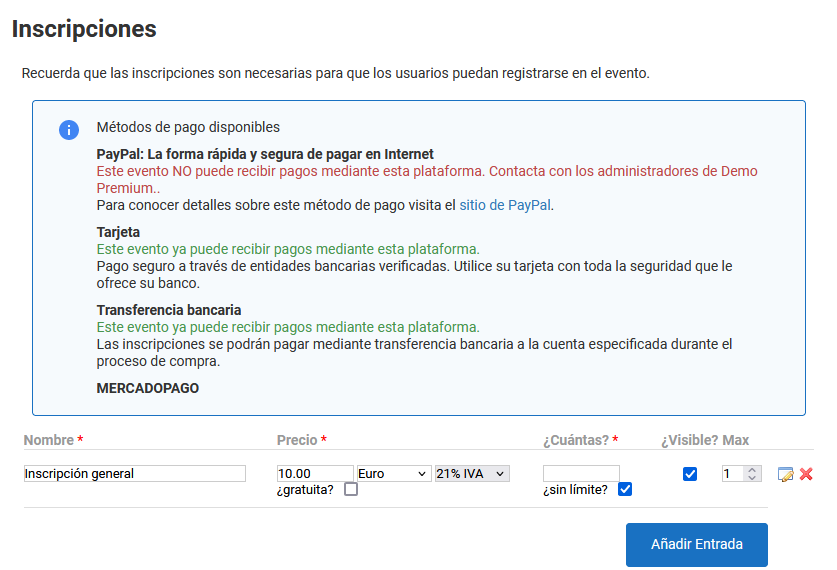 You can configure several registration types, each with different characteristics that suit your needs as Event organizer.
For each registration type you can configure the following characteristics:
- Registration name.
- Free or paid and, if paid, the registration price.
- Unlimited capacity, or a maximum number of available registrations.
- Visibility of the number of available registrations, so that the public can see it or not.
- Maximum number of units a user can book or purchase.
- Start and end date and time of the registration’s sale period.
- A description of what the registration type offers, which services it includes, or any other useful information for the user.
This way, you can fully manage sign-up for your Event. For example, you can create a registration with a reduced price up to 15 days before the Event, and a second one with the normal price from that date until the start of the Event. The price of registrations may also vary depending on the services they offer. All of this is fully configurable using the tools provided by the platform.
The Max selector has a default value of 10 and limits how many units of the same registration type a user can purchase when making a multiple registration. This gives you more control over attendance at the event. The maximum value is also 10 units, for technical reasons. It is important to keep in mind that this setting depends on the platform configuration and that of the event itself:
- if the platform Administrators asked SYMPOSIUM to limit multiple registrations, this selector will not appear;
- if you have configured your event to Limit multiple registration, this selector will not appear either.
Once you have finished configuring the ticket type, click “Save” to save the changes. To repeat the process and add more ticket types, click the “Add” button.
Special cases
Remember that the Event may have registration dates configured. In that case, these dates take precedence over the availability dates of the registrations. If the registration period closes while the registrations are open, they will not be available.
Likewise, if you decide to extend the registration period for your Event, remember to extend the availability period of the registrations.
To receive payments on the platform, the site administrator must have enabled and assigned a Payment receiver to your Event. If you create paid registrations before this assignment has taken place, they will not be visible to the public.
If you try to delete a registration type and the platform tells you that it is not possible because it has a registration form shared with another ticket, it is because one or more custom fields of that ticket’s registration form have been copied to another ticket that already has sales:

Therefore, the platform prevents its deletion to avoid losing the information collected through the registration form.
As an alternative, we suggest marking it as not visible by unticking the Visible? checkbox. That way, it will not be shown in the registration process.
Donations
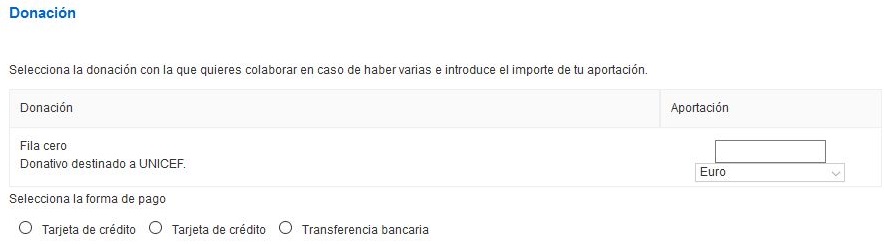
Events allow fundraising through Donations. These work like Registrations that do not affect the Event’s capacity. You can create as many Donation types as needed, and Donors will appear in the Attendee lists that an Organizer can obtain from the attendance control menus.
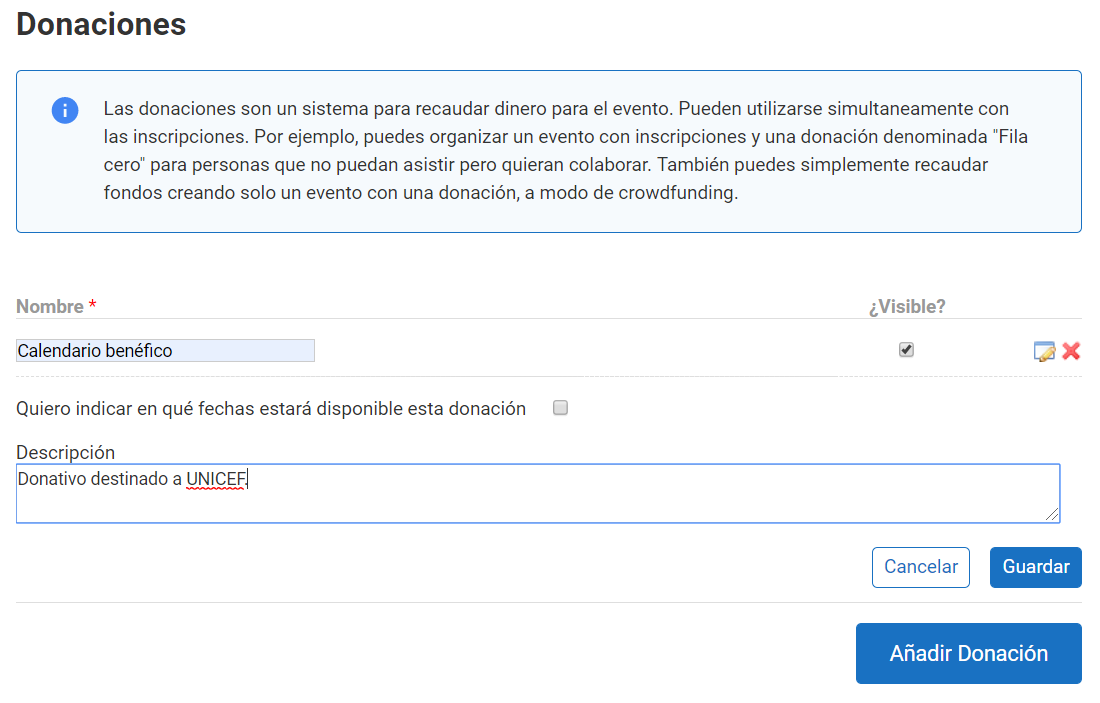
As shown in the image, there is no need to set a price or amount, since the user is free to contribute whatever they see fit. It is also possible to use features similar to those of registrations, such as limiting availability dates. In addition, in multi-language Events, Donations and their dates, if set, are replicated, but the texts will need to be translated and adapted separately in each version of the website.
On the Event website, next to the Registration button, the donate button will appear, and clicking it will show a form identical to the Registration form. You can customize that Donation form with new fields defined by the Organizer, in the same way that Registration forms can be customized with the tool in the Attendees > Registration forms menu.
Upcoming event reminder
At the bottom, you can find a block like the following:
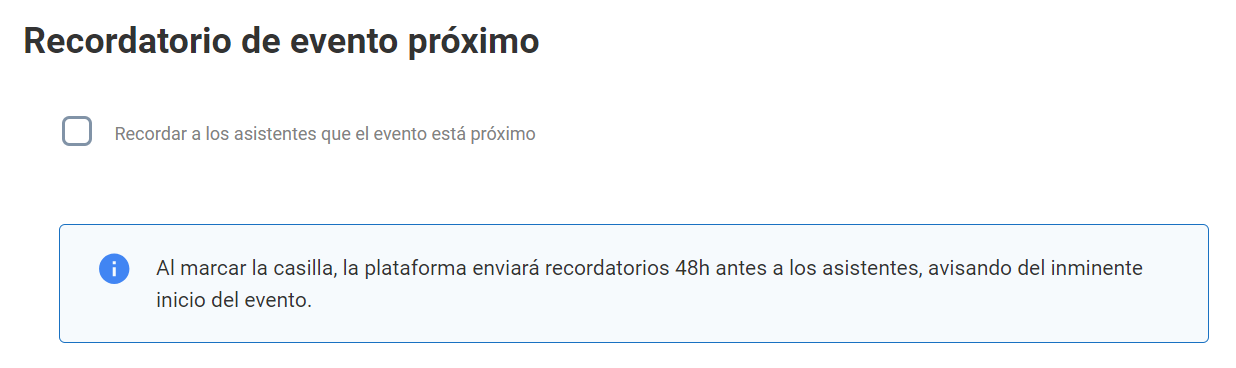 By default, events are not set to send reminders.
If you tick the checkbox, the event will be added to the list for sending a reminder email to confirmed attendees to let them know the event is about to start.
The process runs every day at 0:00 UTC and takes into account events whose start is between 24 and 48 hours after the time of execution.