Registration form
By default, the minimum data required to register are the attendee’s first name, last name and email address. These data are required and common to all events that have attendee registration configured. Additionally, you can ask for other data or add help texts to notify attendees of something. Symposium lets you create custom registration forms with different types of questions. You can do this from the Attendees > Registration forms section.
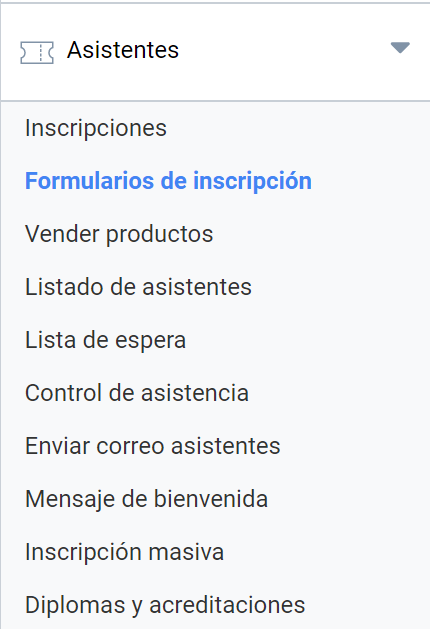
The Registration forms panel
The Registration forms page is organized in two distinct areas. The top area shows controls to add new fields to a given registration. The bottom area shows tables with the fields that have been designed to be shown in the different Registrations, as long as some have already been configured.
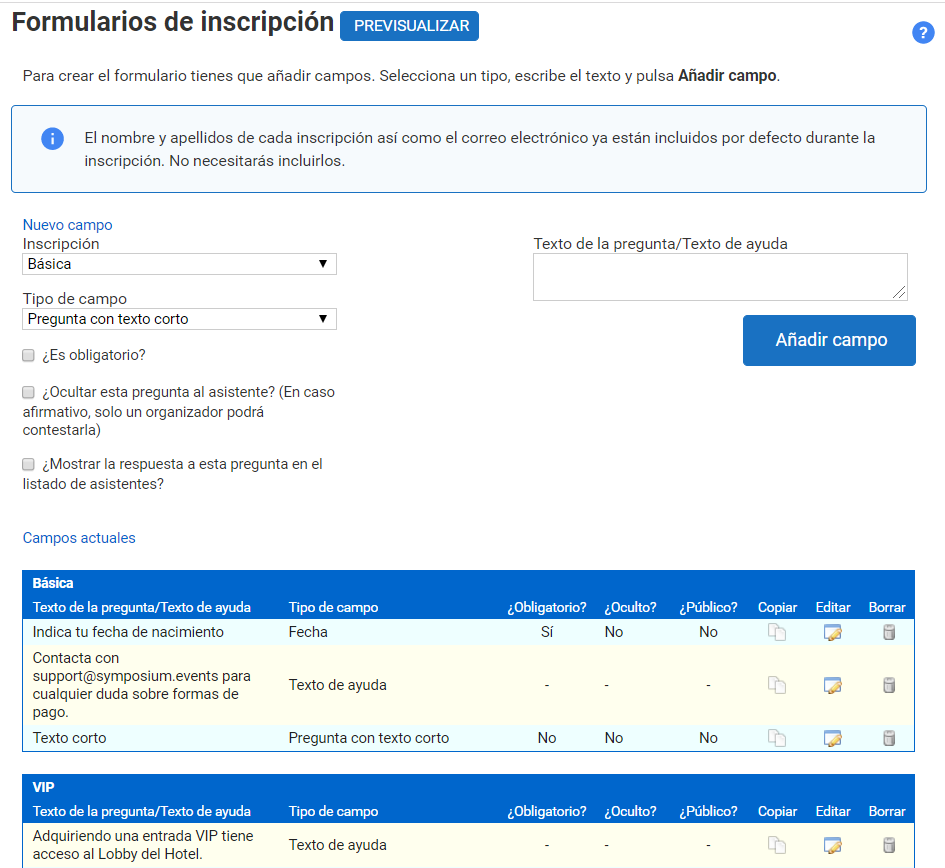
Creating a field for the registration form
Registration forms are a series of questions customized by the event organizer that attendees must answer during the process of registering for the event.
The available question types are:
- Short text question: recommended when a brief answer is expected.
- Long text question: recommended when a long answer is expected.
- Yes or No question
- Help Text: a notice text is shown, formatted as help text, to inform the user about something.
- Date question: this control is shown as a calendar so that the user can select a date.
- Single choice selection: the attendee must choose one option from those available.
- Multiple choice selection: the attendee must choose one or more options from those available.
- Attachment: this control enables a button to send a file to the Event.
- Country selection: an alphabetical list of countries.
Suppose an Event where, for statistical purposes, you want to know the age of the Attendees. To do this, you customize a registration form.
First, choose which Registration type the field will be associated with, from the Registration list. The question will probably be asked to all attendees regardless of which ticket they are going to buy. Symposium makes this easy by creating a field associated with one Registration type that can then be copied to the others, so you do not need to repeat the process over and over.
Next, choose the field type from the list given in the section above this paragraph. Depending on what you want to ask, different options will appear on the right. For a Date field you only need to enter a friendly text for the question. When options are offered, you have to type them in by hand one by one.
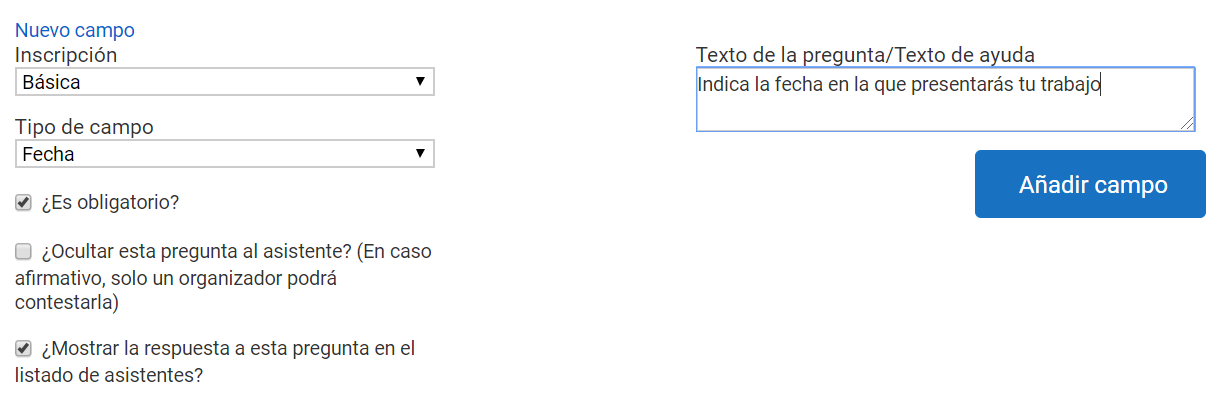
Next, choose whether to enable three options, independent of each other.
- Is it mandatory?: lets you mark the field as required; to do so, tick a checkbox, and the attendee will only be able to confirm the purchase of their ticket after answering the field’s question.
- Hide this question from the attendee?: an option that hides the field from the user who wants to buy a ticket, but which the Organizer will then have to fill in. It was designed to store certain information needed for the Event that is not asked of Attendees. For example, whether they hold a doctorate or whether they are a special guest of the university’s Rector’s Office.
- Show this question in the list of attendees?: lets you decide whether or not the answer appears in the attending list that can be obtained to control the Event.
In the date of birth example, it has been decided that the field will be mandatory, but it will not be hidden from attendees, since they are the ones who must fill it in, and the option to show it in the lists will be ticked because it is useful for the Organizer.
In multi-language Events, the forms are replicated for each version of the Event website, but the texts must be translated and adapted in each version.
Duplicating a question for other Registrations
You may want to include the same question in all or some registrations. Symposium lets you create the field only once, associated with one ticket type, and then copy it to the others, so you avoid having to create the field again and again for every ticket.
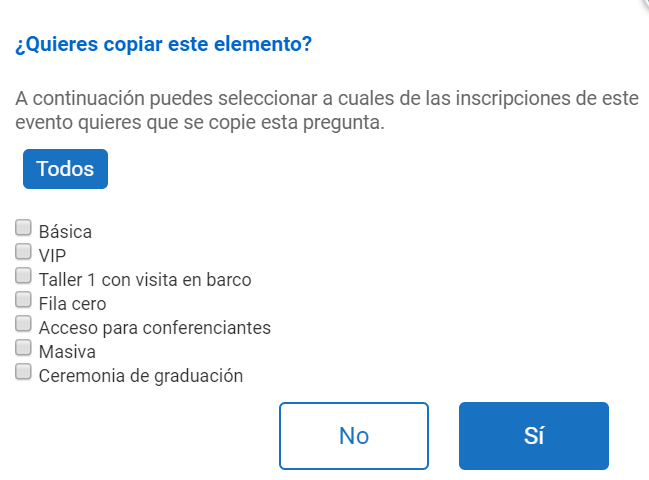
To duplicate a form field, find it in the tables in the bottom half of this panel and click the Copy button. A box will appear where you can tick which ticket and donation types must show that field.
Ordering form fields
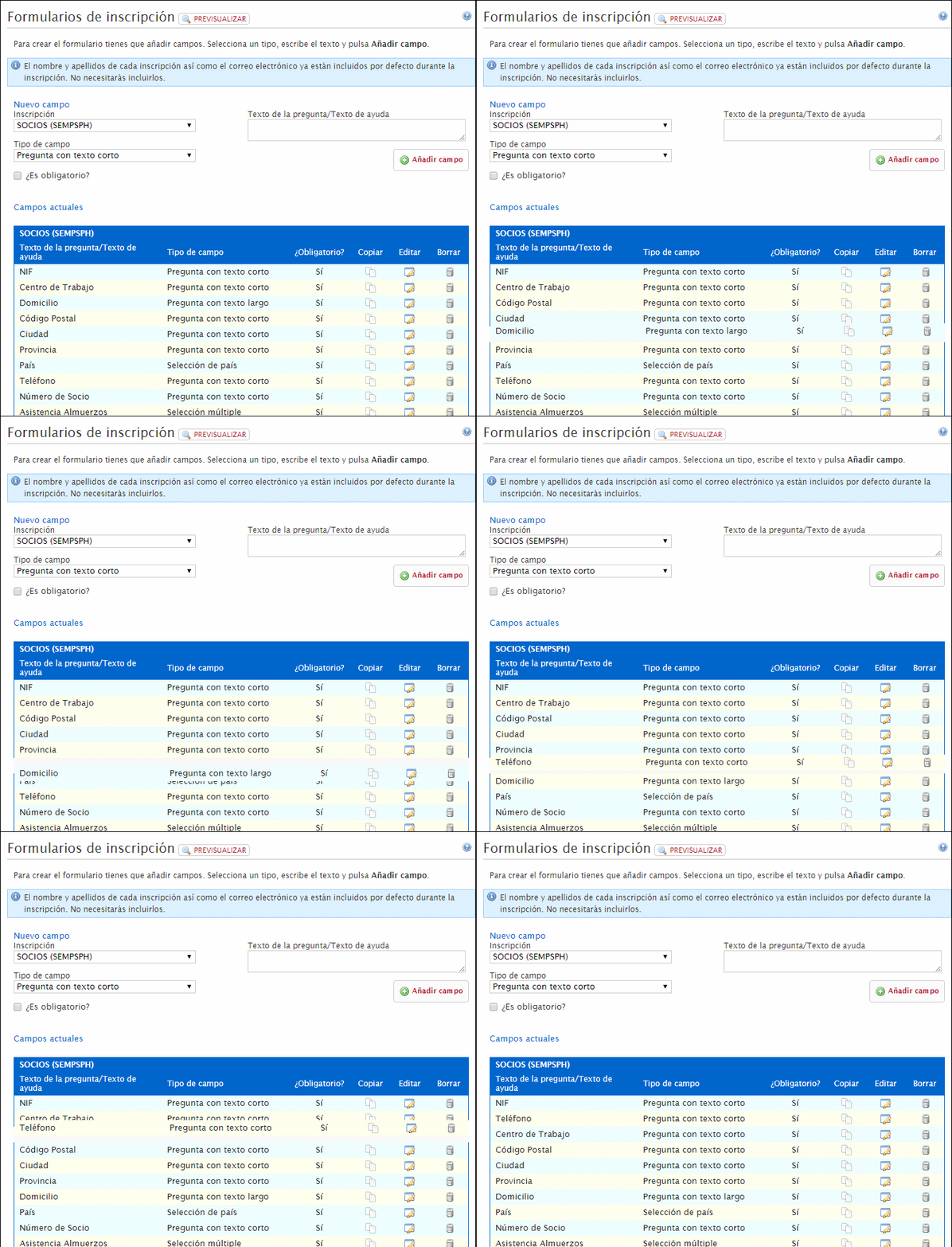
When several custom fields are created for a ticket type, the order in which they will appear on screen to the user matters. This is controlled in the Registration forms panel itself, in the tables at the bottom. Although the initial order is determined by the order in which the fields were created, you can change it by dragging and dropping with the mouse.
The animation below shows how to change the order of the fields of a registration form.
Translating form questions into other languages
Symposium is a multi-language platform that lets you translate content into up to five different languages. Once created, the questions of the custom form can be translated by selecting the language in which you want to edit the event.
Keep in mind that, even when translated, the form must be the same and offer the same options in all languages, so single/multiple choice questions must have the same number of answers so that continuity can be kept. If an answer is removed or added for only one of the languages, this change will affect the other versions.