Diplomas and name badges
Events often require attendees to wear a name badge that can be used for access control and that helps organizers identify people, tell apart the Registration types they have purchased and manage the capacity of the different activities.
It is also common, at the end of certain types of event, to want to recognize participants or attendees with a diploma certifying that they were present.
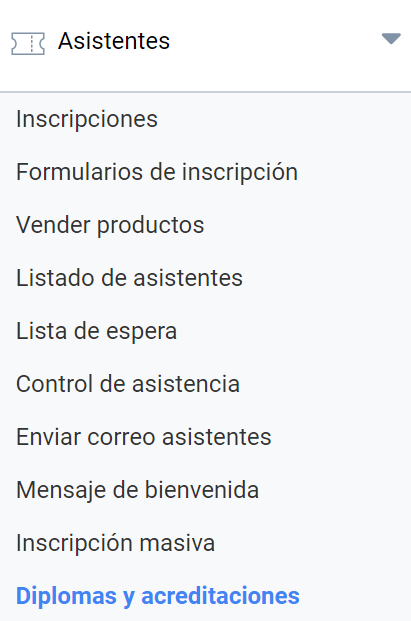
With Symposium you can design both diplomas and name badges from the tools in the Attendees > Diplomas and name badges menu.
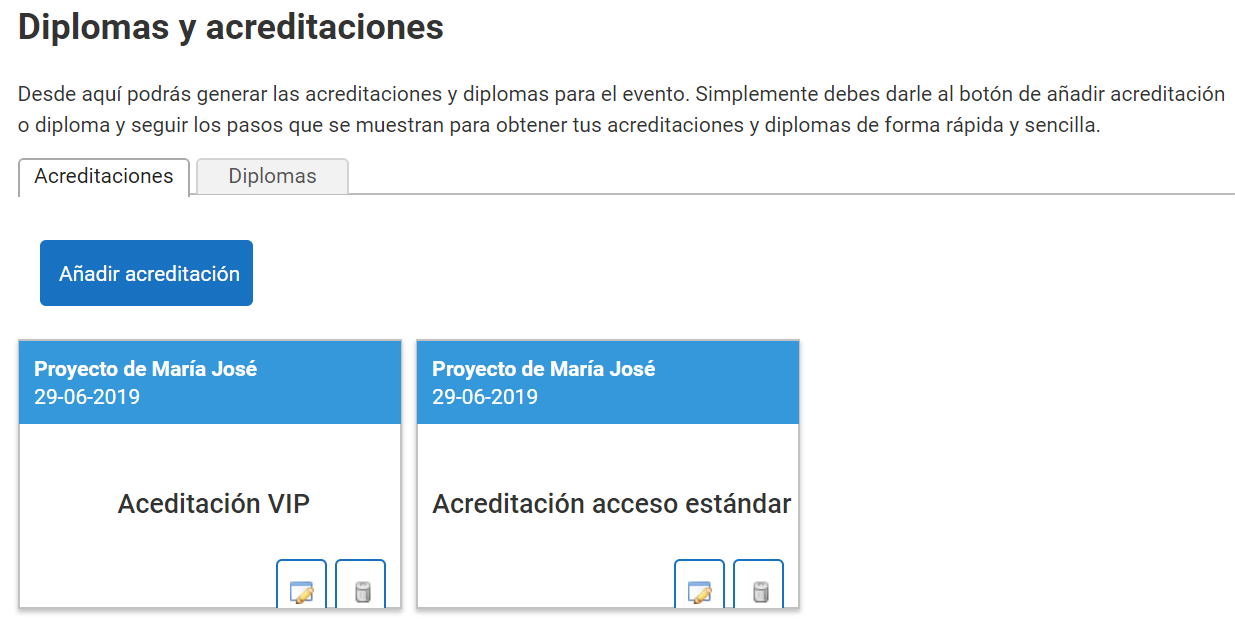
The Diplomas and name badges panel is structured in two tabs, each with a set of controls to design one type of document or the other. When Name badges or Diplomas already exist, a list of them is also shown, allowing you to edit and delete them.
Designing Name badges
Designing a Name badge takes four steps:
- Give it a name
- Select format and size
- Apply a design
- Customize the template
Naming the Name badge
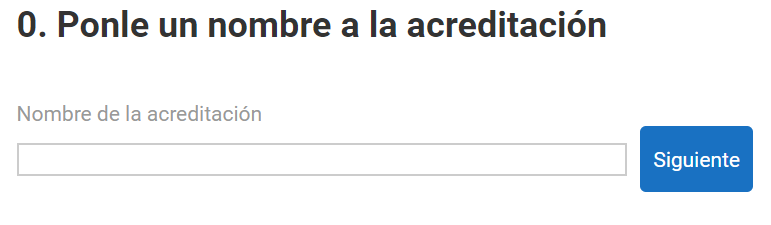
After clicking Add name badge, type a name to identify that name badge and click next or press the ENTER key.
Selecting the size
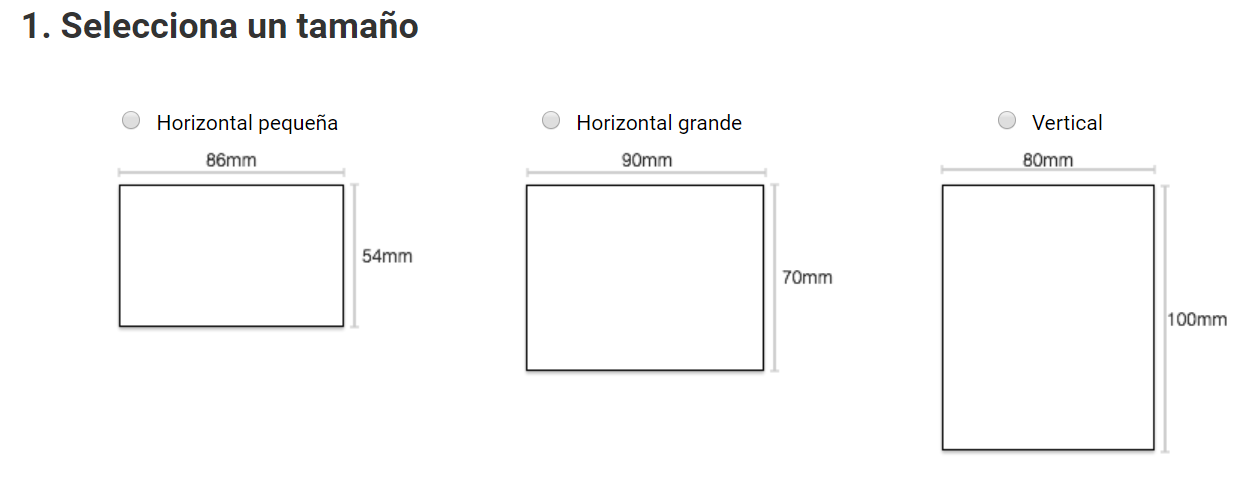
You can choose between three formats. The most common one for a card worn on a lanyard or sewn near the shoulder is 86 x 54 mm. With a little more room for content, there is the 90 x 70 mm standard, very close to a credit card. Finally, the 80 x 100 mm format is suitable for name badges that require a lot of content and are usually worn on a ribbon tied around the neck.
Applying a design
Symposium provides a basic generic design with an area at the top of the card showing the Event and its date, plus a slightly larger area at the bottom with the Attendee’s first and last name.
If a more advanced level of customization is required, click the Customized option. Here the design is done outside Symposium with an image editing application. You can get a Photoshop template or a conventional image file template that most photo editing applications can read.
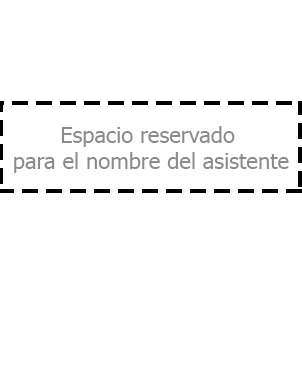
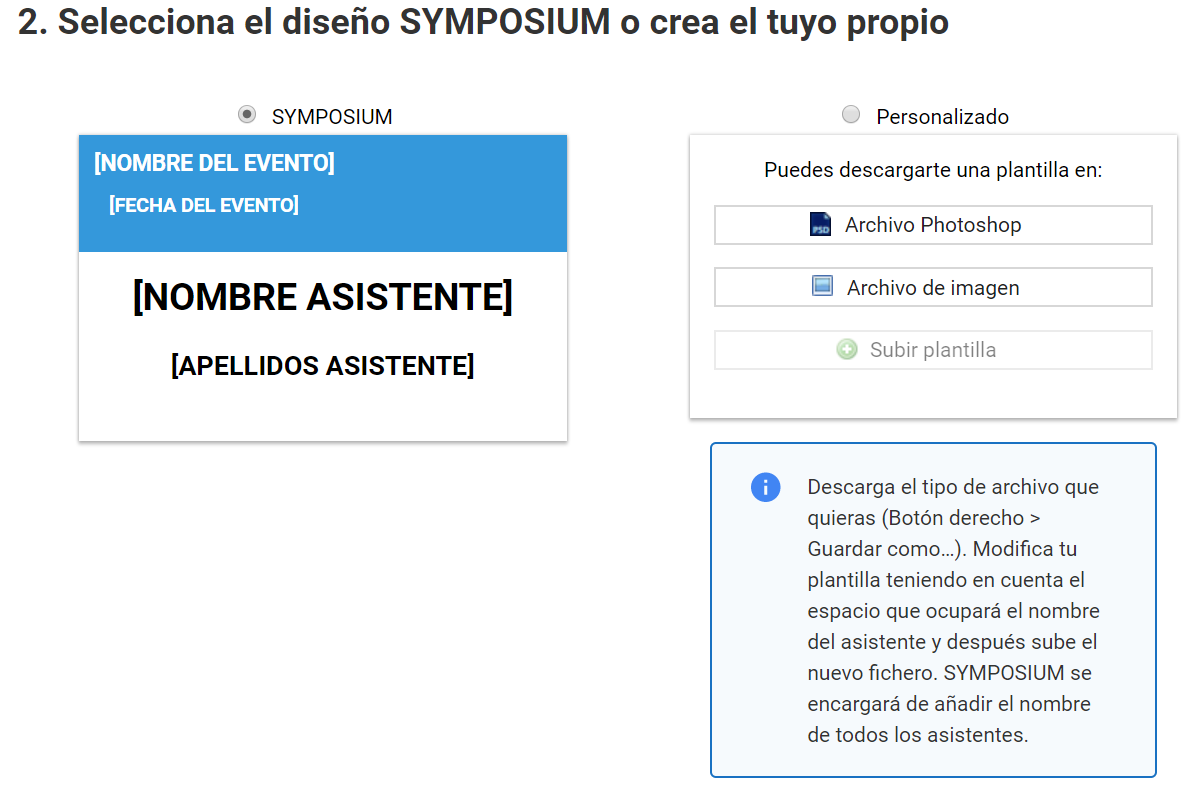
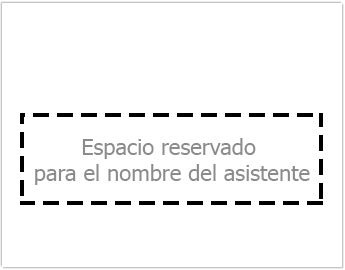
Both the Photoshop file and the image show the areas where Symposium will print the Attendees’ first and last names. These marks must be deleted before uploading the template. If they are left, since they are part of the base image, they would then be printed on the Name badges. Any other information that needs to appear there must be added by whoever edits the card.
Once the modified template has been uploaded, click the Save button at the end of the page to preview the result. If no design has been saved, it will not be possible to preview it either.
Customizing the template
In this section you can preview the result before considering the work finished and sending the Name badges to print.
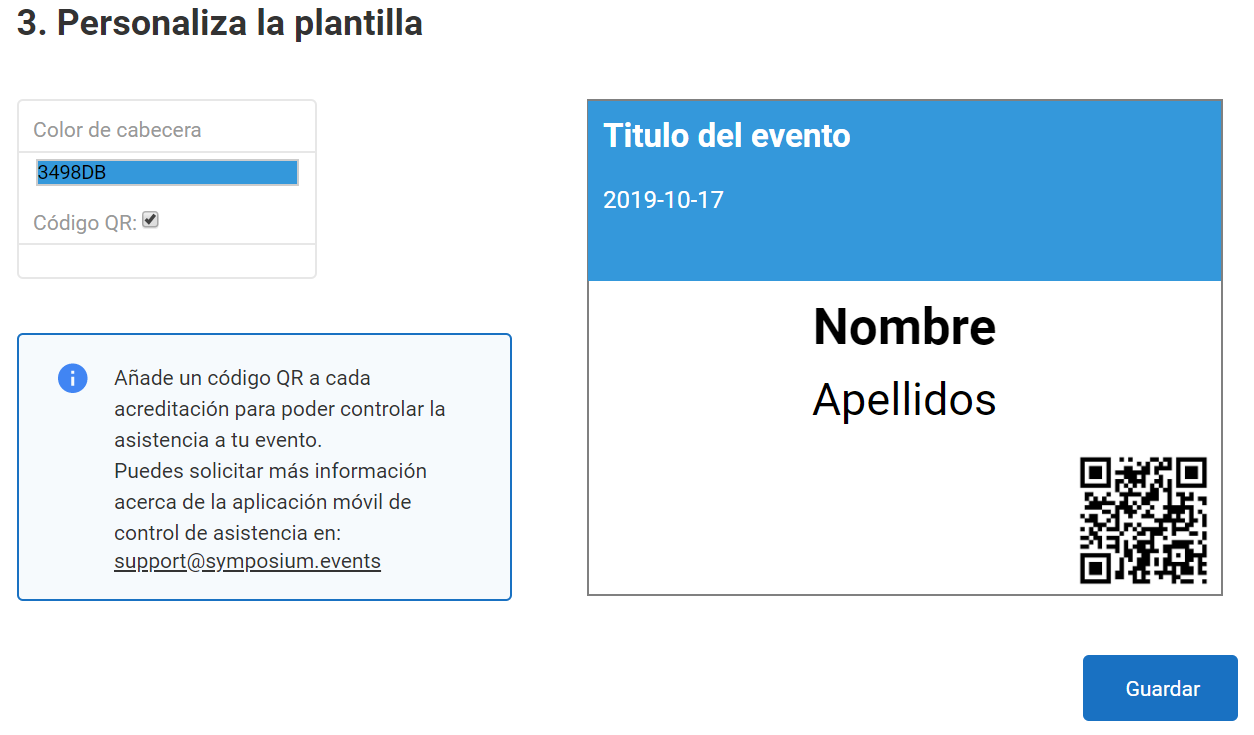
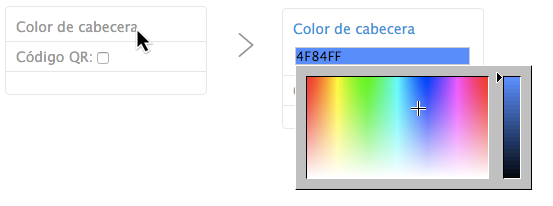
If the generic Symposium design was selected, you can change the header color with the menu on the left and decide whether the card will include the QR code that identifies the Attendee, which would make it possible, if desired, to control attendance with the mobile app, which can read those codes.
Finally, the Print button that will now have appeared at the end of the page generates a PDF document with the Name badges of all Attendees, ready to cut out and hand out.
Diplomas
Creating Diplomas is very similar to designing Name badges, except that there are fewer customization options.
After clicking the Add diploma button, four steps, numbered from zero to three, must be completed:
- Name the Diploma
- Select orientation
- Apply design
- Customize the template
Naming the Diploma
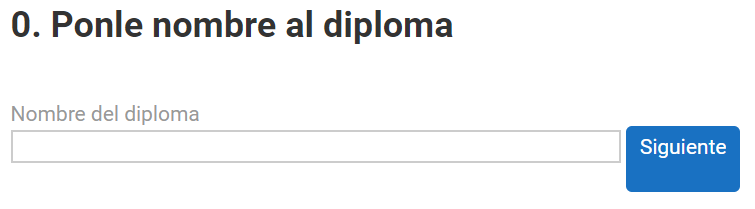
Type a name to identify that diploma and click next or press the Enter key.
Selecting orientation
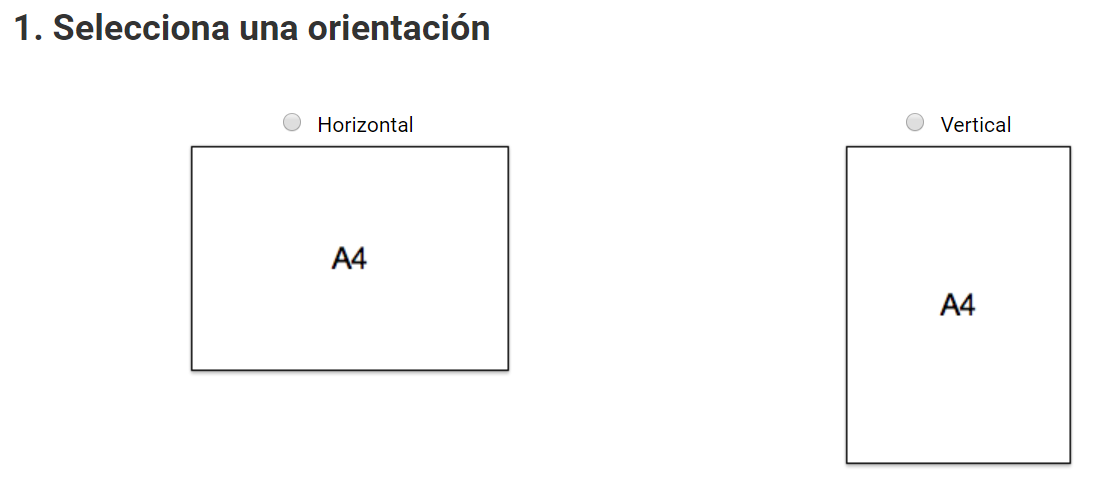
Since the Diploma tool was designed with the DIN A4 paper sheet standard in mind, you can only choose between portrait and landscape orientation for this format.
Applying a design
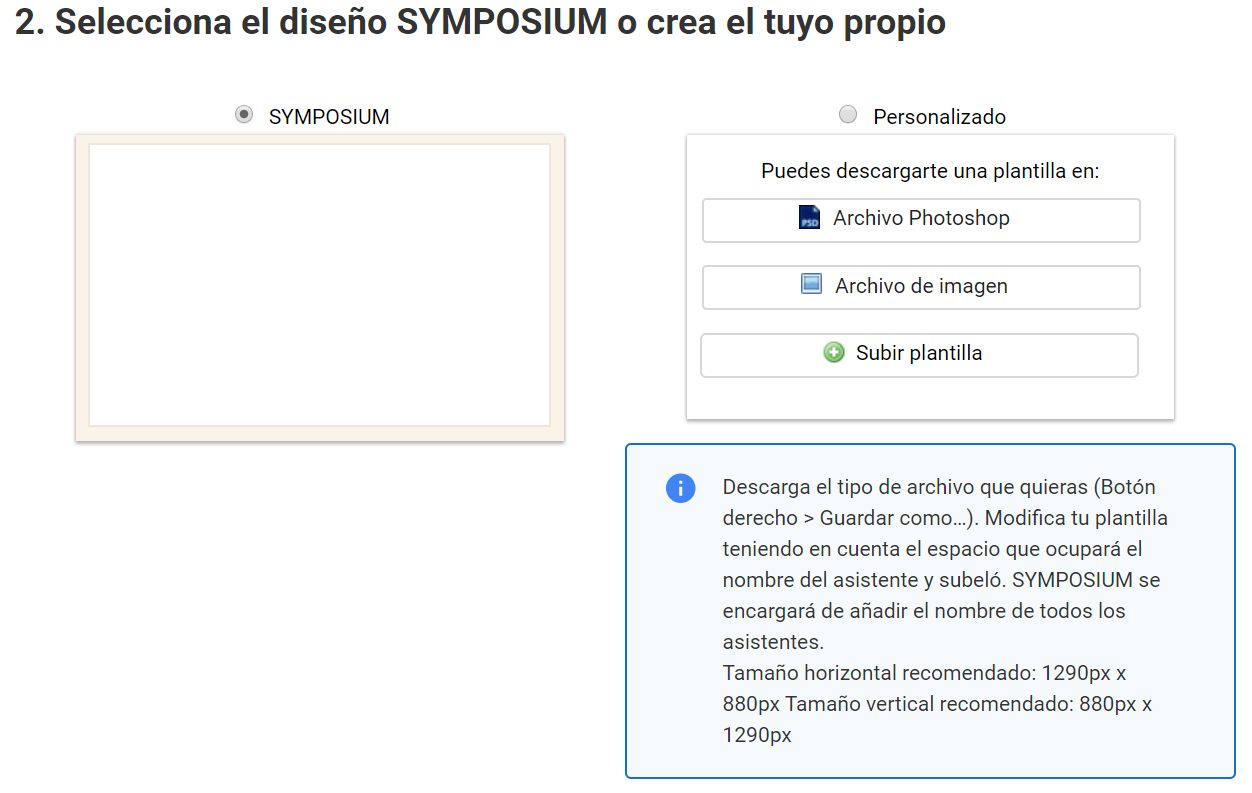
Symposium provides a basic generic design with an area at the top of the diploma showing the Event logo and, further down, an area with the Attendee’s first and last name. This basic template comes with a border color to add some texture. If you choose this design, in the next step you will be able to change that color, among other options.
If a more advanced level of customization is required, click the Customized option. Here the design is done outside Symposium with an image editing application. You can get a Photoshop template or a conventional image file template that most photo editing applications can read.
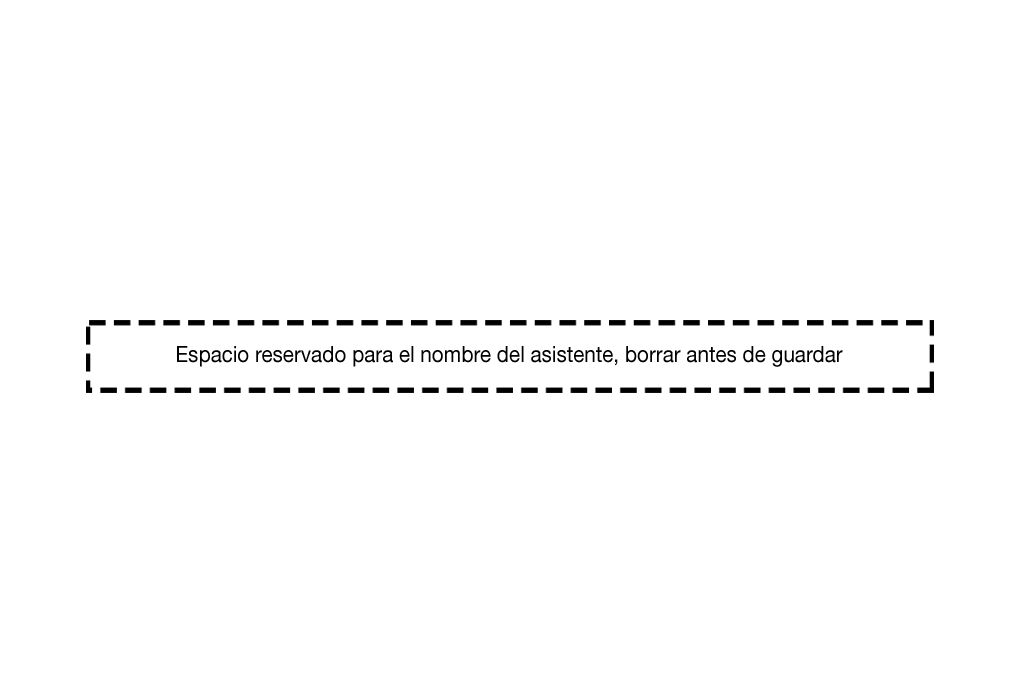
For the best possible framing of a design made with another application and maximum sharpness, it is recommended to work on the designs at the following pixel sizes, depending on the selected orientation:
- landscape orientation: 1290 x 880 px
- portrait orientation: 880 x 1290 px
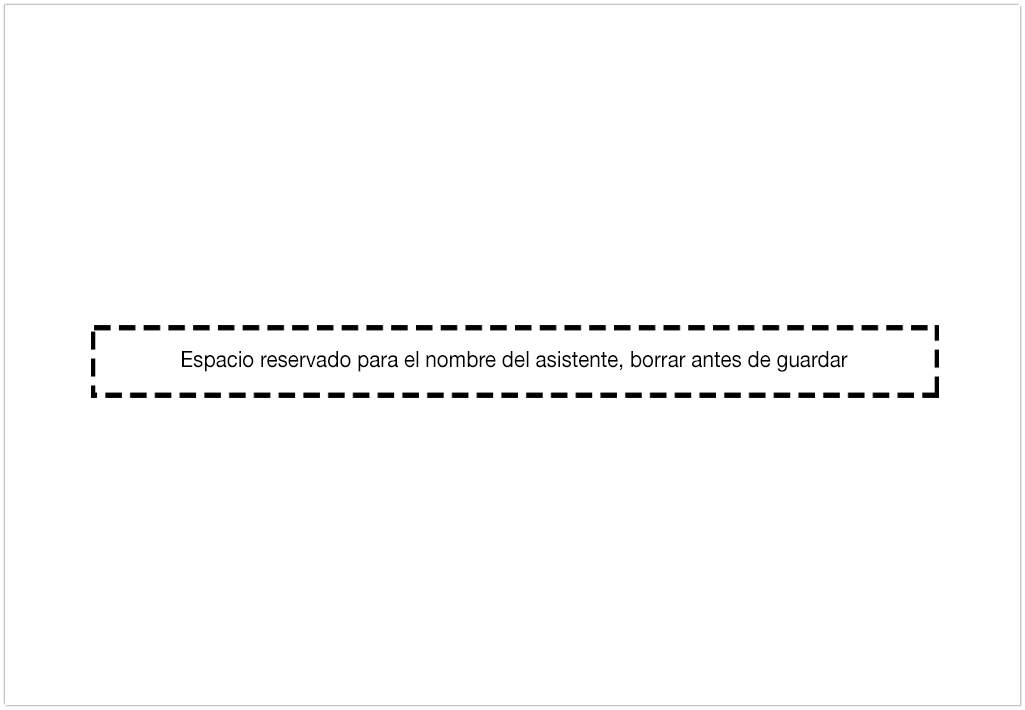
Both the Photoshop file and the image show the areas where Symposium will print the Attendees’ first and last names. These marks must be deleted before uploading the template. If they are left, since they are part of the base image, they would then be printed on the Name badges. Any other information that needs to appear there must be added by whoever edits the card.
Once the modified template has been uploaded, click the Save button at the end of the page to preview the result.
Customizing the template
In this section you can preview the result before considering the work finished and sending the Diplomas to print.
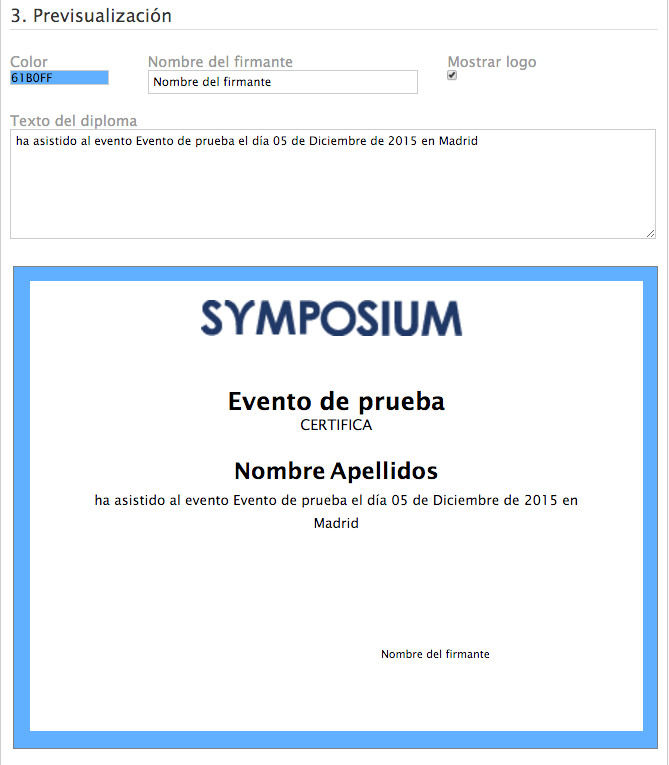
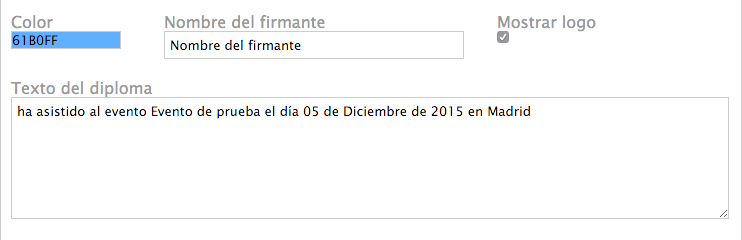
If the generic Symposium design was selected, you can change the background color with the menu on the left and decide whether to add the name of a signatory for the Diploma, a text, and even choose not to show the logo of the institution that organized the Event.
Issuing diplomas
Once the organizer has configured the diploma design, they can issue the diplomas to the confirmed attendees of the event so that they can download theirs from the private user panel. Keep in mind that, once the diplomas have been issued to the attendees, the Organizer cannot undo it.
If the Organizer does not want to issue the diplomas for download, they can print them to PDF and hand them out to attendees on the day of the event.
