Attendance control
Organizers have a panel to control attendance on the day of the event. This panel works together with the Organizers App, which is used to check in attendees. If the devices used to scan the attendees’ QR codes have an Internet connection, the access log data is synchronized with the panel, which shows in real time the attendees who have passed the access control and the products they have purchased at the event.
This panel can also be used without the organizers’ mobile App, allowing you to manually mark at the event the people who have come in and the products that have been handed out, to keep track.
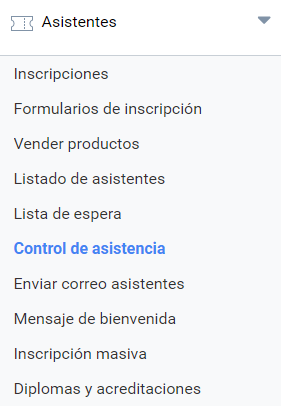 As usual in other sections focused on generating lists, the Attendance control section is organized in three blocks:
- Print or export the list of attendees
- Search and filters
- List of attendees
Exporting the information
Even today it may be necessary to have a paper list of the attendees of an event, although Symposium has a mobile app that makes this management easier on site by scanning QR codes.
Click the “Print/Export to Excel” button to print the list of attendees, or to export it in Excel format to share it or keep a copy.
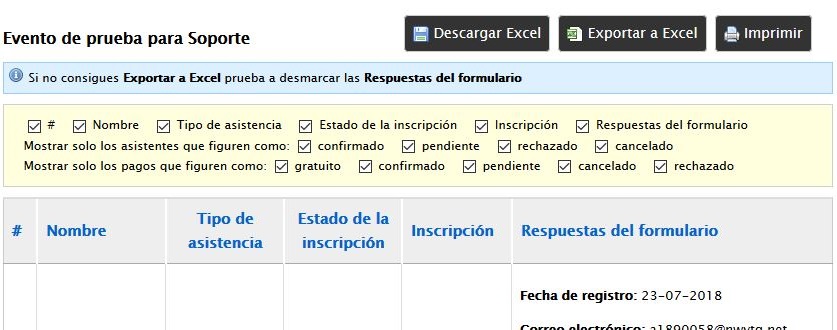
Using this option opens a new browser tab where you can indicate which fields you want to include in the export. After selecting how you want to share it, click “Export to Excel” or “Print” to perform the desired action.
Search and filters
This section contains controls to apply filters to the list of attendees below, in case it is very long and hard to handle. You can filter by First name, Last name, Registration date and Payment status, by any of the Registration types you have designed, or by Attendance status, which can be validated or rejected. You can also search for attendees by a text string that is part of their name.
List of attendees
The list of attendees, which can be arranged according to the search and filter controls, shows the attendee’s name, the Registration type, a checkbox to confirm that they have attended, the Products button and a button with a + sign that expands more information about the attendee.
The list is interactive and lets the Organizer mark the attendees who have actually turned up. It is a tool to “take attendance”. When the attendee has purchased Products, you can also mark the ones that have been handed out to them. To do so, hover the mouse pointer over the “products” button and a floating list will appear with checkboxes to mark the ones that have actually been handed out.
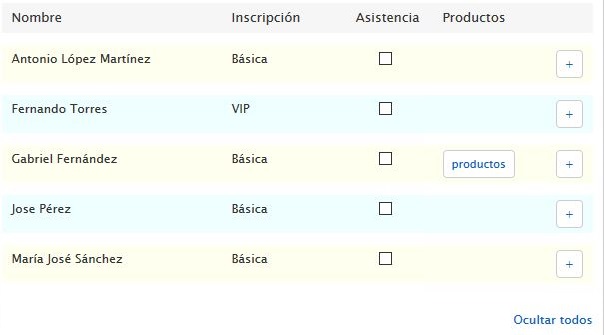 The + button that expands information about the attendee lets you edit their Registration form, if the Organizer had included custom fields. The attendee may have left some of them blank, or there may be fields that were not visible, but the Organizer has them available to fill in when the attendee shows up at the event.