Batch registration
For some events it may be the Organizer who has to register attendees. This can happen because these attendees have been found through channels other than the event website and have confirmed their interest, but do not want to or cannot go through the registration process themselves. Symposium offers a tool to bulk load attendees from a Comma-Separated Values (CSV) file. This tool is located in Attendees > Batch registration.
You can register a list of users in an event through a CSV file.
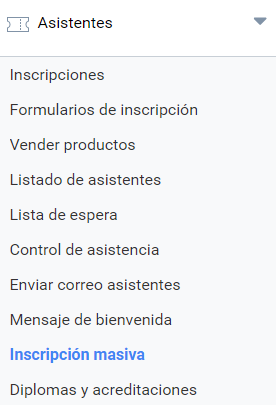
Requirements
To use batch registration, at least one Registration must be configured. It does not need to be marked as visible or available; it can be hidden on the event website, but it can still be used in this section.
Only free registrations and paid registrations will be available, the latter only as long as bank transfer payment is enabled for the event. This is because the organizer will expect the attendee’s payment by bank transfer only.
You must have the list of attendees ready to be transferred to a CSV file, which is the format the application can read.
Batch registration process
Using a template
Although Symposium can read a CSV file with the attendees’ data, the fields in it must follow a specific order. To make this easier, there is already a template. You can also get it from the help text of the Batch registration panel. In this template, replace the sample data it contains with the correct data, without changing the order of the columns.
You can edit the file with any of the many applications compatible with the CSV format. Spreadsheet software is usually used, such as Microsoft Excel, OpenOffice Calc (free), LibreOffice Calc (free), etc. You can also use a plain text editor, but doing so increases the likelihood of making mistakes.
When working with text, there are several standards that allow certain text characters and not others. To ensure compatibility of text in any language, it is important to make sure that the application works with the UTF-8 standard and saves the CSV file with that standard.
If you do not work with UTF-8, it is very likely that accented letters, the letter ñ and other language-specific symbols will not be saved correctly in the application.
Once the data has been filled in, the template must be saved in CSV format; you can keep the same file name it already has.
Uploading the data file
From the Batch registration panel, click the Select file button to locate the file on the computer you are working on and upload it to Symposium with the Continue button.
After a few seconds, a table with the content of the file will appear on screen.
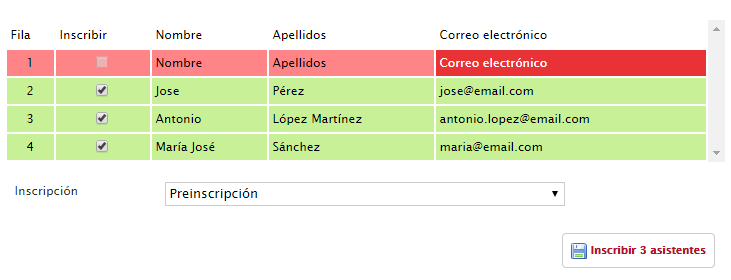
This is the time to check that all the data is correct and in the right place and not, by accident, in another column where it does not belong. For a row to be correct:
- there must be a valid attendee name in the name column
- there must be a valid surname in the surname column (the field cannot be empty)
- there must be a valid email address in the third column (it must have a proper format aaa@bbb.ccc)
Correct rows are shown with a green background. Incorrect rows are shown with a red background, with a stronger shade in the cell that contains the error.
The example in the image above shows a common error. In the first row of the area that should contain attendee data, the header row has been duplicated and, although the First name and Last name columns contain valid text (Symposium cannot know whether there really is a first name and a last name, only whether there is text), the Email column does not contain a valid email address but the text string “Correo electrónico”, which does not meet the format requirement that email addresses usually have.
VERY IMPORTANT: check that special characters (accents, ñ…) are displayed correctly. If not, edit the list of attendees in the CSV template again with the software you used and, when saving, select the UTF-8 Encoding option. If the software you are using does not allow it, use another one that does.
Selecting attendees
Each row has a checkbox to mark the attendees you want to add to the event. This exists because you may want to leave one or some of them out of the list. Rows containing errors cannot be selected.
You can select the whole list (except the rows with errors) or deselect all of them by clicking the checkbox in the header row of the table.
Next, from the Register attendees drop-down list, choose the Registration to which the whole list of attendees will be assigned, click the Register attendees button (which also shows how many will be added to the event) and wait a few seconds for the Operation completed message.
Review and correct
Next, it is wise to check the Attendees > Attending list menu to verify that the registrations have been saved correctly.
If an error has occurred or an attendee is missing, you can repeat the process with a CSV template containing only the failed attendees, following the steps above.
Practical examples of using Batch registration
Managed registration for VIPs
If the organization of an event wants to register a group of VIPs and spare them the trouble of registering, it can use this tool for that purpose.
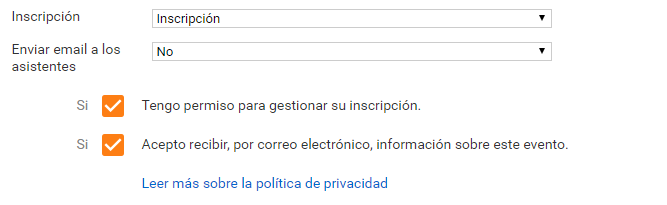
If you want to prevent the guest from receiving email communications, you can tick the option so that the registered attendees do not receive emails about their registration. In addition, to process these registrations, the organizer must have the authorization of the users they intend to register and must record it by accepting the Privacy Policy consents.
The Organizer can then fill in the corresponding Registration forms (if there are any) in the Attending list.