Accommodations
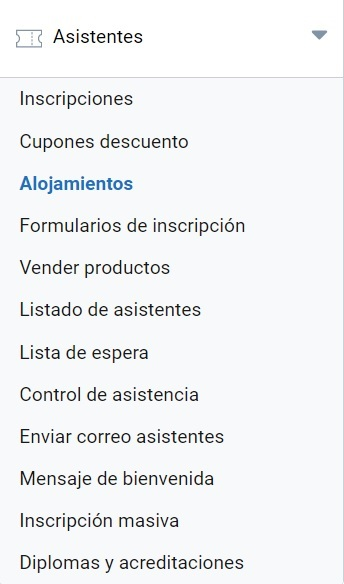
When creating an event with registration management, the organization may want to offer attendees the possibility of booking accommodation in nearby hotels. SYMPOSIUM supports this functionality, both for publishing accommodations and for the financial management of payments. The tool is located in Attendees > Accommodations.
Accommodations for sale are shown to visitors of the event website during the registration process. Each one can be configured according to features such as the number of stars, the address, the price, the type and the quota of rooms available per date.
Adding an accommodation
After clicking the corresponding button, a window opens where you can fill in the data needed to register new accommodations.
Hotel information
First, you must fill in the following information:
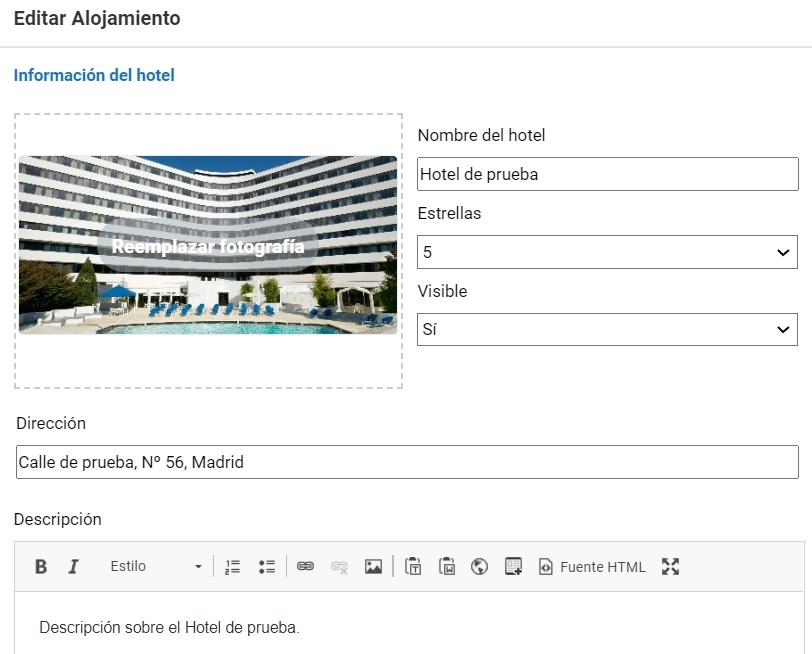
- An image (optional): minimum allowed size 460px x 200px and maximum weight 5MB.
- Hotel name (required).
- Stars (required): from 1 to 5, both included.
- Visibility (required): determines whether the accommodation is shown to users during the registration process.
- Address (required).
- Description (required).
Prices
After specifying the hotel information, you must fill in the following required fields:
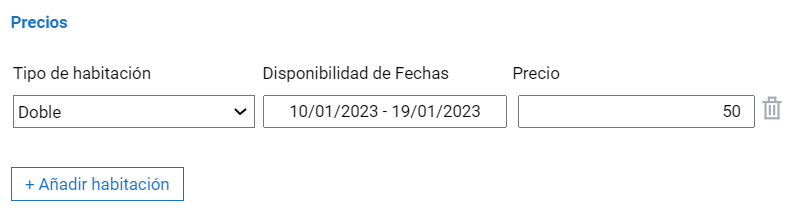
- Room type: single, double, triple or quadruple.
- Date availability: two clicks marking the start and end date are enough to indicate availability, which will appear shaded. Finally, click Apply.
- Price.
Of course, you can add different options and remove the ones already created.
Rooms
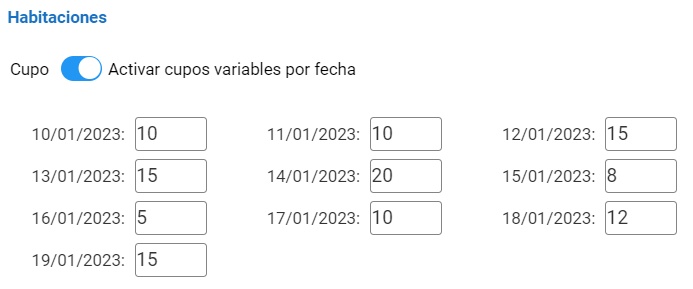
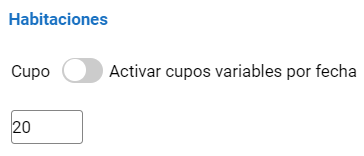
At the bottom you can specify the quota of rooms available per hotel and day. Depending on the available checkbox, there are two configuration options.
Variable quota per day (checkbox ticked):
Fixed quota per day (checkbox not ticked):
Accommodations panel
After you Save a hotel, it appears in the accommodations panel with its essential information:
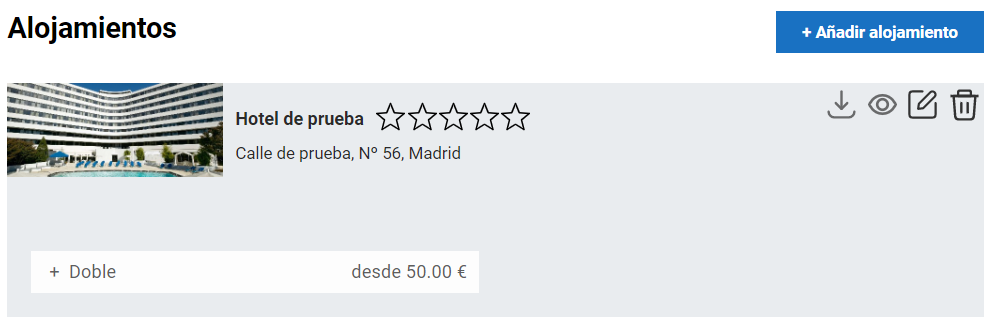
At the top right you can add more accommodations, which will be added to this list. On the card of each accommodation there are four icons:
- Excel download: shows a breakdown of the attendees with accommodation in the corresponding hotel and with confirmed payment.
- Visibility: linked to the field in the Hotel information section.
- Edit.
- Delete.
In addition, the room type and price information can be expanded to show the daily occupancy status.
What attendees see
During the registration process, attendees will see the list of configured accommodations and will be able to book one or more rooms, or skip this step.
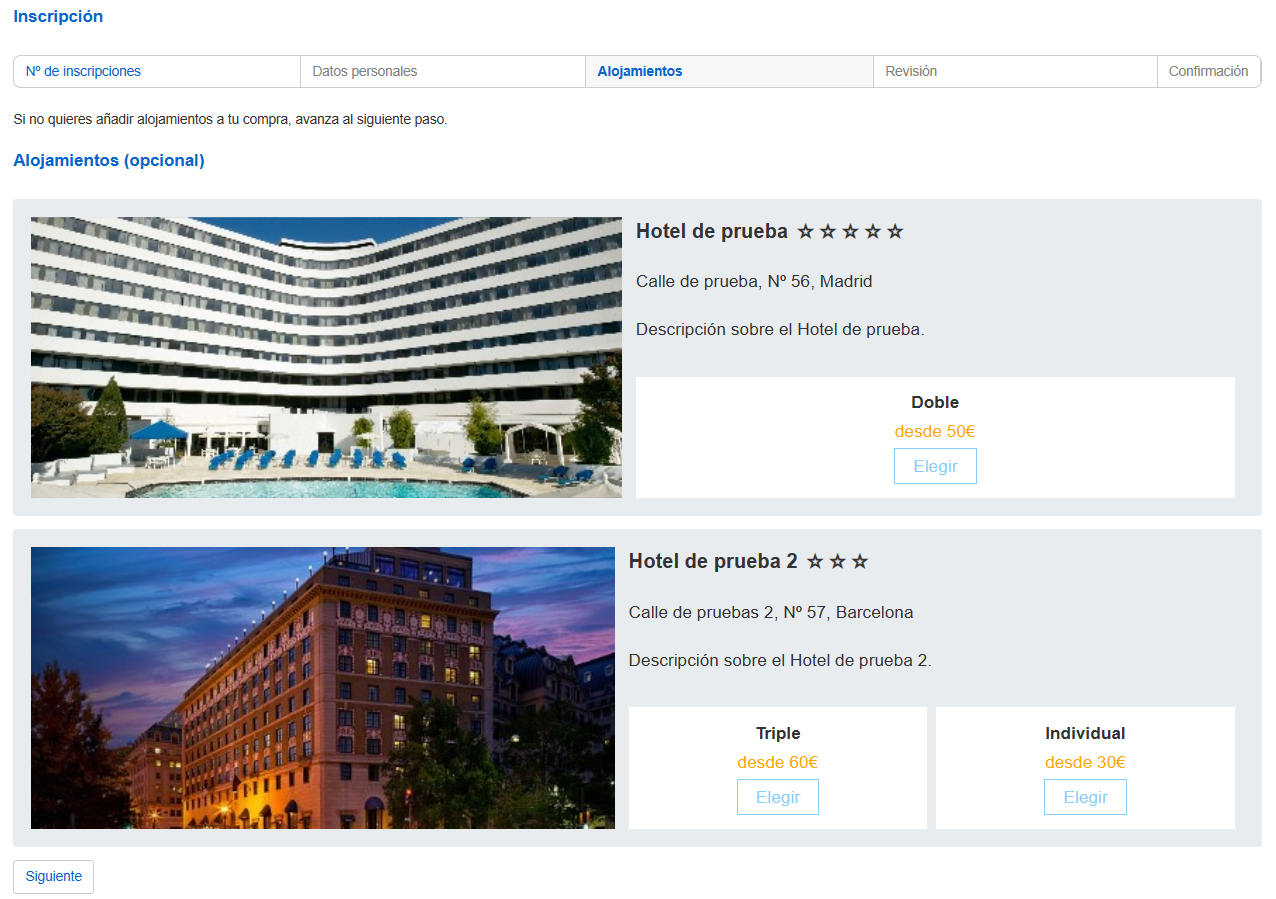 When they choose one of the rooms on offer, a new window opens where they can select the check-in and check-out day, as well as the number of rooms. The platform calculates the total price:
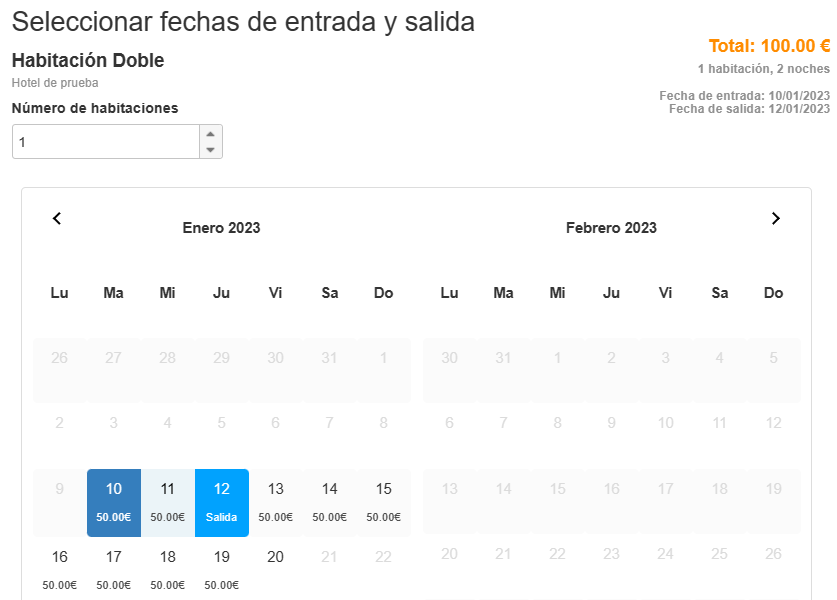
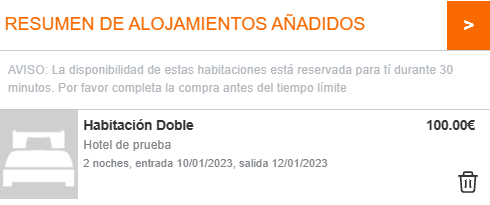
After clicking Accept, they can continue with the registration and payment process by clicking Next. Before that, the platform lets them check a summary of the added accommodations at the bottom: