Projects manager
When you sign in to the platform with your email and password or with any of the other sign-in methods, you enter your private area, and the first panel you see is called “My projects”. Depending on the roles you have on the platform, you will find more or fewer additional buttons.
The My projects panel contains a list of all the collaborative projects you are related to in some way, whether as donor/patron, author or any other role. Platform administrators and financial managers also access their control panels from this panel.
General platform menu
The general application buttons remain at the top:

- Home: takes you to the main home page of the projects platform;
- Projects manager: takes you to the My projects panel;
- language selector;
- Help: takes you to the online help for the panel you are viewing;
- user’s private menu: shows your email, your main role and, if any, the photo you published.
User menu
Depending on the roles you have on the projects platform, this menu will show different items giving access to activities related to each role.

- My projects: shows a list of the platform’s projects in which you are involved in some way;
- Economic panel: only for users with the financial manager role, gives access to the payment control and management tools;
- Management: only for platform administrators, gives access to the general configuration;
- Notifications: shows the complete list of notifications the platform has sent you for the projects you are involved in;
- Create new project: if one of your roles is project Author, you can create new projects with this button.
Project filters

For some platform users, the list of projects they are involved in can become very long. For example, authors may build up a very extensive history of projects they have managed with Symposium. To make it easier to control and manage projects, there are several filter and search tools:
- Text filter: a search based on the terms you type;
- All my projects: removes all applied filters and shows the full list of projects you are involved in;
- Projects I am registered in: shows only the list of projects to which you sent a financial contribution;
- Projects I organize or participate in: shows only the list of projects in which you are involved with some role, whether as author or any other role.
Next projects
This section lists the projects that will soon open their period for financial contributions and in which you are already involved with some role. The list can be filtered with the tools of the section described under the previous heading. For each project, a card is shown with its image, title, the first words of the Description field, the target amount to be reached, the amount already raised and the time left until the donation period closes.
User options
Below each card, the role or roles with which you are involved in the project are shown. The Edit button appears when you have edit permissions on the project. The menu button will show options to act according to those same roles.
Organizer menu
As a project Author user, you can view the website, edit the project, create a duplicate or publish it.
Menu for each project
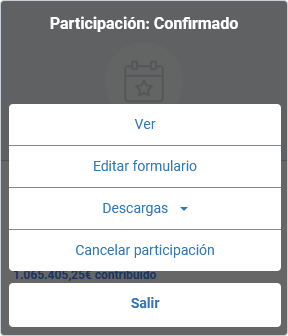
As a platform user who has made a financial contribution to a project, you will have the option to view its website and edit your answers to the donation form. From “Downloads” you can get a PDF with your certificate. Finally, you can cancel your contribution. In that case, we also recommend sending a message to the author using the project’s own contact form.
Donation manager menu
You may make contributions on behalf of third parties, but using your own identity as a platform user. We call this “managing donations”. You are also considered to be managing a third party’s donation if, when making a new contribution to another project, you write your name differently from how you wrote it before. This is a way of avoiding rejections or corrections.
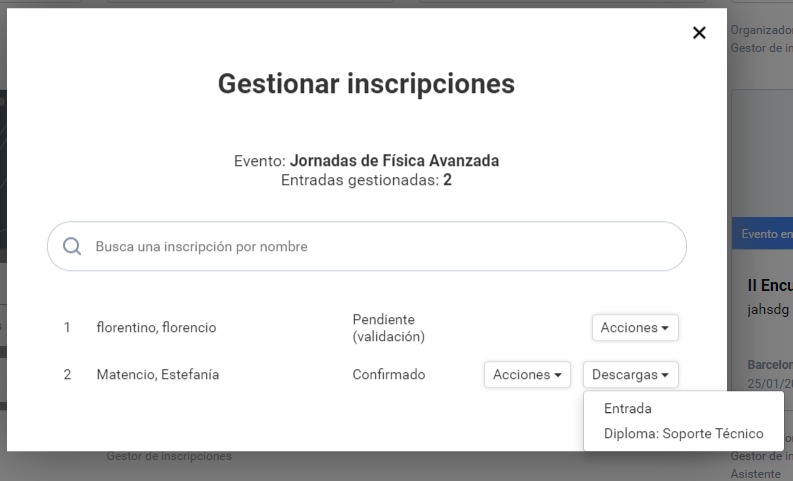
In the modal for your managed donations you will see up to two buttons: Actions and Downloads.
In Actions you will find the management options available to you with that role.
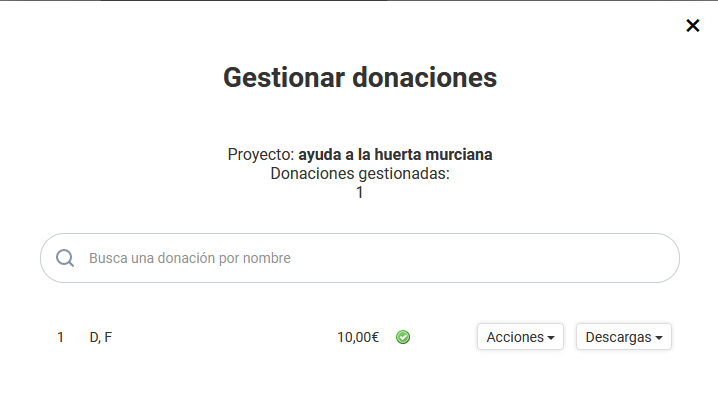
In Downloads you can get the PDF with your donation certificate.