Project menu
All projects created in Symposium follow a set structure for the menu sections of the website: “Home”, “Dates”, etc. But if this layout does not suit the project you are creating, you can edit the menu completely to change the labels or even hide buttons.
Editing the menu
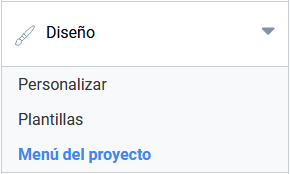
Inside the Design group you will find “Project menu”.
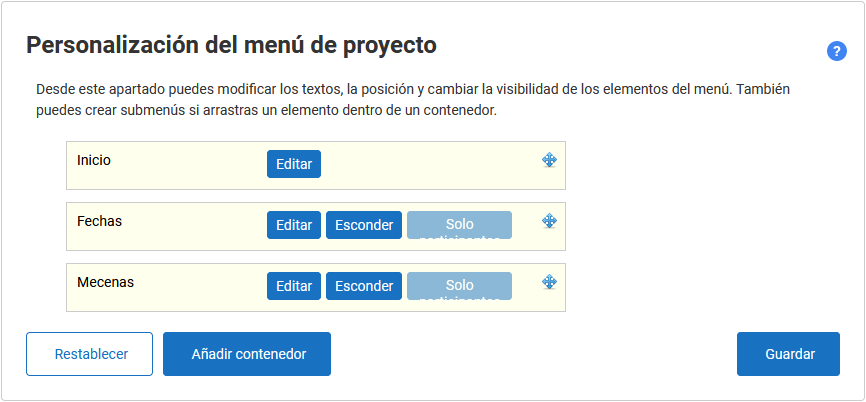
Each section or menu of the project website is represented by a yellow box. This menu offers a number of tools:
- Change the order: to change the order of the sections, click and, without releasing, drag a yellow box up or down. This will determine how those menus appear on the project website.
- Edit the name: to rename a menu, click the “Edit” button to the right of the item name.
- Hide an item: clicking “Hide” hides a menu item on the website.
- Limit the visibility of a menu to participants only who have had their financial contribution to the project confirmed.
- Nest items inside a container: if we add a container, using the “Add container” button, we can drag items into this container so that they form a submenu.
Custom sections or new pages created by the author will be shown nested inside the “More…” submenu. To bring them up to the top level they must be dragged out of the “More…” container. The same happens with the Files section, which will be shown inside the “Documentation” menu by default.
Each project template has a maximum number of items that can be shown in the menu. If the menu is designed so that this maximum is exceeded, the items will be placed inside the “More” tab.