Sponsorship forms
By default, the minimum details required to make a financial contribution are first name, surname and email address. In addition, you can request other details or add help texts to tell donors something. Symposium lets you create custom sponsorship forms with different types of questions. You can do this from the Attendees > Sponsorship forms section.
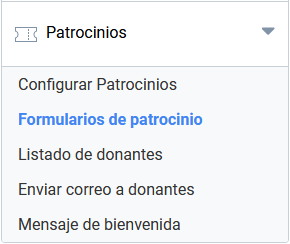
The Sponsorship forms panel
The page is organized into two separate areas. At the top there are controls for adding new fields to a given participation level. At the bottom there are tables with the fields that have been designed to be shown at the different participation levels
.
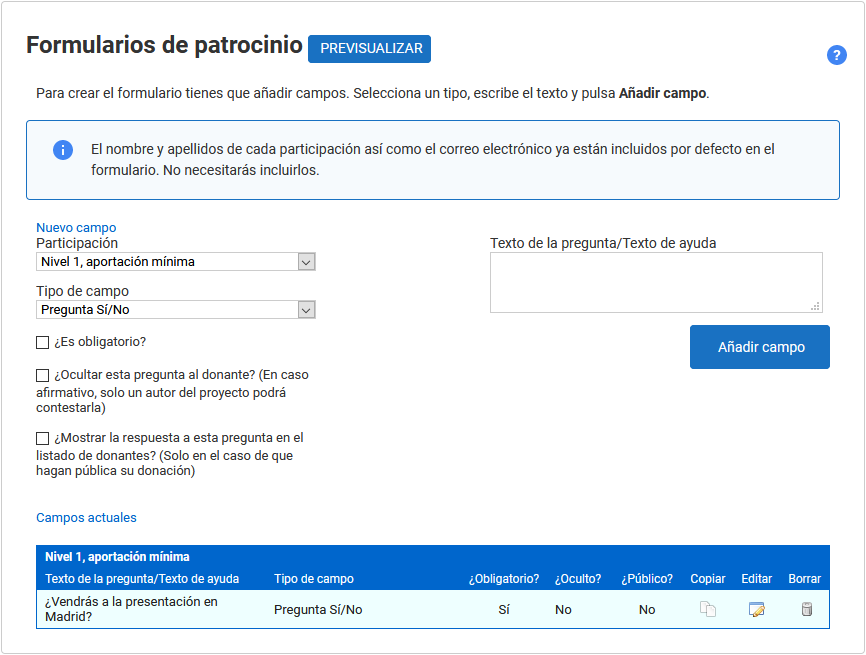
Creating a form field
Sponsorship forms are a series of questions customized by the project author that the donor has to fill in.
The available question types are:
- Short text question: recommended when a brief answer is expected.
- Long text question: recommended when a long answer is expected.
- Yes or No question
- Help Text: a notice text is shown, formatted as help text, to inform the user about something.
- Date question: this control is shown as a calendar so that the user can select a date.
- Single choice selection: the attendee must choose one of the available options.
- Multiple choice selection: the attendee must choose one or more of the available options.
- Attachment: this control enables a button for sending a file to the project.
- Country selection: an alphabetical list of countries.
Suppose a project for which a formal, in-person presentation is going to be held, and you want to know whether the donor wishes to attend. To do this, you customize a registration form.
First, you must choose which participation level the field will be associated with, from the Participation list.
Then you choose the field type from the list given in the section before this paragraph. Depending on what you want to ask, different options will appear on the right. For a Date field you only need to enter a friendly text for the question. When options are offered, you will have to type them in by hand one by one.
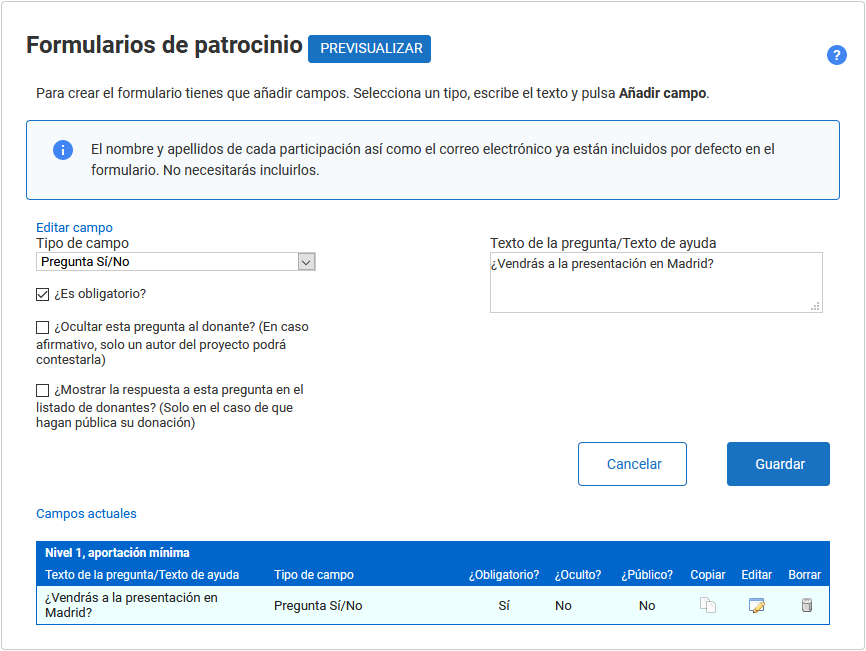
Next you must choose whether or not to enable three options, independent of one another.
- Is it mandatory?: lets you mark the field as mandatory, so the donor can only confirm their contribution after answering the field’s question.
- Hide this question from the attendee?: an option that hides the field from the donor, but which the author will later have to fill in. It was designed to store certain kinds of information that may be needed to manage the project but that donors do not need to be asked.
- Show this question in the attendee list?: lets you decide whether or not the answer appears on the project’s public donor page.
In the example in the image, for one donation the patron will be asked whether they will attend the formal presentation. It has also been decided that the field is mandatory.
You might want the question to be asked of all donors who have chosen another participation level. Symposium makes this easy because you only need to create the field once and then, in the table at the bottom, duplicate the same question for the participation levels you choose.
In multi-language projects, the forms are replicated for each version of the project website, but the texts need to be translated and adapted in each version.
Duplicating a question
You may want to include the same question for other participation levels, or for all of them. Symposium lets you create the field only once, associated with one ticket type, and then copy it to the others.
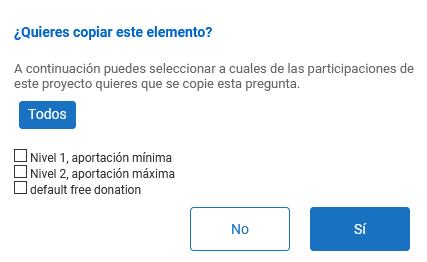
To duplicate a form field, find it in the tables in the lower half of this panel and click the Copy button. A box will appear in which you can tick which other participation levels it will apply to.
Ordering form fields
When several custom fields are created for a participation level, the order in which they will appear on screen to the donor is important. This is controlled in the participation forms panel itself, in the tables at the bottom. Although the initial order is determined by the order in which the fields were created, it can be changed using drag and drop.