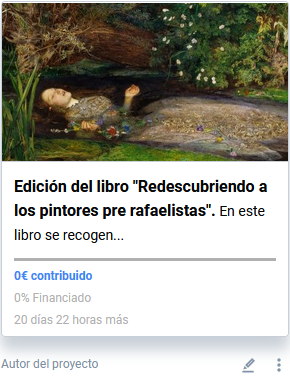
Creating a project
Symposium is a management platform that brings together many tools and features that it puts at your disposal so that you can create and customize crowdfunding projects to suit your needs.
To start creating a new project, you need to be an Author. A platform administrator can assign you this role from the administration panel.
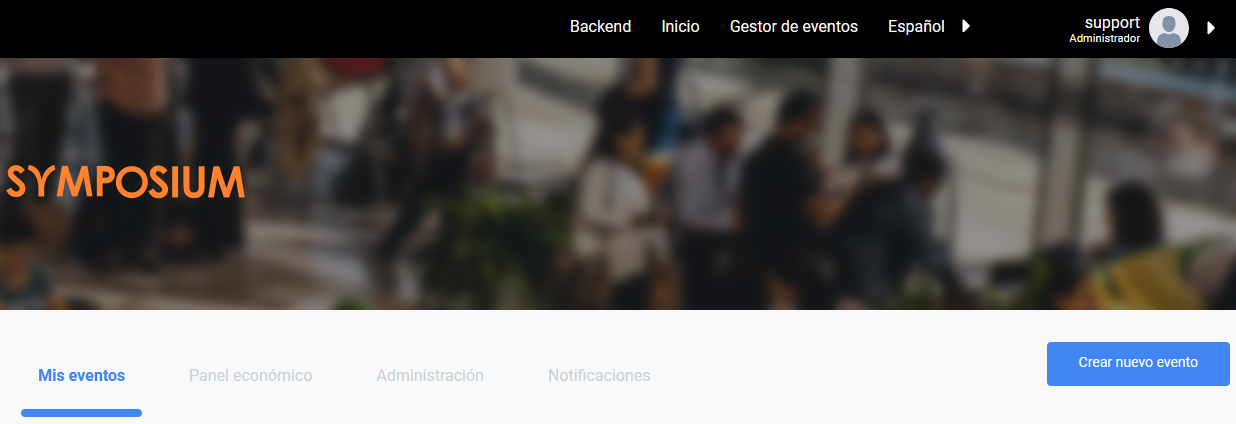
Sign in to your private panel with the Author account and, in the “Organizer panel” tab, you will see the “Create new project” button.
You can also find the option to create a project in “I want to manage a project”, available in the page footer.
Creating a project is a process with two parts:
- Creation form.
- Advanced editing, customization, content editing, etc.
Project creation form
The form for creating a new project collects the data and settings needed for it to be published directly. This form is divided into three sections: Basic details, Topic and Additional settings.
Basic details
This first section is for entering the basic details.
- Select the original language of the event

You will have to specify the language in which you will write the first content of your project. This indicates that the content you are about to write will be in that language, although it is up to you because the platform cannot detect it. Multi-language support in Symposium does not include a translator. If you want to show your event in other languages, you will have to provide the translations.
Enter a Title: The title of your event cannot exceed 100 characters.
Specify a Description, which is the content that will be shown on the home page of your project.
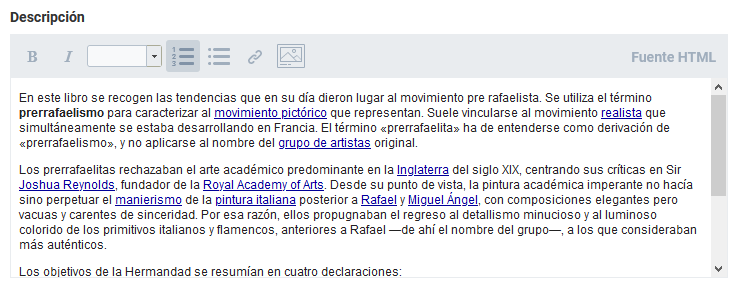
You can apply different styles and fonts, as well as copy and paste text from Word or web pages, upload images and insert blocks of HTML code by clicking the “HTML source” editor. Do not worry now if it is not complete; you can modify it later.
Funding target. As you can imagine, this is an extremely important field. Here you must enter the funding target you want to reach. You must enter a value here; zero is not enough. You can modify it later.
Optionally, you can enter a short description for search engines:
It must be a text of no more than 50 words and it will be used to improve the ranking of the project website in search engines. This snippet will not be shown on the page; it is intended for writing keywords. Search engines pay limited attention to what you put here, but it can help.
- Enter the opening and closing dates of the period for receiving financial contributions:

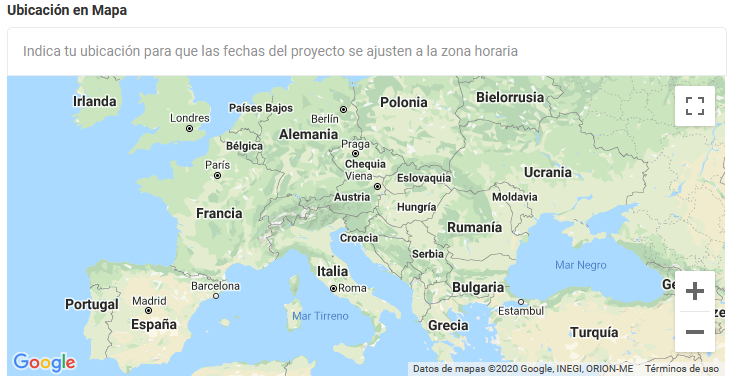
- Enter the location of your project
This is essential. Even if your project will not take place in a specific physical location, it is important that you fill in this field to set your time zone. You do not need to enter an exact address if you do not want to. The name of a city, a neighborhood, a country… may be enough. This field is linked to Google Maps.
- Upload a header image.
It is not essential, but you will probably want the fundraising website for your project to look attractive. So you can add an image you have ready. If you do not have one now, that is fine because you can add it later. You can also replace the one you add with another one, as many times as you need.
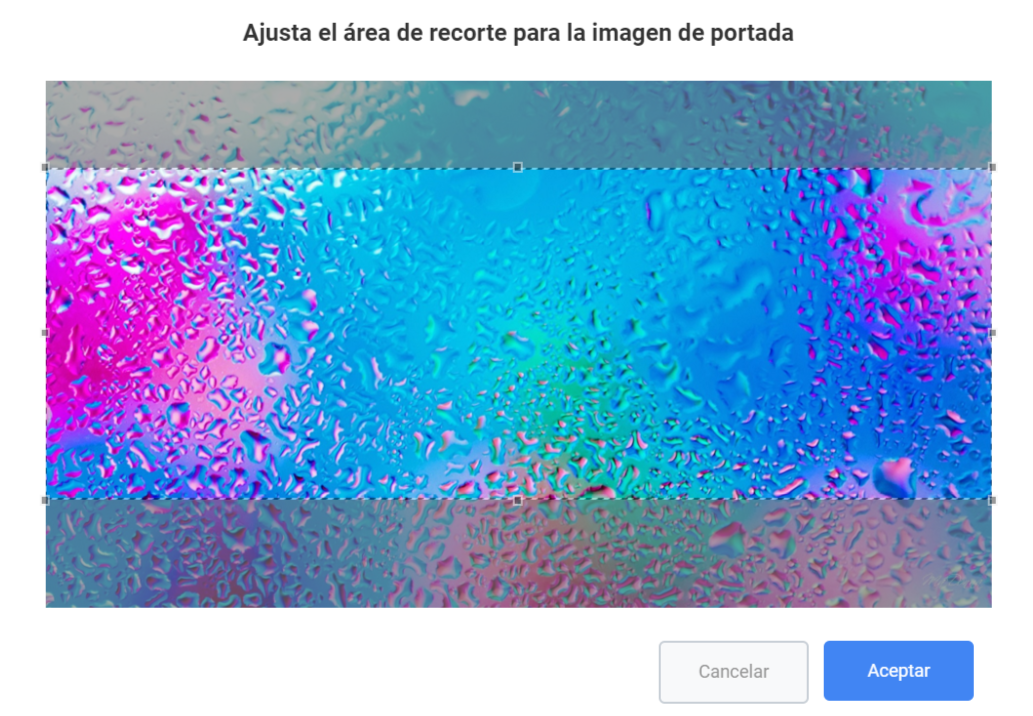
Upload or drag a header image directly and then adjust the crop area you want to define. Bear in mind that the recommended image size varies depending on the template you use. The maximum size of an image file in jpg, png or gif format must not exceed 5MB.
Topic
This block is for setting a subject categorization for your project. It can help improve the website’s ranking.
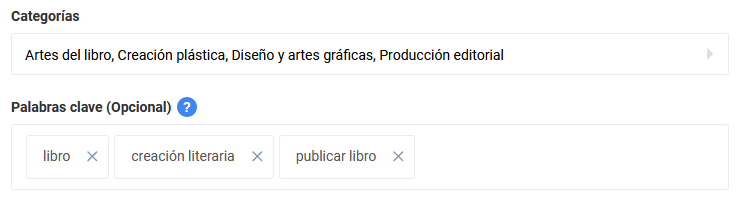
You can apply as many subject categories to the project as you need. The list is controlled by the platform administrators. If you need to apply a category to your project that does not appear in the list, contact an administrator.
You can also write keywords. Again, the idea is to improve your project’s ranking. Write words or expressions. When you finish writing a keyword, press ENTER and you can continue writing more keywords.
Additional settings
In this last section you will have to configure the final settings of your event:
- Cover This depends on the permissions the administrators have granted you. If there is only one cover on the platform, skip this step. If there are several covers, you may be able to publish your project on one or more of them.
- Web address
This is optional: a shortener to make your project’s web address easier to understand, especially if you want to put it on posters or publish it somewhere else. Simply enter the slug, the name of the page, in the box, and the address will be the one you see in that box.
- Author’s data
You will normally want your donors to know who you are. Here you can indicate which details will appear on the project page.
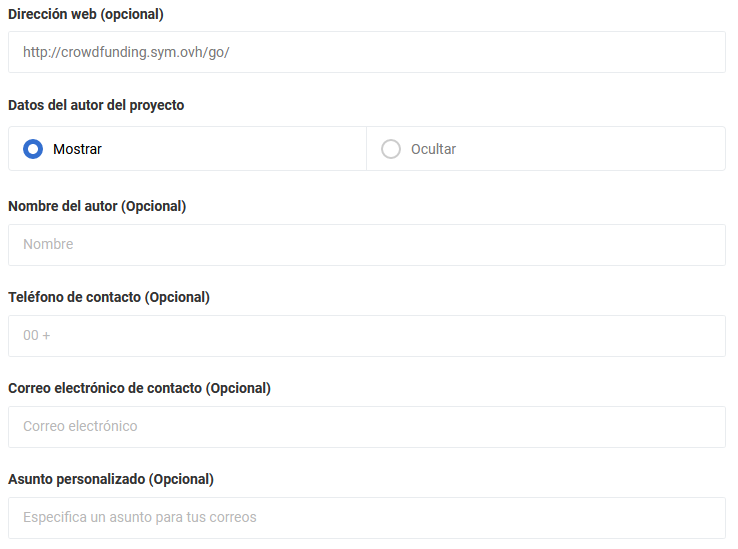
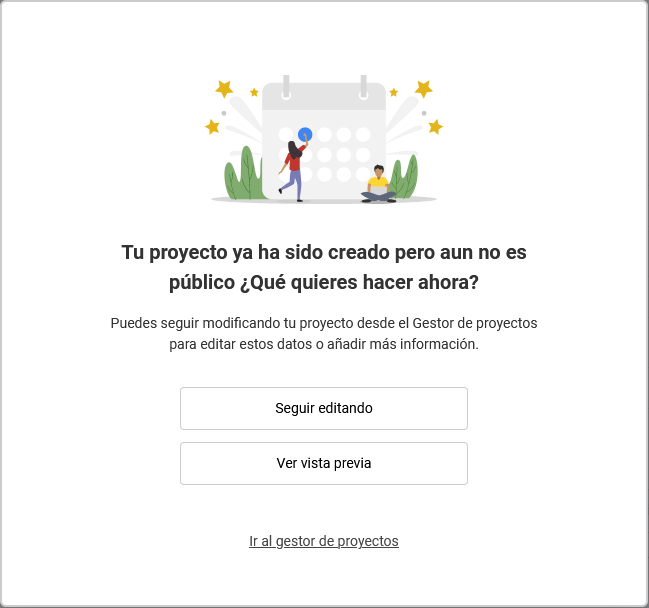
When you finish filling in the form with the required data and click “Next”, the following panel will appear with the options to:
- Continue editing the event in a more advanced way with the manager’s tools.
- Publish the event directly with the data entered in the creation form.
- Preview the event.
Advanced editing and publication of the project
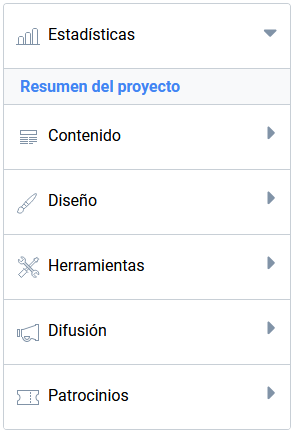
Now that you have created a basic project structure, you can enter more detailed information using the editing panel on the left. You can also preview the project to check how it will be shown to the public once you publish it.
When everything is ready and you consider it is the right time, click the “Publish” button to make it visible to the public so that it can receive donations.
You can edit the project even when it is published from your author panel, by clicking the Edit icon you will find in the bottom corner of the actions card.