Organizers APP
Introduction
The SYMPOSIUM Organizers app is aimed at the organizing team of each of the institution’s events. Its main function is to allow access control at the event by reading the QR codes that attendees receive by email after registering.
Features of the Organizers app
This app is exclusively for Event organizers, members of the Organizing committee and members of custom committees with permission to manage attendees.
To use it, you must be the Organizer of an event, or have been authorised by the organizer to join the organizing committee. Its functions are:
- Showing event information and the attendee list
- Scanning QR codes for access control and check-in
- Sending PUSH notifications to attendees
- Sharing events with contacts and social network followers
How the Organizer accesses their events
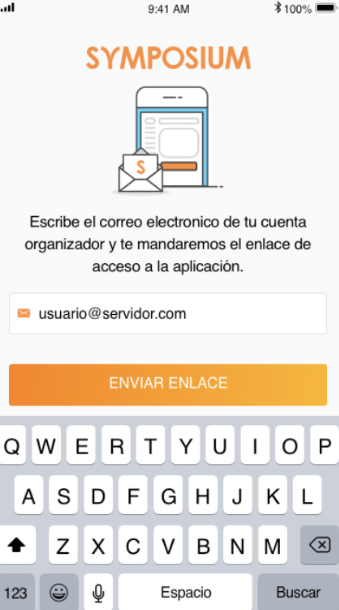
Organizers must link the app to their SYMPOSIUM account. To do so, the first time they use the app they must:
- Enter the email address they are registered with
- They will receive an email with a link in their inbox; they must open the message on the same mobile phone they use the app on
- When they tap the link, the device’s browser will open and show a button that they must also tap. It is a magic link that will launch the app already linked to the Organizer’s account.
If an organizer manages events at different universities, they must choose one for the working session. The email will contain as many buttons as there are universities the Organizer manages.
The app only shows the events the Organizer manages at one university and stays linked to it. To switch university, the organizer has to log out, that is, unlink the app. They must then find the original email message (or request it again), tap the link that leads to the web page listing all the universities and select the one they want to manage.
Conditions for showing events in the app
The app shows public and private events with registration management enabled and whose event dates and registration period are still open.
The app requires the user trying to log in to be the organizer (owner) of an event, or to be a member of a committee that includes the permissions:
- Manage attendees
- Contact attendees
It also requires the institution’s platform to have the connection with the SYMPOSIUM Organizers app enabled. Some universities may still be using old custom apps. It must be decided whether to keep using them or switch to linking with SYMPOSIUM Organizers.
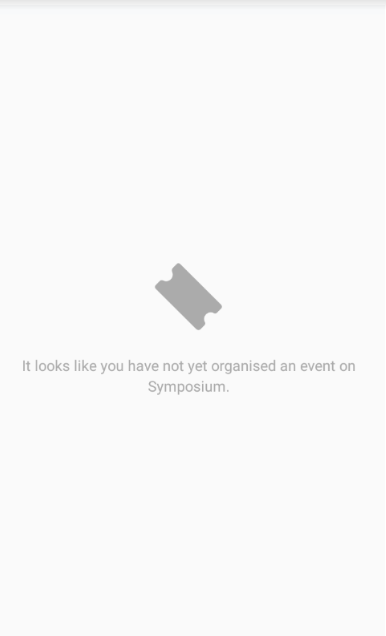
A user may organize events that do not meet the requirements to appear in the app. This does not necessarily mean the user does not organize any event, but that at that moment none of the events they manage includes features that can be handled with the app.
Contents of the Organizers app
Home and Schedule
These are the two buttons on the left of the menu at the bottom of the app.
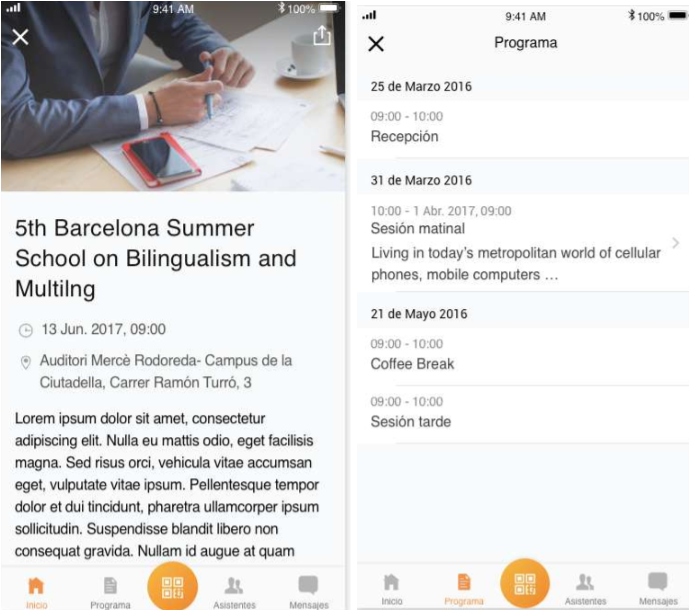
- Home: shows the content of the event’s front page with the short description
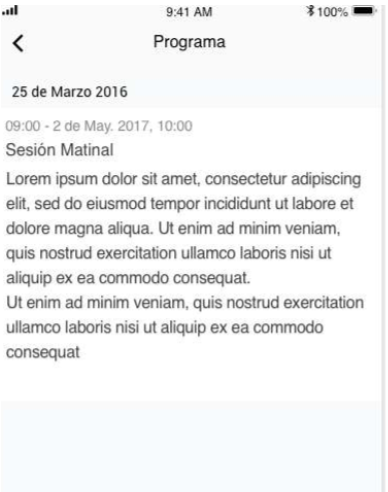
- Schedule: shows the activities of the event schedule that have been saved with the Schedule editor. It does not show content uploaded with the text editor.
Sharing events
All the events you organize that meet the conditions to be shown in the Organizers app can easily be shared through whatever means you have on the device where the app is installed. In this way you can share your events with your contacts through WhatsApp, by email, on social networks or with any app you have downloaded on your device.
To share an event, first open its details and find the share icon at the top right. A list of the available apps you can share the event with will then appear. Select the one you want to use and promote your event.
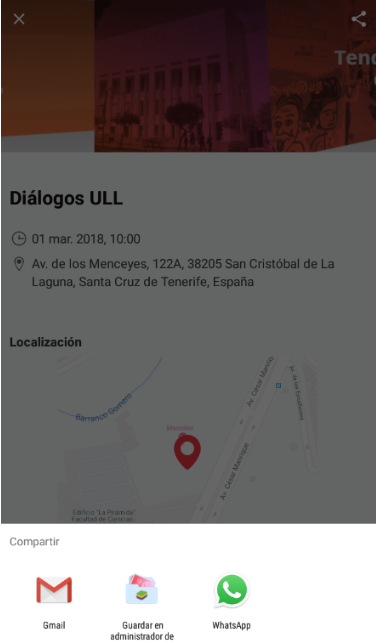
QR code scanning (Check-in)
This is the app’s main function and it is accessed with the central button of the bottom menu. Events can be checked in at any time, within or outside their dates.
The organizer will be asked to grant the app permission to access the phone’s camera.
Steps to follow:
- Visit the Attendees section and synchronise the app with the database
- Go to the QR reading section
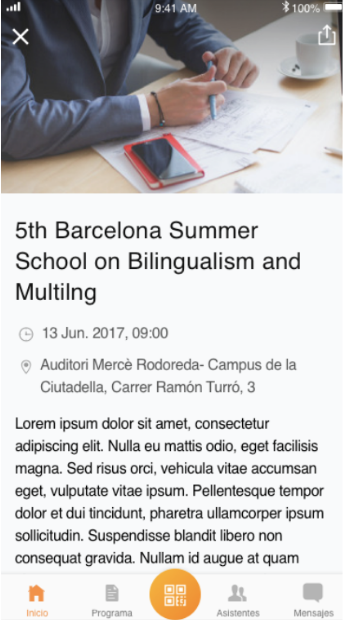
Code reading is automatic; there is no need to press any buttons. For each valid QR, a green frame is shown and the phone gives an alert with a sound.
The screen shows a count of the registrations confirmed so far and those still to be scanned.
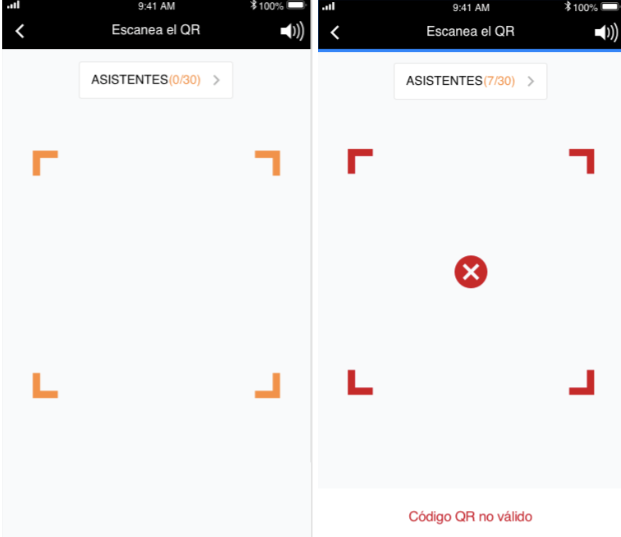
It also warns about QR codes that cannot be read properly and QR codes that do not correspond to valid or confirmed registrations.
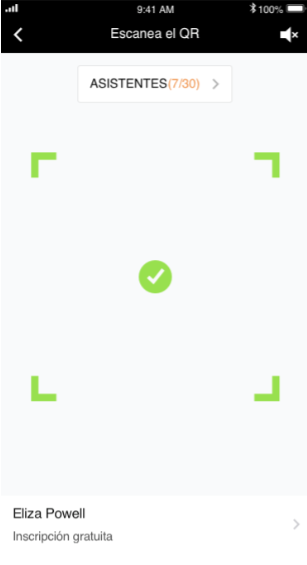
Checking and viewing products sold
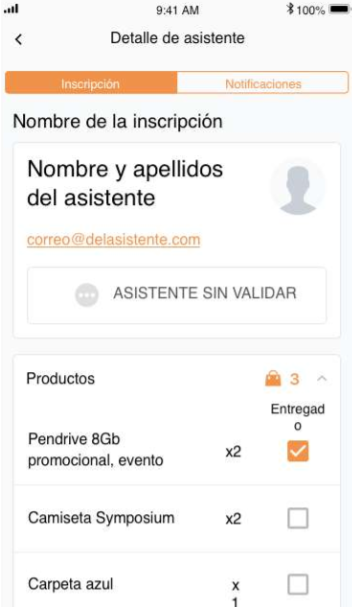
When an event has products on sale and attendees have purchased them, their delivery can be tracked. Again, this feature is only available from the event start date.
The organizer can tick the products handed over to the attendee. This can be done during check-in or afterwards. The product list can be viewed in the Attendees menu so that, where appropriate, delivered products can be ticked at any time.
Sending Push notifications to attendees
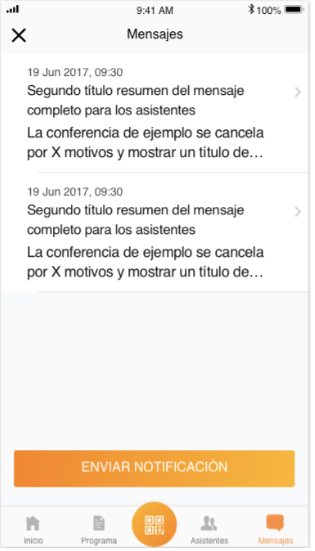
Push notifications can be sent to event attendees who have the app installed. These messages reach the attendees as a notification.
The organizer has the “Messages” menu to send these notifications, either to a single attendee, to a group of them or to all of them. A history of sent notifications is also kept.
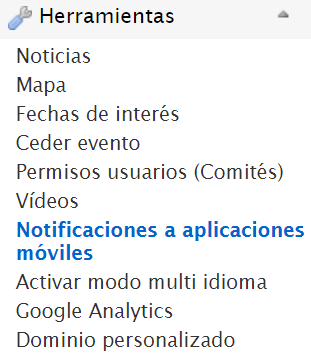
In addition to these app tools, the organizer can send notifications to attendees who have the app installed on their device through the “Notices to mobile applications” menu in the web manager.
 Viewing the attendee list
In the Organizers app you can view the attendee list of each event. There is a dedicated button for this in the bottom menu. You can open the details of a particular attendee and get the attendance status and the products purchased. You can also send a personal notification to the attendee from this panel.
When this section is visited, the app tries to synchronise the data automatically, provided there is an internet connection. It can also be requested manually with the button at the top right, with two arrows forming a circle. This process launches a full synchronisation: the status of new QR readings and delivered products is sent to the platform, and an updated attendee list is obtained.
Viewing the attendee list
In the Organizers app you can view the attendee list of each event. There is a dedicated button for this in the bottom menu. You can open the details of a particular attendee and get the attendance status and the products purchased. You can also send a personal notification to the attendee from this panel.
When this section is visited, the app tries to synchronise the data automatically, provided there is an internet connection. It can also be requested manually with the button at the top right, with two arrows forming a circle. This process launches a full synchronisation: the status of new QR readings and delivered products is sent to the platform, and an updated attendee list is obtained.
How it synchronises with the platform
An initial synchronisation of the app with the platform is required. Where QR reading is going to take place in locations that may have no connection, it is important to do an initial synchronisation in advance somewhere with an internet connection.
Synchronisation is launched manually from the Attendees section, with the button at the top right shaped like arrows forming a circle.
In subsequent synchronisations, which must also be launched manually, data is first sent to the server and then a new updated attendee list is obtained.
Depending on the number of event attendees and the number of QR codes read with the phone, synchronisation may take some time. For safety, the app waits one minute for the synchronisation to complete. However, it may need more time and the app may end up closing the connection with an alert message. Even so, the synchronisation will continue on the server until it completes. So it is enough to wait one more minute and launch the synchronisation again from the attendees section to get the complete list.
Different devices
QR codes for the same event can be read from several devices at once, bearing in mind that they will all work in offline mode on an internal copy of the attendees. You may notice that as QR reading progresses, the internal lists on each phone will differ. All the lists are merged on the server through the synchronisation process, which is always launched manually from the Attendees section.
Each device must be linked to an account of an organizer or member of the organizing committee of that same event. The same account cannot be used on several devices.
When several mobile devices are going to be used, a protocol must be agreed among all the users who will read QR codes. The key point is that each device that finishes a synchronisation goes back to working offline, and as the other devices synchronise their data, its internal list may become out of date.
Loss of connection Attendees and products can be checked in without the devices used for attendance control having an internet connection. As explained in the previous sections, the app always works offline with an internal copy of the server data, which must be updated manually from the Attendees section.
Settings and log out
The Organizers app has a settings section where the organizer can view the licence and the app’s terms and conditions, configure the sound played when scanning QR codes and, finally, log out.
Once logged out, the organizer can use the magic links in the email they received again to load the events they organize at the same institution or, where applicable, at other institutions they work with.
Network connection failure and account access from another device
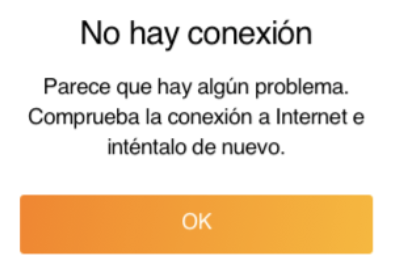
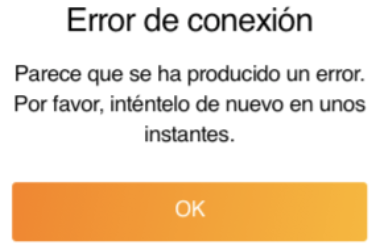
There are two types of notification, depending on the kind of internet connection failure:
- If the device used for access control has no internet connection, the following warning appears:
- If the device using the Organizers app suddenly experiences a connection failure:
Recommendations for the Organizer
Using both SYMPOSIUM mobile apps, Organizers and Attendees, makes management, accessibility and communication between organizers and attendees easier.
To ensure better communication both ways, as well as among the attendees themselves, it is advisable for the event organizer to suggest that attendees who have not yet downloaded the app install it on their devices and link their registration to it. In this way users will have easy access to all the events they attend, to their check-in credentials and to the option of communicating with the organizers and other event attendees. They will also be able to share the event, helping to promote it, and find and register for events that may interest them.