Attendees APP
Introduction
The mobile APP for attendees provides access to the main information about the events published through SYMPOSIUM by Emagister. The aim of this app is to keep you informed about newly published events and news related to the events you attend. Through the app you can also identify yourself as an attendee at the events you are registered for, as we will see in detail in the “My events” section.
Goals of the Attendees app
- Make it easy for users to find events that interest them, with filters by category or organizing institution and a free-text search box.
- Give events greater reach and visibility, allowing the user to find, in a single place, events on different subjects organized by any of the institutions that use SYMPOSIUM.
Features of the Attendees app
The Attendees app lets you find events of interest using search boxes and a set of subject filters. These filters and search boxes can be combined to narrow down the search for specific events even further.
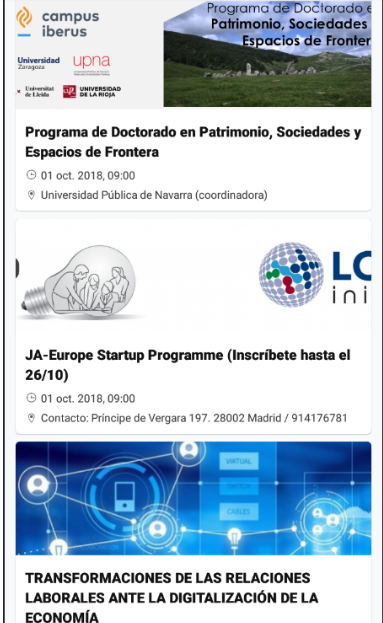
In the list, events are shown as cards that preview the general information:
- header image
- event title
- date
- location
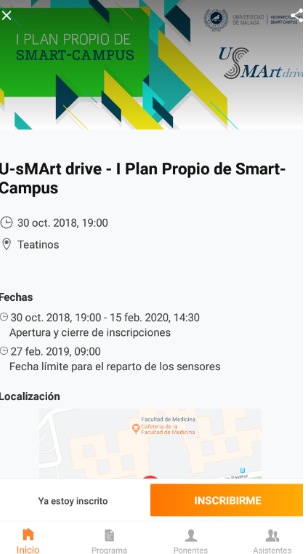
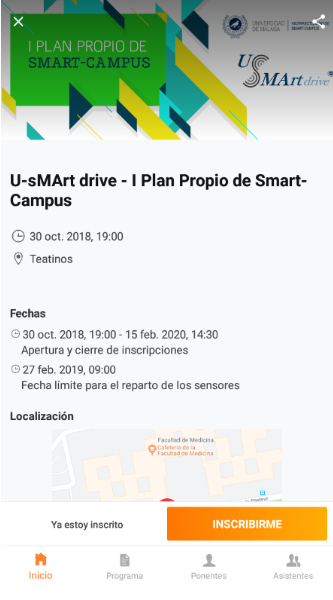
When you open the event details, several menus appear:
- Home: the main view of the event where, if registration is open, the button to register is shown.
- Schedule: shows the different activities and times that will take place at the event.

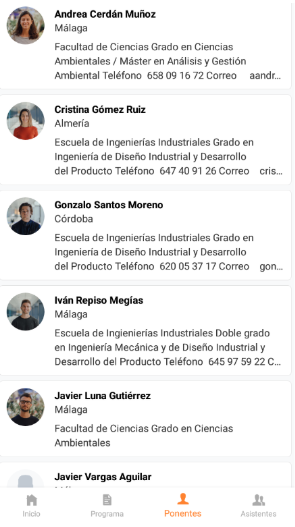
- Speakers: shows a list of the people taking part in the event who have been invited to give a presentation.
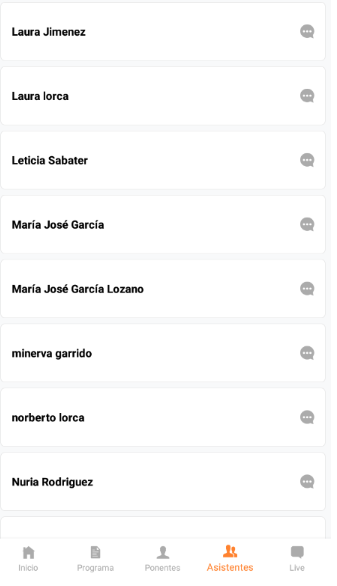
- Attendees: shows attendees of the event who, when registering, agreed to make their attendance public and appear on that list.
Order in which events are shown
Only events whose registration is available and/or that are within their dates are shown. Events that have already taken place and are past their dates will not appear.
Events are ordered taking into account their start and end dates. Events with the earliest start date and whose end is scheduled for a near date are placed first.
Registering from the Attendees app
You can register for events from the app itself. The registration process is the same as on the website:
- Select the number of registrations you want to purchase
- Enter the personal details of the attendee, or of all of them
- Review the registration
- Confirm the registration
Linking your registration to the app
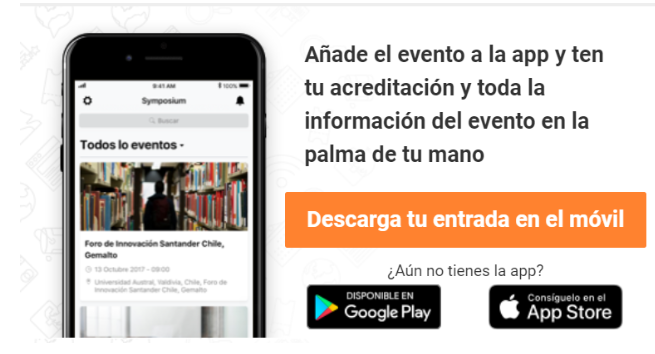
You can install the attendees app on your device and link it to your registration. To do so, follow a link in the attendance setup email you receive. When you tap the button, your registration and your app will be linked.
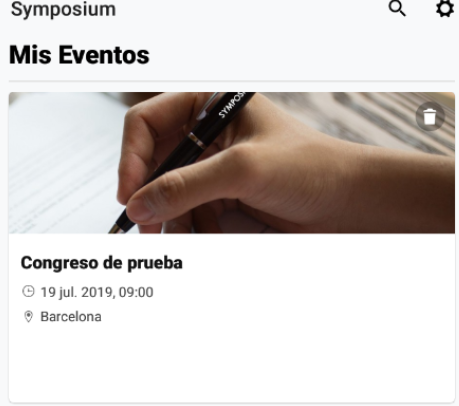
Once this is done, a new block called “My events” will appear at the top with all the events you have registered for. For each of them, tapping its card gives you the QR code to check in when you arrive at the venue.
If you have already registered but cannot find the confirmation email containing the link, tap “I am already registered” and enter your email address again. You will receive the link again.

Viewing the attendee list and sending messages
After linking your event registration to the app, you will be able to view the public list of people who will attend the same event as you. Attendees are also given the option of contacting each other.
To send messages to attendees, find the event you will attend in the “My events” section, go to the “Attendees” menu and click the message icon of the attendee you want to contact. The attendee will receive your message by email.
Notification inbox
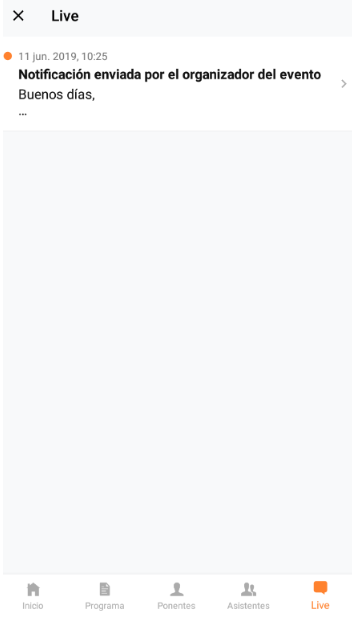
For events whose registration you have linked to the app, you will have a “Live” menu that collects all the notifications received. These notifications can come from two sources:
- Sent by the event organizer through the “Notices to mobile applications” tool of the web manager, or by message with the Organizers app.
- Sent by other attendees of the event. Just like you, the attendees of the event you attend can send you messages from the “Attendees” section. You will receive these messages in your email inbox, unless you have the app installed on your device and your registration linked. In that case, you will receive all notifications from attendees in the “Live” menu of the event in question.
Finding events of interest
The attendees mobile app provides several filters and search boxes to help you find events that interest you. Events can be found by:
- Event category filter: returns a list of events that match the selected subject or subjects. This filter is at the bottom of the screen.
- Keyword search: lets you find events by words in the title. This search box is at the top right of the screen.
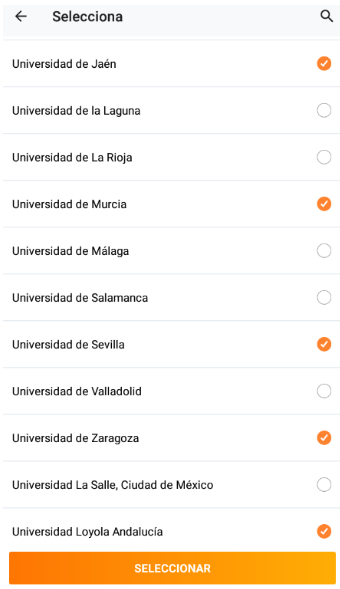
- Filter by organizing university or institution: you can specify one or more particular universities you are interested in. In the list of institutions, tick one or more universities. Tap “Select” and the list of events from those universities will be shown.
Sharing events
All events published in the app can easily be shared through whatever means the user has on their device. In this way the user can share events of interest with their contacts through WhatsApp, by email or on social networks.
To share an event, first open its details and find the share icon at the top right. A list of the available apps you can share the event with will then appear. Select the one you want to use and share the event.