Create, test and delete an Event
It is common to want to create Events in order to try out the platform. Once you are ready to start adding real Events, you will probably want to get rid of the test ones, so that they do not appear in any listing or search.
In this article we explain how to use an Event for demonstration purposes without leaving any trace visible to users afterwards.
Create the Event
If you have permission to create Events, the button will appear both in your Organizer panel and in your Attendee panel.
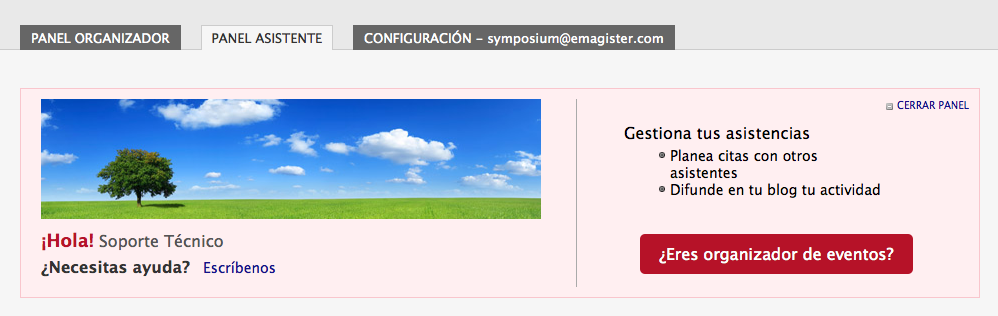
As soon as it is created, the Event is set to draft mode. This means it will not yet be publicly visible in the platform’s listings and searches.
Allow attendees at the Event
Many options can be configured from the Event’s editing menu. One of the most common is to start managing attendees. You will find these management tools in the Attendees > Enrollments menu, in the left-hand column.
For users to be able to register for the Event, you must create a registration type that allows it. There are four registration types in the drop-down list:
- No registration: declares the Event open attendance, with no control by the organizers;
- Registration in another website: choose this option if registration for the Event is done on some other website that you do not manage with Symposium;
- Free: allows attendance control without any financial management;
- Payment: the most complex registration type, which means attendees will have to pay for a ticket to the Event. From this selection on, Symposium will give you numerous tools for financial and attendee control.
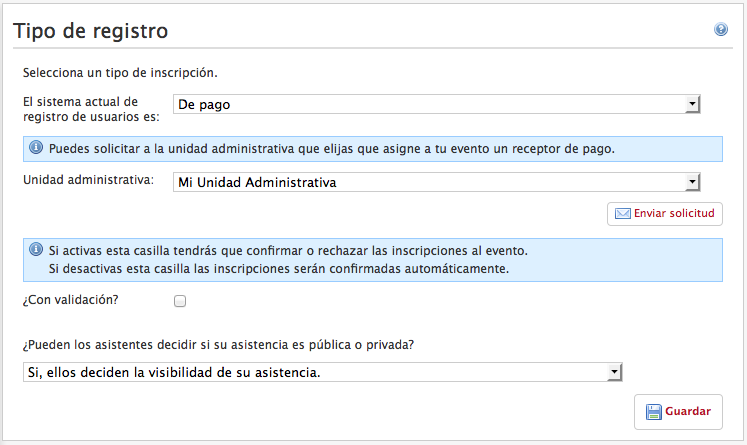
WARNING: If you change the registration type of an Event that has already been created, all attendee data will be deleted.
Registrations are the tickets for the Event. You can create several Registration types as needed, and they can have a price or be free.
Once you have chosen the registration type, find the Enrollments box further down. You must create at least one Registration. You can create as many as you need, with whatever characteristics you see fit. For example, basic, VIP, adults, children… Each of them will have a name, a price and a currency if the registration type you chose earlier is paid, a number of tickets available for that type, and whether it will be visible to visitors or not. You can create tickets that are not published, that is, tickets that website visitors cannot purchase and that you will manage personally as invitations.
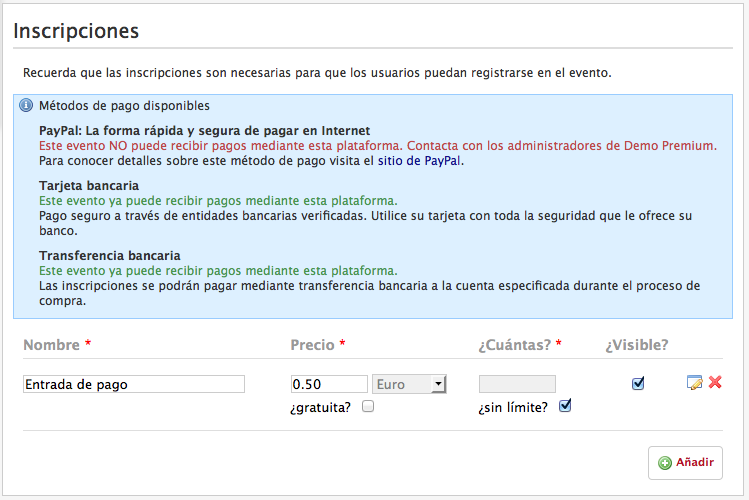
Payment methods are required
If you find that you cannot choose a Payment method, check whether any are already available on your platform. Creating them is a task for the Website administrator. If you have that role, you will be able to access that panel, which we describe below. If not, please ask the Administrator.
Assuming you have administration permissions, go to the Administration panel in the page footer. Once there, configure the Payment methods and Payment receivers options to suit your platform’s needs.
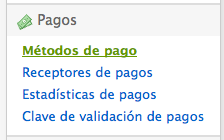
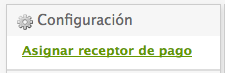
Now go to the Economic management panel, whose link you will also find in the page footer. Select the Assign payment receiver option.
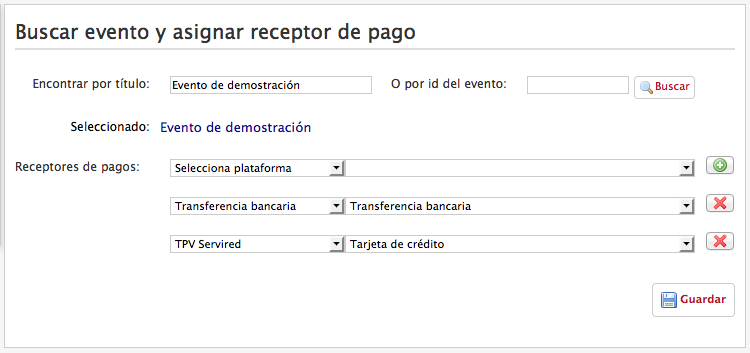
Search for your Event and add the payment receivers you need.
Go back to the Event’s editing menu from the Organizer panel and configure as many sections as you need. You can add Products related to the registrations or a form for attendees to fill in during the registration process, among many other options.
Once you are happy with the Event configuration, do not forget to publish it so that it is visible to the public and users can register.
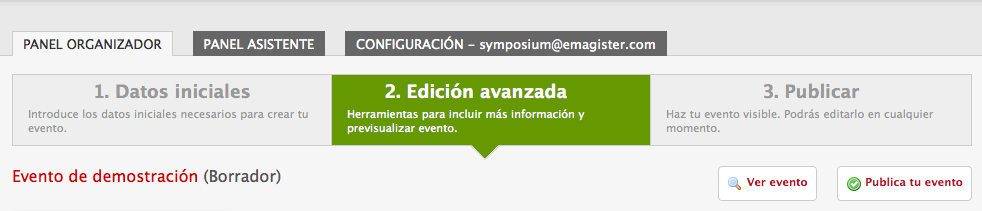
Bear in mind that it can take up to 30 minutes from publishing your Event until it appears in listings and searches. This is because the platform uses an indexing engine to speed up the processing of thousands of Events and users.
Test the Event
You can now go to your Event’s main page and register, thus acquiring an attendee role in addition to the organizer role you already have. This can be a little confusing, so if you have another email account it is advisable to use it to test the Event as an attendee, in order to be as faithful to reality as possible.
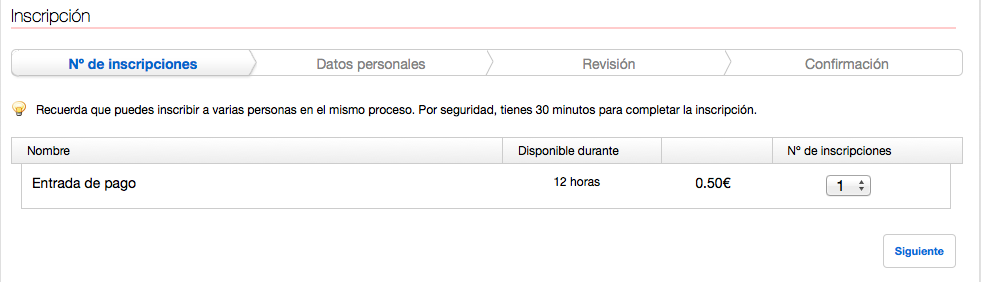
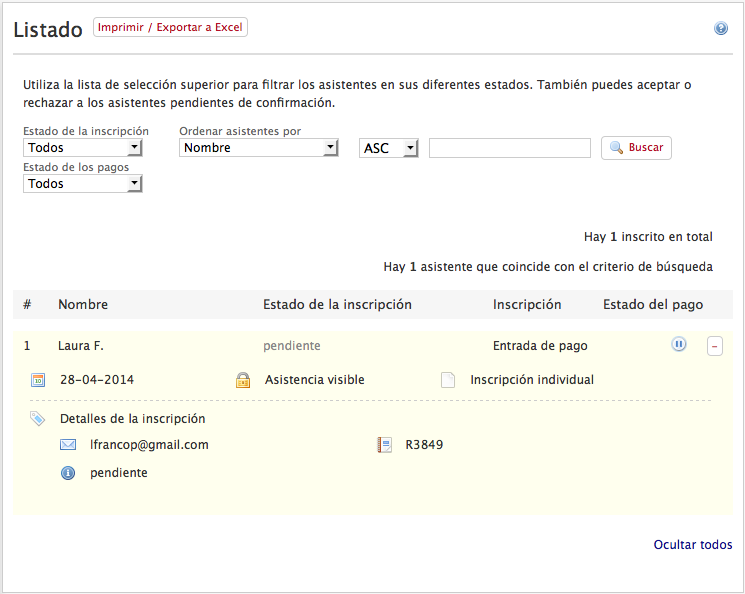
Once you have registered a user, you can go to the Attendees > List menu and see the registration data of this new attendee.
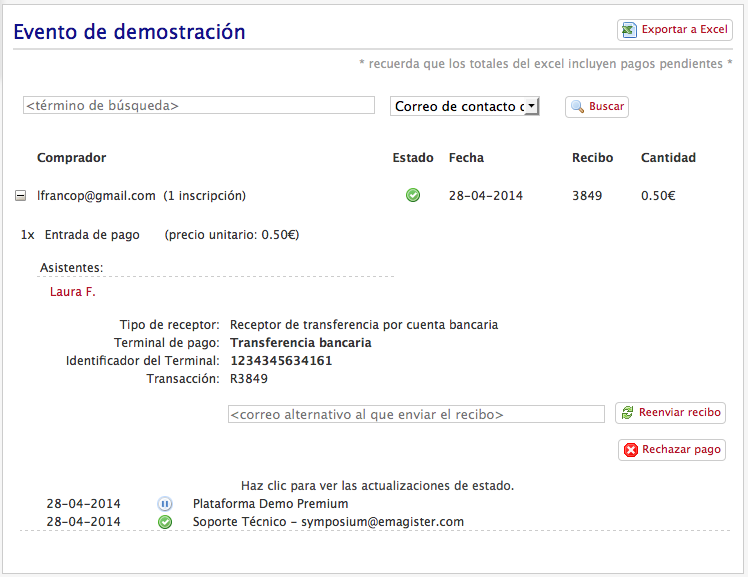
If you now go to the Economic management panel and find the Event in the Manage event payments menu, you will be able to view, accept and reject the payments related to the Event.
Delete the Event
When you no longer need to run any more tests, you can delete the Event. You can do this in the Organizer panel. If you try to delete an Event that already has attendees who have paid for a ticket, you will see a warning explaining that you cannot do so for that reason.
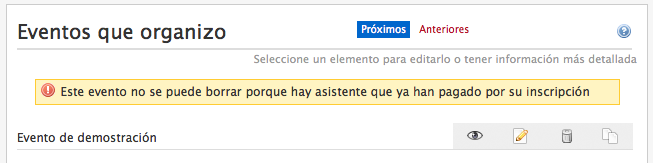
This happens because the Event has valid payments, and it is an essential safety mechanism to keep data consistent in an area as sensitive as payments.
To be able to delete an Event that has validated payments, you will first have to cancel all of them in the Economic management panel, in the Manage event payments section. Search for your Event, expand the list of payments and reject the payment of every test you have made.
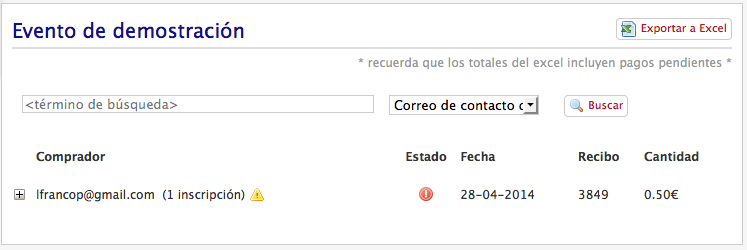
Once the payments have been cancelled, you will be able to delete the Event.