Payment receivers
A Payment receiver is a bank account number, a Paypal account or a POS terminal to which the payments made in an event are sent.
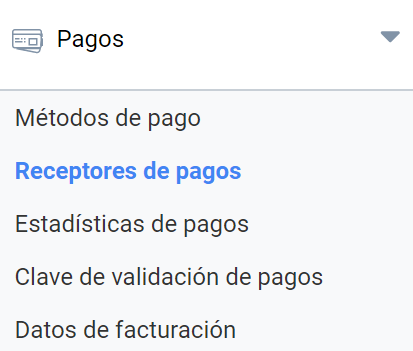
You can enable Payment receivers in Administration panel > Payments > Payment receivers:
Once a Payment method has been enabled, you must define at least one available account to collect the payments for this Method. To do so, you must create a Payment receiver. You can create several Payment receivers linked to each Payment method; Symposium sets no limit on this. Once the Payment method is active, you must assign the Payment receiver to the event so that the revenue can be received in this account. Otherwise, the event will not be able to enable paid registrations or the sale of products, since it has no Receiver.
Adding a Payment receiver
In this menu you will get a list of the different Payment receivers already created in your instance. You can edit them or create a new one by clicking the “Add payment receiver” button.
When creating a new Receiver, you must fill in a series of fields with the details provided by the bank. Depending on the Payment method the Receiver is intended for, different settings will have to be configured.
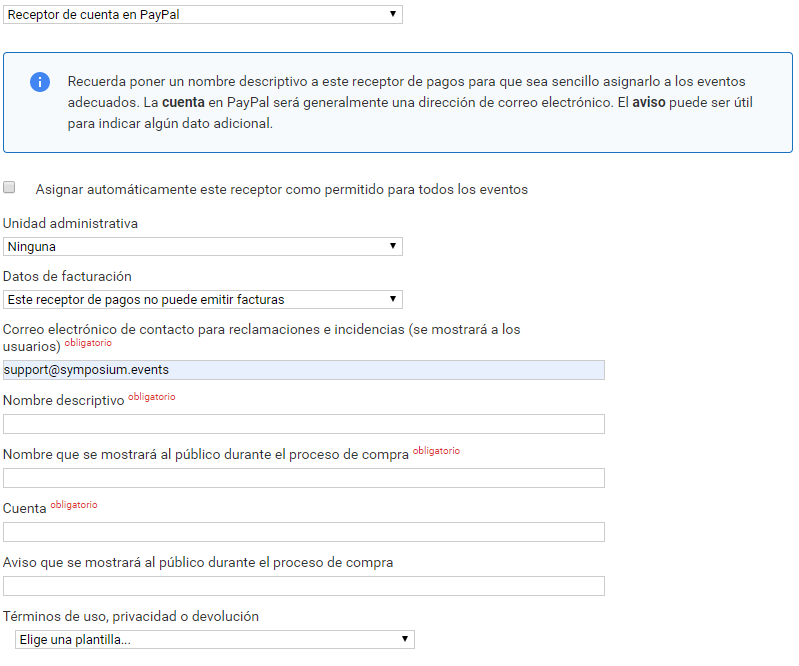
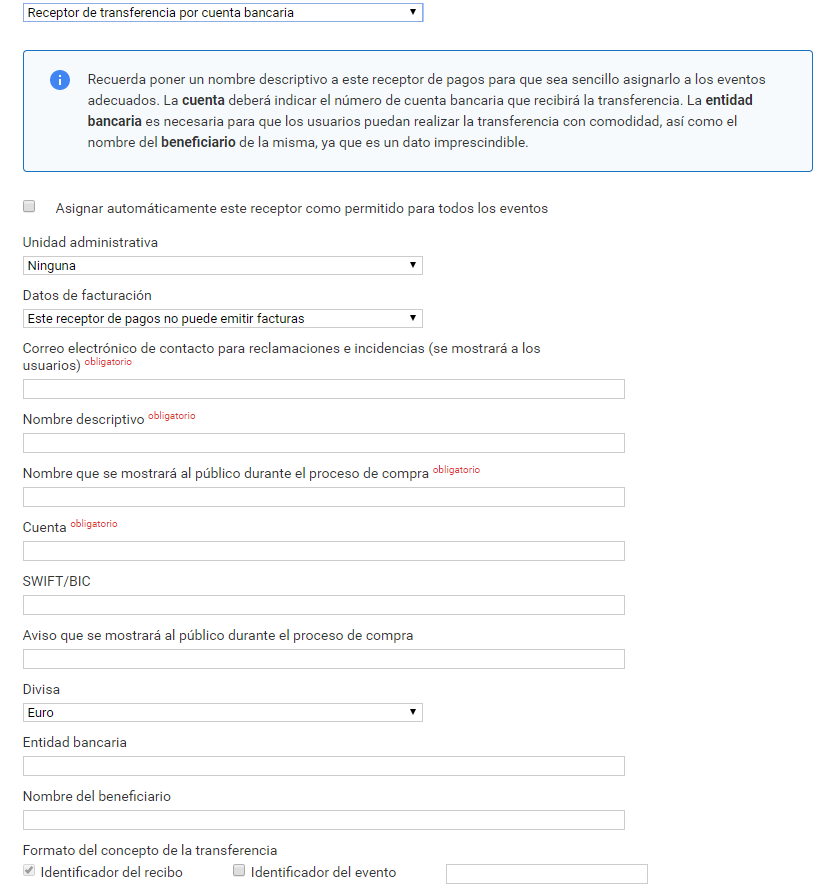
Some fields are common to every new payment account, such as the contact email for payment-related issues, a descriptive name shown internally to the accounting administrators, a name shown publicly when listing the available payment options during registration, and the notice to be shown when this payment method is selected.
For all Payment receivers there is an option to set whether you want the payment terminal to be available and assigned to all events by default, thus avoiding having to assign it manually.
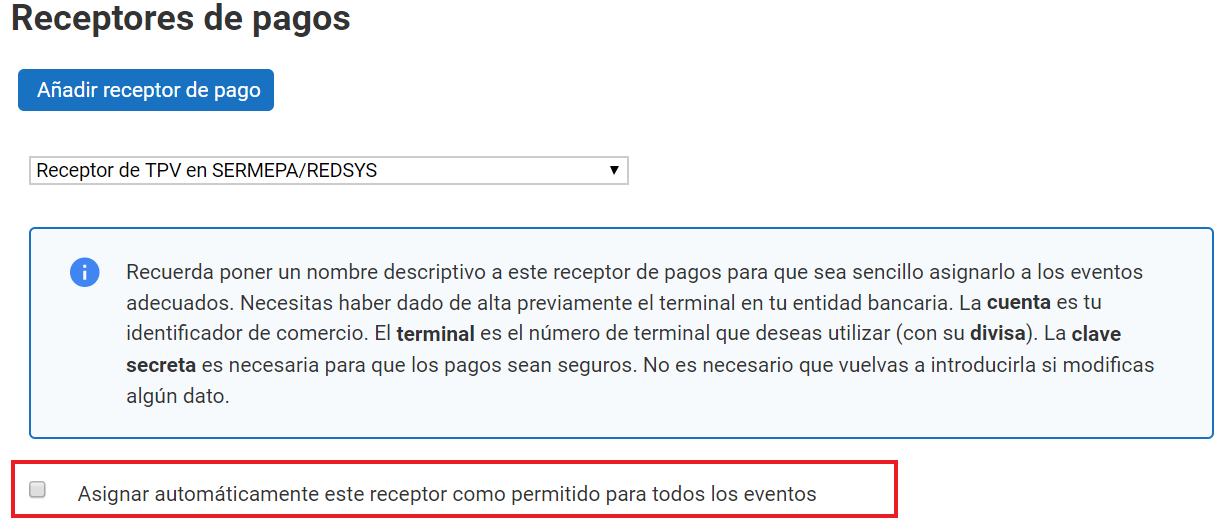
- If it is ticked, the Payment receiver will be enabled for all Events on the platform, without Organizers having to request it.
- If it is not ticked, Organizers will have to request the activation of the Payment receiver. The Assignment is done by a member of the Economic administrators group.
In addition, if at least one Administrative unit has been created, the receiver can be assigned to one of them. If you do not want to use this feature, just assign it to “None”.
Adding a Paypal account
In the Account field you must enter the email address of the Paypal account you have signed up for. This Receiver allows Symposium to validate payments automatically at the moment they are made.
Adding an account for bank transfers
Transfer terminals work differently from the previous ones, since they require manual validation of the payment by the platform’s Economic administrator.
When configuring a terminal of this type you must enter the account number to which the payments will be sent, the bank and the name of the beneficiary. In addition, you must configure the format of the reference that attendees must enter when making the transfer. This is what will later allow you to identify which registrations each payment received in the bank account corresponds to.
Adding a SERVIRED/REDSYS, CECA, ELAVON or CREDOMATIC POS
To add a virtual POS, you must contract it with the bank, which will provide its configuration details so that it can receive payments. The main banks belong to one of these four schemes: REDSYS, CECA, ELAVON and CREDOMATIC. Once you have signed the contract, you will have access to the necessary configuration details.
In the Symposium form, choose the type of POS and then fill in the required details provided by the POS platform.
| Form field in Symposium | Property in Redsys | Property in Ceca | Property in Elavon | Property in Credomatic |
|---|---|---|---|---|
| Account | Merchant identifier | MerchantID | ClientID | not applicable |
| Identifier | not applicable | not applicable | not applicable | Processor_id |
| Entity code | not applicable | AcquirerBIN | not applicable | not applicable |
| Terminal | Terminal number (usually 001) | Terminal number (usually 00000001) | Account number or name (optional) | not applicable |
| Currency | Terminal currency (usually Euros) | Terminal currency (usually Euros) | Terminal currency (usually Euros) | Terminal currency (depends on the processor_id) |
| Secret key | Secret security key | Secret security key | Shared secret | not applicable |
| Secret key for testing | not applicable | Secret security key for testing | not applicable | not applicable |
| Public key | not applicable | not applicable | not applicable | Key ID (123456789) |
| Private key | not applicable | not applicable | not applicable | Secret security key |
| Extended validation | Validation type (if there is a configuration error, try enabling this value) | not applicable | not applicable | not applicable |
Besides the POS’s own details, you must enter some values for management in Symposium:
| Property | Description |
|---|---|
| Contact email for claims and issues | This email address will be given to users as the contact address when they make payments on the platform. A working user support service is required if payments are going to be handled through the platform. |
| Descriptive name | Name that identifies this terminal internally, for management tasks. |
| Name that will be shown to the public during the purchase process | Descriptive name shown to the user when selecting the payment method, for example, Events POS |
| Notice that will be shown to the public during the purchase process | Additional message shown to the user when they select this payment method. Not mandatory. |
Once the Payment receiver has been created in Symposium, you must make a test so that your provider allows you to fully activate the POS. To do so, select “Use this POS in a testing environment” and create an event in Symposium that includes a payment. Assign this new POS to the test event and then make a registration to check that the POS works.
The details needed to make a test payment are available in the Payment methods activation section.