How to use the PayPal test environment
To use the PayPal test environment, we must go to its website and log in with our PayPal credentials using the button in the top bar.

Once logged in, our account will have been upgraded to a PayPal developer account. From now on we will call this account our “Developer Account”.
Next, we go to the Applications option in the menu, and within it we find Sandbox Accounts in the left-hand menu.
From this section we can manage our test accounts. With the button in the top right corner, Create Account, we can create new test accounts.
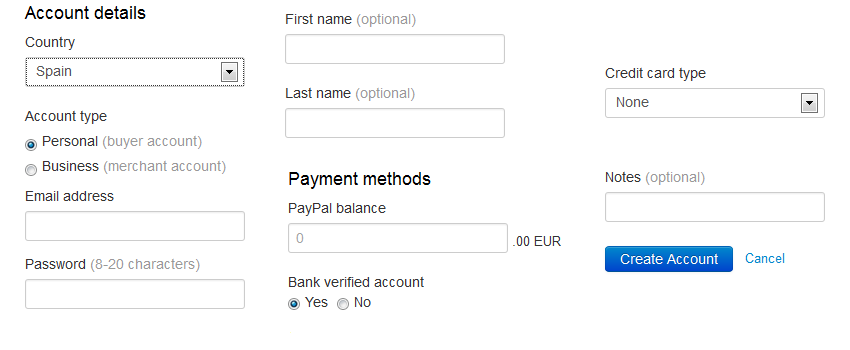
We must create two accounts: a Personal one, which we will use to buy, and a Business one, which we will use to configure the payment receiver.
The Email address values are just names for the accounts and do not need to exist as real email accounts. Therefore, we can use addresses such as prueba-paypal@universidad.es or pruebas@mispruebas.com. We recommend using passwords that are easy to remember and type, since you will enter them many times. For example: 12345678.
It is useful, although not mandatory, to set an initial PayPal balance. We can set it to a very high amount to avoid having to edit it in the future, for example, 5,000.
The rest of the fields are optional, although we will leave Bank verified account set to Yes to avoid confirmation messages and other special cases.
When we have created both accounts, we simply go back to the tool and add a payment receiver of type PayPal, with the Account field set to the email address we used for our Business test account. Then we assign it to our test event and make a registration.
When making the payment, we select our test receiver and, when we reach PayPal, we use the credentials of the Personal account we have just created.
NOTE: You must be logged in with the “Developer Account” to be able to use the PayPal test environment. That is, to pay with our test accounts, we must have gone through the PayPal Developer environment and logged in with our PayPal account.