Managing your own ZOOM license
Overview of the own Zoom accounts module
The own Zoom accounts module lets the institution use its own Zoom account integrated into the management platform and the event workflow. You can offer webinar rooms with automated booking management and also have rooms under manual control.
- Event organizers will receive unique credentials to use the rooms.
- Attendees registered for the events will receive a link to take part.
- When each webinar ends, the platform will automatically generate the attendance report.
Below we set out the steps to follow to activate your own Zoom account on your platform. See the rest of this module’s features in detail in this article
Prerequisites for linking a Zoom account
- Symposium license for the Own Zoom Webinars rooms module.
- In your Zoom account you must set up at least one sub-account with a Zoom Webinars license.
- Log out of the Zoom portal in the browser you are using, if you used any other account.
Step 1: Installing the Symposium app
IMPORTANT: before carrying out this process, log out of your Zoom account in your browser.
Once the account is linked, you will see on the platform a list of the Zoom sub-accounts associated with the master account. From now on, we will call these sub-accounts Webinar rooms.
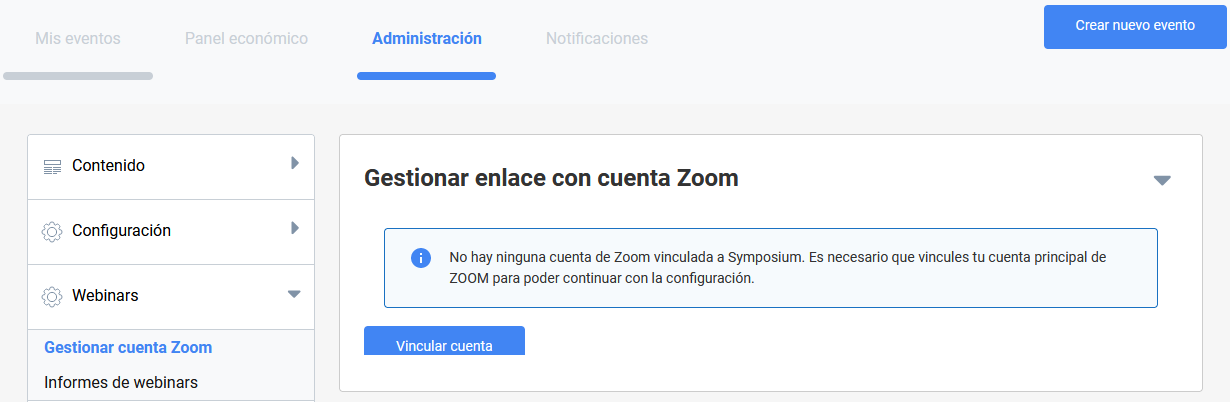
What can go wrong?
- If Zoom does not ask you to log in when you link the account, it is most likely because you were already logged in. If the account you were working with in Zoom is the same one you want to link to Symposium, everything will be fine. If you were logged in to a different account, you must review all the integrations you have with that account in other applications and skip to the Uninstalling the Symposium app step.
Step 2: Activate the Webinar rooms in Symposium
The list shows all the rooms available in the Zoom master account. For the event platform to manage bookings for a room, you need to activate it. You can therefore activate all of them or only the ones you choose.
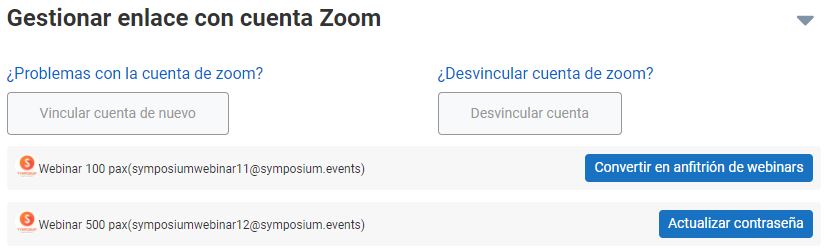
What can go wrong?
- If you cannot find any rooms in the list, you may need to review your Zoom account. Symposium lists the sub-accounts, which will become available rooms. The main account is never used, for security reasons. You need at least one sub-account with a Zoom Webinars license in your Zoom account.
- If you have just created new sub-accounts in the Zoom portal and they do not appear in this list, reload the page. If they still do not show up, click Link account again.
Step 3: Setting the assignment mode
Rooms can work in two modes, manual and automatic. Indicate for each room which mode you want it to work in.
- Automatic rooms will be granted to requesters immediately, provided they are free at the requested time.
- Manual rooms can only be granted to a requester by a platform administrator. You can disable rooms, provided they have no webinar assigned.
Step 4: Advanced configuration
This step is optional. It lets you set limits for organizers who request the use of webinar rooms. If you do not set specific limits, Symposium’s generic limits will apply.
- Maximum and Minimum number of days in advance for booking webinar rooms
- Maximum and Minimum duration of the rooms (in minutes)
- Preparation time for organizers and panelists to test video and audio before participants can join.
- Grace time added to the total duration of the webinar to wrap up the session’s conclusions.
How to uninstall the Symposium app
At some point you may want to deactivate your Zoom account on your platform. This means you will not be able to use your Zoom account in events and that rooms already booked will never start. You will no longer have access to the usage and attendee reports of rooms held in the past.
Step 1: Unlink the account
Go to Administration panel > Webinars > Manage Zoom account. In the Manage link to Zoom account block, click the Unlink your account button.
Step 2: Confirm that you want to unlink the account
Symposium will ask you twice to confirm that you agree to unlink the account. Remember that when you do so, Symposium will no longer have access to your Zoom account and will have to delete all rooms scheduled in the future, will abruptly close any rooms in progress and will remove the information on rooms already held.
Step 3: Uninstall the app in the Zoom portal
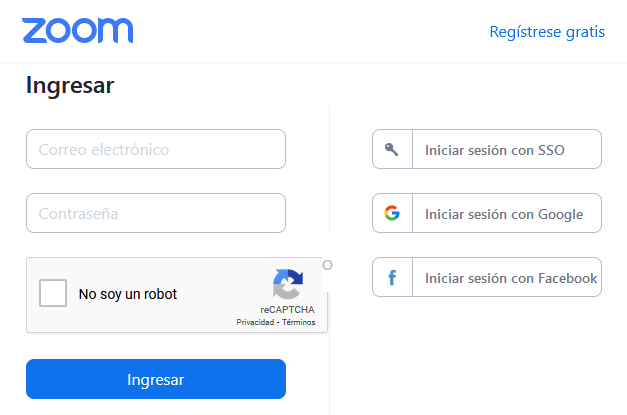
- Symposium will take you to the Zoom Marketplace portal. Log in with your account and look for “Installed apps” in the left-hand menu.
- In the list of installed apps, find Symposium Events. - Click the Uninstall button.
- Confirm the uninstallation. Zoom will ask you for the reason and, optionally, whether you want to leave the data in Symposium.
- If you do not tick the checkbox to leave the data on your Symposium platform, we will be notified to delete everything and we will do so
- If you tick the checkbox to allow the data to remain on your Symposium platform, we will keep the attendance reports.
- When you return to Symposium, check that you no longer have access to the list of Zoom rooms.
IMPORTANT: If you link the same Zoom account again in the future, you will still not have access to the data of past webinars. This is because Zoom gives us a different account identifier from the one it gave us in the previous linking. Therefore, even if you relink the same account, the data of past webinars will never appear.