Zoom account management
In this article we explain how the own Zoom accounts integration works and describe in detail all the specific features of this module.
The own Zoom accounts module lets the institution use its own Zoom account integrated into the management platform and the event workflow. You can offer webinar rooms with automated booking management and also have rooms under manual control.
- Event organizers will receive unique credentials to use the rooms.
- Attendees registered for the events will receive a link to take part.
- When each webinar ends, the platform will automatically generate the attendance report.
See the Steps to link your own Zoom account in Symposium here
The event organizer’s view
Requesting a webinar room
Event organizers on your platform can request webinar rooms from the Content → Program / Videoconference menu. The process is very simple and consists of entering:
- Webinar title
- Date and time it should start
- Duration in minutes
- Whether they want to admit participants manually or automatically
Room confirmation
Once an organizer requests a room, Symposium will check which rooms are active on the platform for automatic assignment. Rooms that are active with manual management are not taken into account.
The total booking time of the room is calculated as the sum of:
- Preparation time (before the webinar start time)
- Room duration
- Grace time (after the webinar end time)
- Post-processing time needed by the event platform
The list of active rooms with automatic assignment is checked sequentially to find one that has the entire time interval that needs to be blocked available.
- If a room is found free at the required time, it is assigned
- If no room is available at the requested time: - the request is saved and the organizer is informed - a suggestion is shown to contact the platform administrators so they can provide a room
Starting the webinar session
When the date of a webinar arrives, Symposium runs several processes:
- With the advance notice configured on the platform, it generates credentials for using the assigned room, valid only for that webinar, consisting of: - Web address to open the Zoom application - Username, which is the email associated with the room - Password, generated by the platform
- It emails the credentials to the room requester and also makes them available in the Content → Program / Videoconference menu, where the request was made.
- It emails the attendees registered for the event a web address to access the room. It also makes it available to them in their private user panel on the platform, if they log in with their personal account.
End of the webinar
Ten minutes before the webinar’s end time, an alert email is sent to the organizer so they can close the session on time.
If the webinar host does not close the room from the Zoom application at the scheduled time, they are given a grace period, which administrators can set for the whole platform in the Configuration block.
Once the grace period has passed, Symposium automatically ends the webinar without further notice, closes the room and starts generating the attendee report, which will be available to organizers in the Content → Program / Videoconference menu. It will also be available to administrators in their Webinars > Webinar reports menu.
How linking your Zoom account works
Symposium’s integration model for Zoom accounts is centered on the concept of webinar rooms available for event organizers to use. It is analogous to how meeting rooms work in offices.
A Zoom master account can contain multiple sub-accounts. In the Symposium integration model, those accounts are rooms and are made available to all organizers on the platform. When an organizer is going to use one, Symposium provides them with a password valid only for that webinar. When it ends, the password expires and the room becomes free.
When you click the Link account button, Symposium will take you to the Zoom portal and, after logging in to the master account, you will authorize Symposium to manage it.
Symposium cannot create or delete users within your Zoom account. Instead, it lists the linked accounts it has and turns them into rooms. As an administrator, you decide how many of them are made available.
Important: Symposium never uses the account’s main user, the one that holds ownership, even if it also has a Webinar license. We consider it good practice for the account to have a user without a Webinar license that is used only for management.
Once the account is linked in Symposium, you will see a list of the associated Zoom sub-accounts. These sub-accounts can be turned into available Webinar rooms.
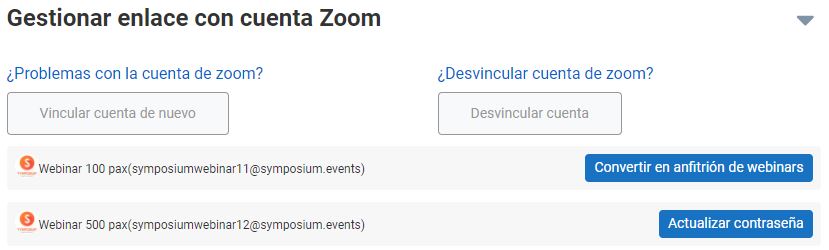
Therefore,
Zoom account users = Rooms available in Symposium
Initially, the rooms are disabled. For hosts to be able to request them, activate the ones you choose.
Coexistence with the Symposium account
Symposium’s current video conferencing service consists of an integration through which Symposium lends Zoom rooms to organizers who request them to hold online events. These rooms, owned by Symposium, keep a standard configuration for all partners and are subject to availability.
As soon as you link your own Zoom account on the platform, the Symposium rooms will no longer be available and you will manage the video conferencing module with your own rooms and custom configuration.
Organizers who request webinar rooms from then on will use the rooms you enable on your portal, with your conditions and preferences.
What happens if webinars are already booked with the Symposium account?
Before you link your account on the platform, some webinars may already have been booked with the Symposium module. These webinars will be held in the rooms lent by Symposium. Once your institutional account is linked, new bookings will be assigned to your rooms.
Active webinar rooms
This list shows all the active rooms available to webinar organizers.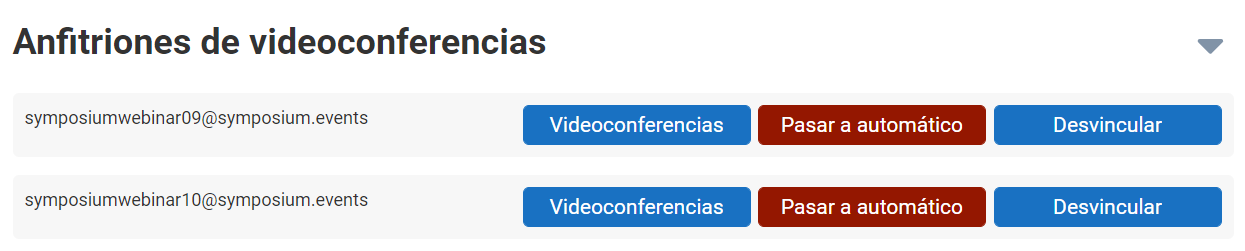
Assignment mode
Rooms can work in two modes: manual and automatic.
- Automatic mode: the platform grants use of the room to whoever requests it, if it is available in the requested time slot;
- Manual mode: the room can only be granted by a platform administrator. It can also be assigned to a webinar that already had another room assigned.
By default, active rooms are set to manual mode. Enable automatic mode for the rooms you want to be available without an administrator having to intervene.
You can also change the assignment mode of a room from Automatic to Manual, provided it has no webinar bookings.
Video conferences
View the webinars assigned to each room.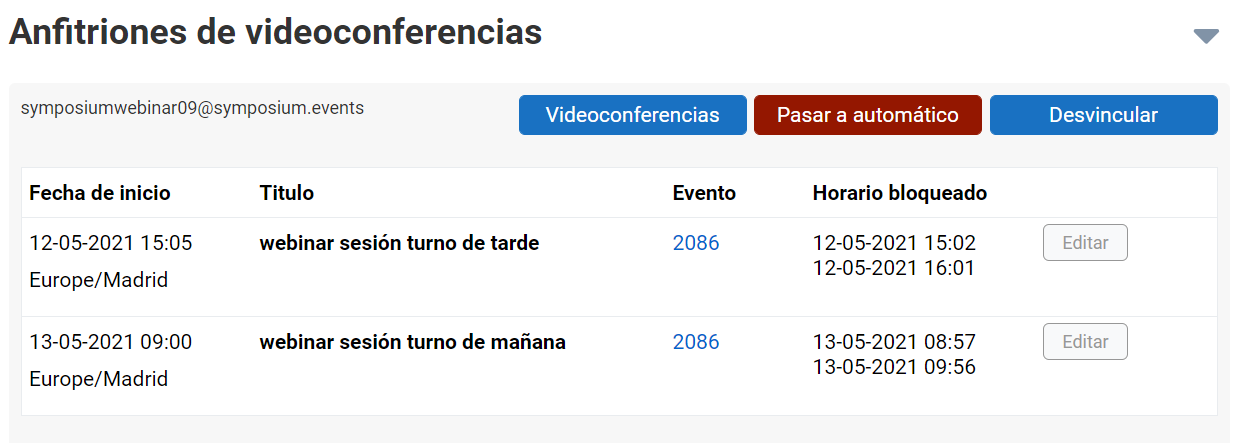
The list shows all the webinars assigned to each room, indicating:
- Start date and time
- Event time zone
- Webinar title
- Event ID and link to the event website
- Blocked room schedule, which takes into account both the total duration of the webinar session and the preparation time and grace time set beforehand.
- Edit button
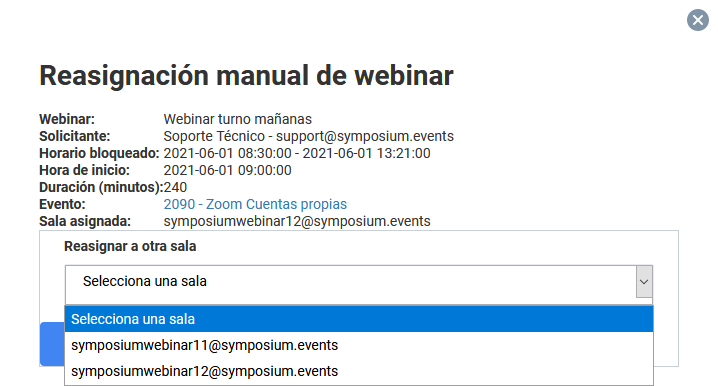
Manual webinar reassignment
The Edit button in a room’s webinar list shows all the session details and the option to move it to a room other than its current one.
IMPORTANT: Reassigning a room means deleting the webinar and creating it again in another room. If the webinar had panelists designated, the organizer will have to invite them again. The link they received at the time will no longer work.
Disabling rooms
You can disable a room and it will no longer be available. When you do so, it will no longer appear in the “Active webinar session providers (sub accounts)” list. As long as it remains part of the Zoom account, you will find it in the “Manage link to Zoom account” block, from where you can activate it again.
You cannot disable rooms that have webinars already scheduled.
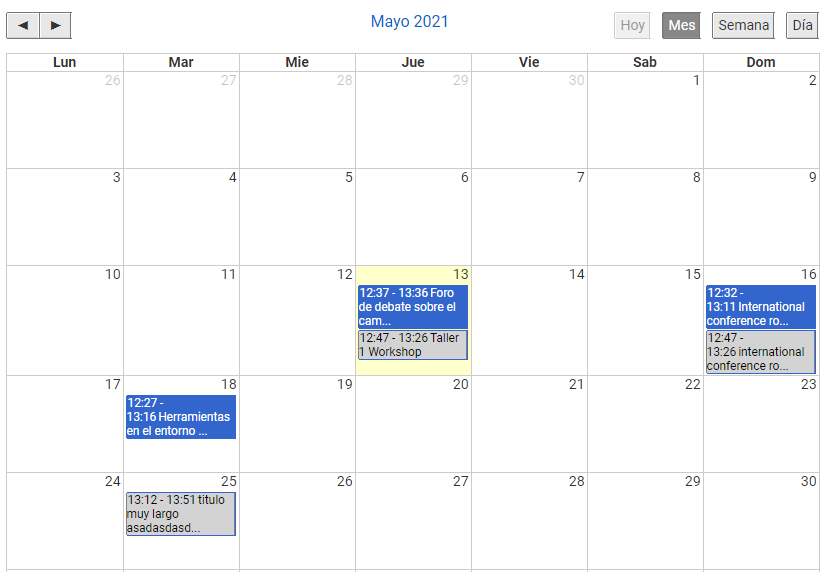
Webinar calendar
Shows all the platform’s webinars in calendar format:
- Webinars pending assignment
- In progress
- Scheduled in the future
You can get an overview by month, week or day. Each webinar is shown as a colored box. Clicking it opens the webinar Edit window, with its full details and the option to reassign it to another room.
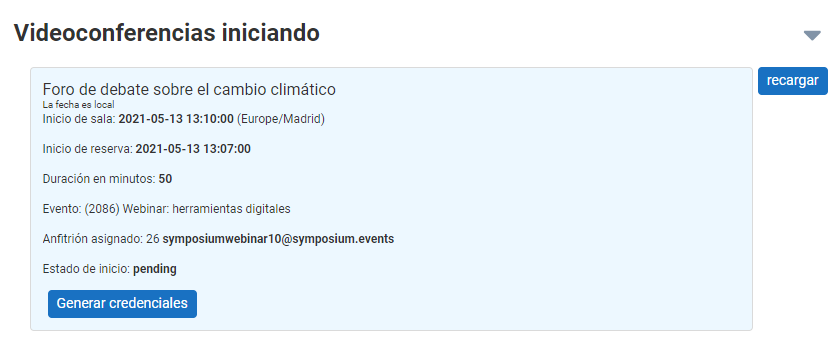
Webinars ready to start
This block shows webinars that are about to start but for which the host credentials have not yet been generated. The generation process takes only a few seconds, so it is normal for this list to be empty. If for some reason the process is delayed, you can trigger credential generation manually.
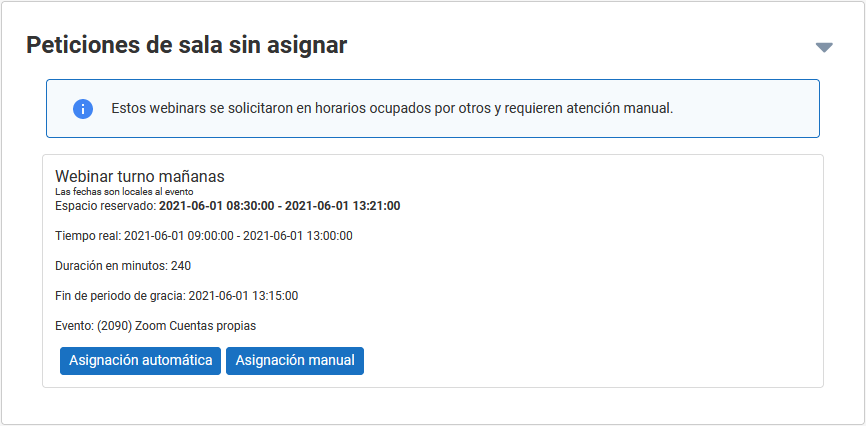
Unassigned room requests
In this list you will find webinar requests that are waiting for a room. You can handle them with two buttons:
- Automatic schedule: the system will try to assign one of the rooms in automatic mode. A webinar request may be in the list because no rooms are available at that time.
- Manual assignment: you can assign any of the rooms to the webinar request. If the room you are trying to assign is not available at the requested time, you will see a warning that the assignment could not be made. You can then try assigning another room.
When the time slot of a webinar request is not available in any of the platform’s rooms, you can:
- Contact the requester so they delete the room and request a different time.
- Go to your Zoom master account and purchase a new user with a Zoom Webinars license. When you return to Symposium, you will find it in the “Manage link to Zoom account” block and can activate it on the platform, in either manual or automatic mode. Finally, you can assign this new room to the webinar request.
Configuration
Set the values that will apply to all webinars on the platform:
- Maximum and minimum number of days in advance for booking webinars
- Maximum and minimum duration in minutes of the webinars
- Preparation time during which credentials for the new hosts will be generated
- Grace time added to the total duration of the webinar to wrap up the session’s conclusions.

The total duration of a webinar is made up of:
- The time for preparing credentials and sending emails to participants
- The room duration set by the requester in the booking form
- The grace time set
- Automatic processing that closes the rooms and generates new credentials.