Bookings
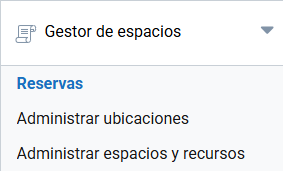
The Bookings menu lets you manage the space and resource booking requests made by organizers, which are therefore linked to events. From this section you can check the status of bookings, filter them by status and access the details of each request.
The list shows all bookings, distinguished by color and status:
- Pending: request awaiting validation.
- Accepted: booking approved.
- Rejected: request not approved.
- Blocked: space reserved or blocked administratively.
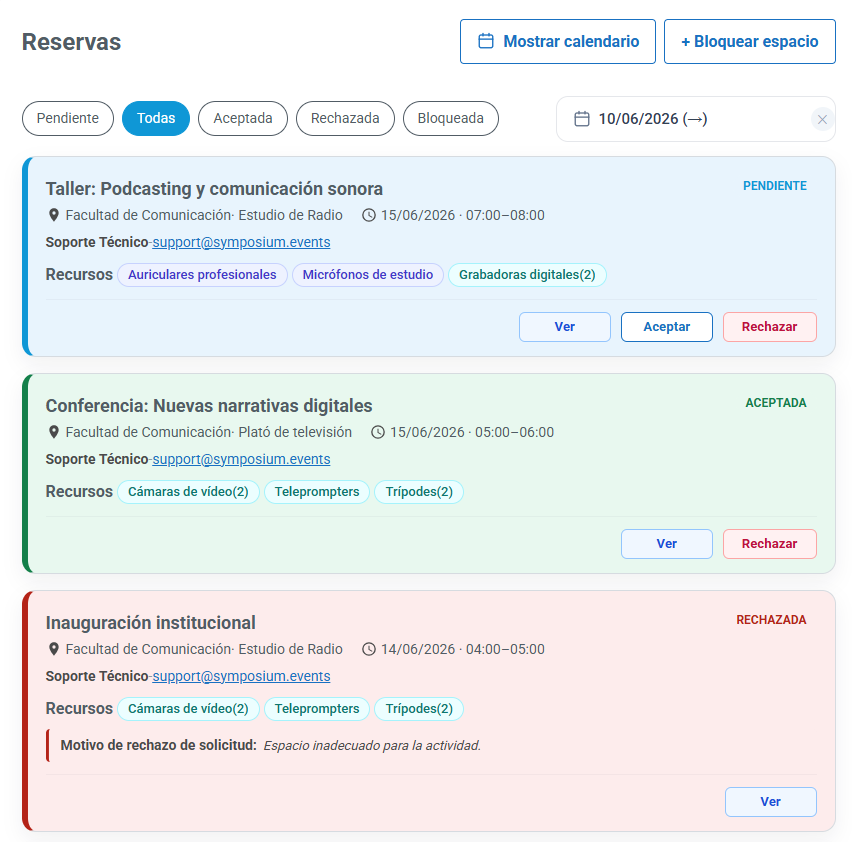
In addition, from the top of the screen you can:
- Filter bookings by status.
- View bookings from a specific date onwards.
- Open the booking calendar to check space availability with the Show calendar button.
- Create space blocks with the Block space button. This option is intended for internal use and lets you temporarily prevent organizers from booking certain spaces for various reasons, such as internal activities, refurbishment or maintenance work.
Depending on the booking status, different actions will also be available:
- View: see the booking details, which can be printed with Print.
- Reject: deny an accepted or pending request. Once rejected, it will disappear completely. If the organizer needs it, they will have to submit another request.
- Remove: cancel a blocked booking.
Changes to accepted bookings
Organizers can request changes to bookings that have already been accepted. When this happens, the list of all bookings will show two related cards:
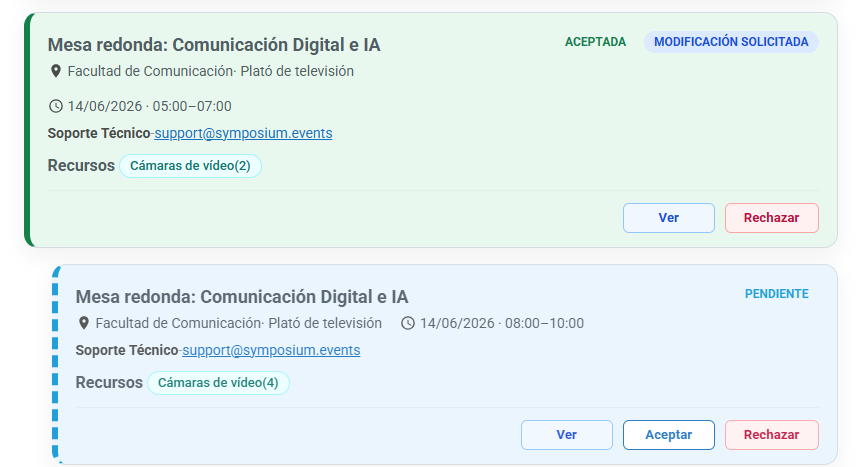
- The original booking will appear with Accepted status and will include the Change requested label.
- Below it, a new request will be shown with Pending status, containing the changes proposed by the organizer.
Once the change is approved, the original booking will disappear and be replaced by the new version.
In short, from the Bookings menu administrators can quickly monitor space occupancy and manage the requests made by organizers in a centralized, coordinated way.