Manage spaces and resources
The Manage spaces and resources section lets you create and edit the institution’s spaces and resources.
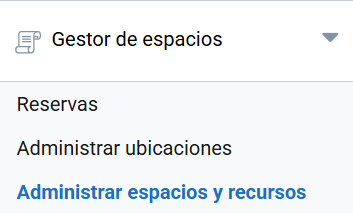
The main screen is divided into two sections:
- Spaces: makes bookable rooms or areas available to the platform.
- Shared resources: lets you create and modify common resources at a specific location. They will be available for requesters to include in their space bookings. All shared resources are understood to be available to all spaces at a location. The platform takes care of checking availability at all times.
The Show calendar button shows an overview of the spaces’ usage schedule and their status.
Add space
The information to fill in is as follows:
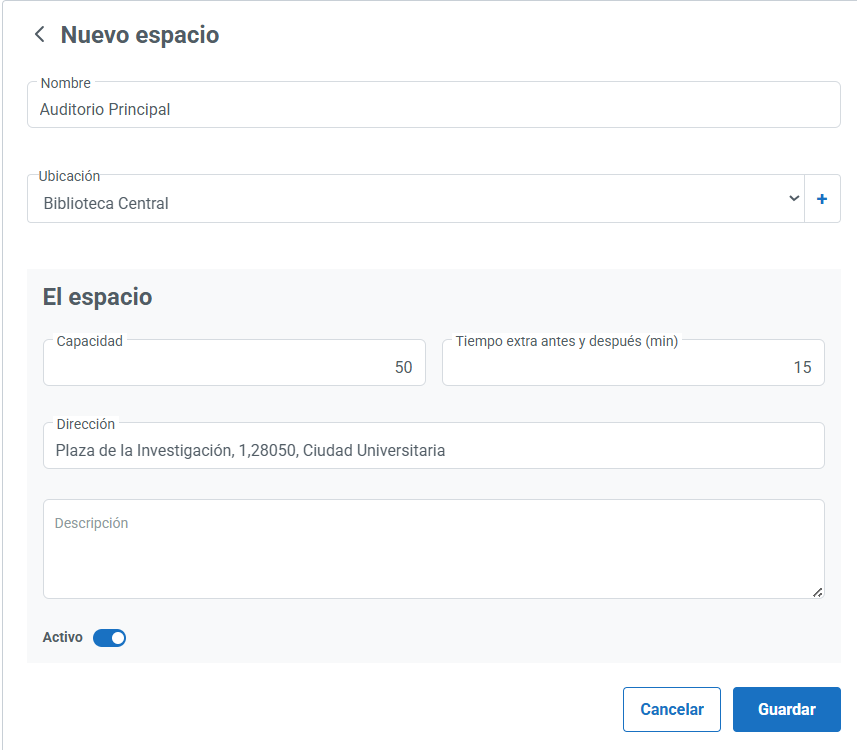
- Name: an identifier for the space.
- Location: site or building the space belongs to.
- Capacity: maximum number of people.
- Extra time before and after (min): additional time margin reserved before and after each use of the space. That number of minutes is added before and after any booking of the space, so that maintenance tasks can be carried out.
- Address: physical location of the space.
- Description: additional relevant information.
- Active: lets you enable or disable the space for booking. If the space is marked as not active, it will not be available for booking until it is set back to Active.
You need to Save the space description. You will then have the option to add Own resources to the space you have created. Own resources are those linked to a space that cannot be shared with others.
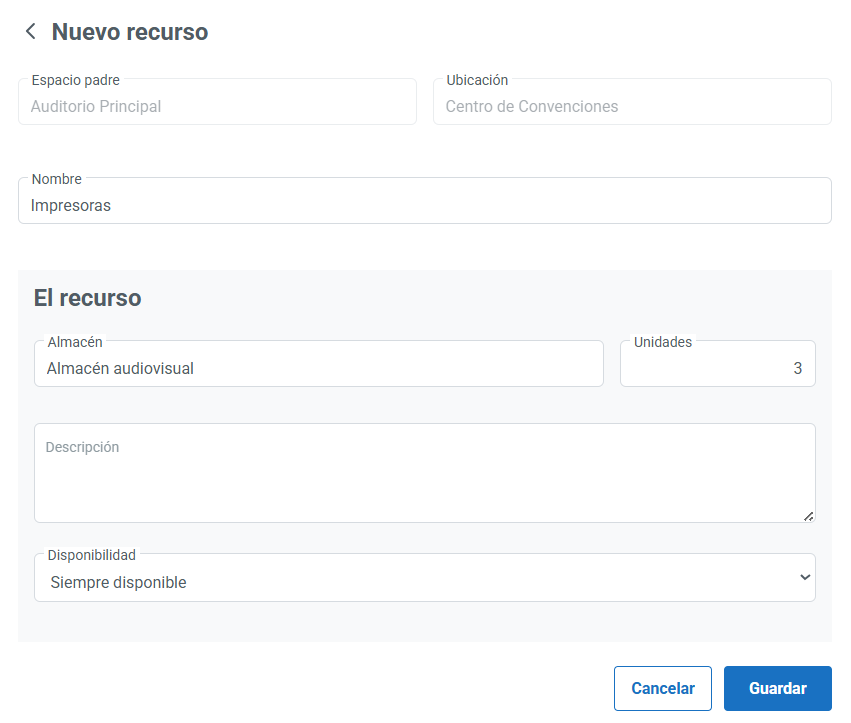
As you can see in the image above, you can specify the warehouse where the resource is kept and set its availability:
- Requires request: identifies a resource belonging to the room that requires a specific request in order to be used. This is usually used for resources that require someone to act. For example, a room may have projection equipment that the maintenance team needs to switch on and configure.
- Always available: an Own resource of a space that does not require any intervention to be used. For example, a table, a whiteboard or chairs.
- Not available: a status for an Own resource of a space that, although it exists, does not work or is temporarily not in its space. For example, projection equipment that is broken and awaiting repair, or a table that has been taken away to be varnished and will not be in its room for a few days.
Finally, the spaces you create will appear in the main list, from where you can edit or delete them.
Add shared resource
Shared resources are not linked to spaces; instead, they are available for requesters to include in their booking requests. For example, a set of extra chairs kept in a warehouse that can be moved and set up in any room. The information to fill in is as follows:
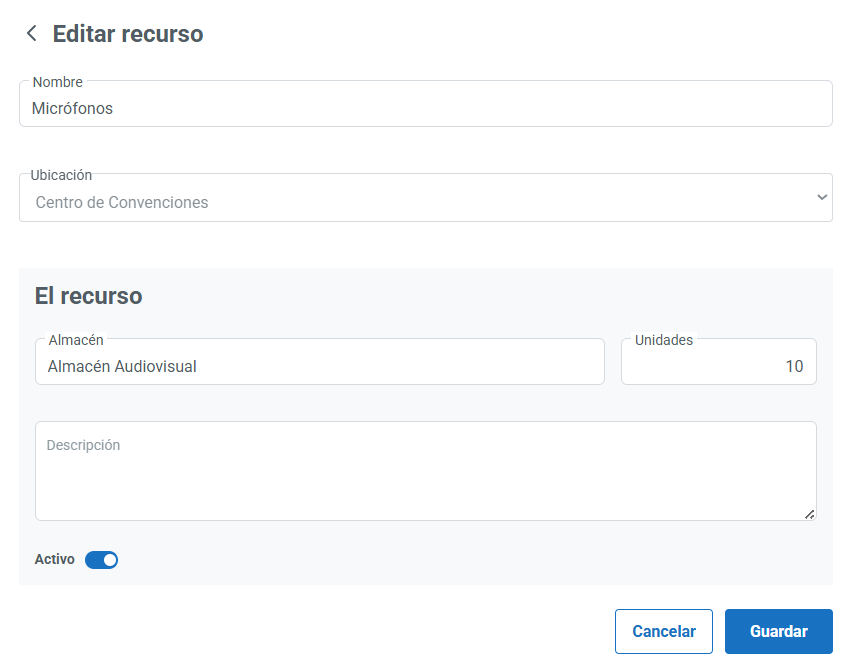
- Name: identifier for the resource.
- Location: site or building it belongs to.
- Warehouse: where it is usually stored.
- Units: quantity available, if it can be quantified.
- Description: additional information about the resource.
- Active: lets you temporarily enable or disable the resource. If it is Active, the resource is available to requesters. If it is not active, it cannot be included in space bookings. This feature allows shared resources to be temporarily under maintenance or lent to third parties.
The resources you create will appear in the main list, from where you can edit or delete them.
You can add as many spaces and resources as you need.