Custom template
Templates define the visual part of the event website. Depending on the template used for the event, it will have a different layout, button placement, colors, font size and typeface, etc.
Symposium offers several default templates, already designed and ready to be activated. Even so, these templates are fully customizable. From this section, you can download a kit to create your own custom templates. Inside the file, you will find a document with all the information you may need to create your template.
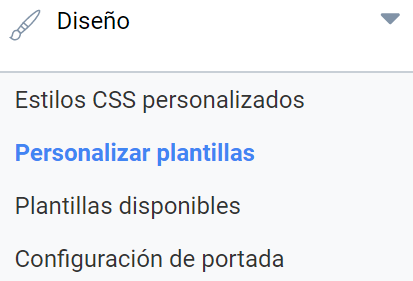
To customize these templates, click the Custom template option, which you will find in the Design section.
Download a system template
In this panel you will find all the templates available on the platform. Choose the template you want to modify to your liking and download it. Some templates have variants depending on the base color.
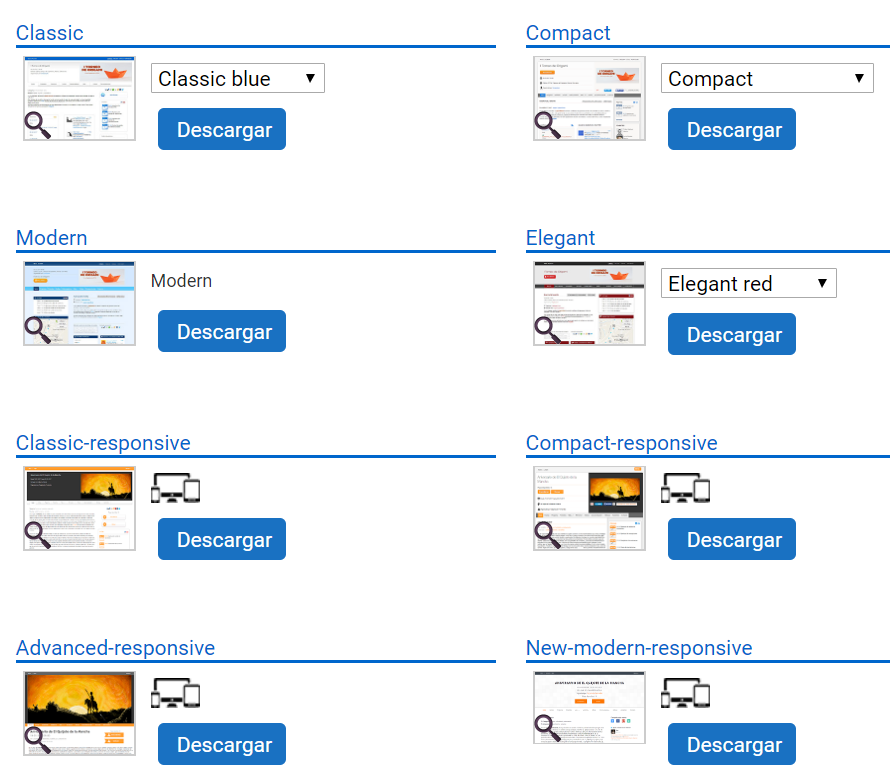
Responsive templates (recommended)
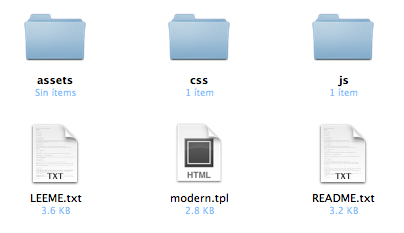
The compressed package you have downloaded contains a folder structure and a README.txt file with instructions and a description of where everything is.
Classic templates (not recommended)
The compressed package you have downloaded contains a tpl file with the template structure, two text files with instructions, one in Spanish and one in English, and directories to hold custom JavaScript and CSS files.
Modifying a system template to turn it into a custom template (Responsive templates only)
assets directory
This is the directory we recommend for including any images you need. If you need to reference an image inside a partial or a template, do so with a relative path:
<font inherit/Courier New,Courier,monospace;;inherit;;inherit><img src="{{template_path}}assets/ficheros.png" /></font>js directory
Inside this directory you must include your JavaScript files. The script.js file is included automatically (it is important that you do not rename it). The method we recommend for running code on the “document ready” event is the one shown in this file.
If you need to run code after a partial or template file is loaded, you must listen for the “render.handlebars” event, which is triggered on body. Example:
<font inherit/Courier New,Courier,monospace;;inherit;;inherit>$('body').on('render.handlebars', function (e, template) {
// template contains the name of the loaded block, either ptl or tpl
});</font>
If you need to load other JavaScript files, we provide a method that loads them asynchronously. This method loads the files you specify in sequence:
<font inherit/Courier New,Courier,monospace;;inherit;;inherit>$.loadScriptSeries(['lista/de/ficheros.js', 'otro/fichero.js'], function(){
// callback to run when the last file has been loaded
});</font>
less directory
Inside the LESS directory you will find the .less stylesheet that shapes this theme. On the first line you will see that the “main.less” file is imported. This file includes the Bootstrap styles and other styles for template components such as the calendar.
The next block defines the variables. You can add as many variables as you need, but if you remove any of them the color picker may stop working properly.
Remember to read http://lesscss.org carefully for more information and to get the most out of stylesheet preprocessing.
partials and templates directories
The .tpl and .ptl files are the templates and partials that Handlebars uses to render the page content.
The .tpl files are the templates loaded when entering each section. You can modify their content, but you must keep the names of these files, otherwise the different sections of the event will stop working.
When the event page is opened for the first time, the main.tpl file is loaded; it renders the main skeleton of the page and then loads the content of the corresponding section.
The .ptl files are the partials, pieces of code that can be rendered within the page as needed. You can modify them and create as many new ones as you need. We recommend that you take a look at their structure to get an idea of how to use them.
Example:
1.- {{> overlay }}
 2.- {{> navbar this }}
 3.- <div id="content-wrapper">
 4.-     {{> header this }}
 5.-     {{> menu this }}
 6.-     <div id="content" class="container">
 7.-         {{> detail this }}
 8.-     </div>
 9.- </div>
10.- {{> footer this }}
Line 1 loads the overlay partial. A partial is loaded with the syntax “{{> nombre }}” (where nombre is the partial’s name). Lines 2, 4, 5, 7 and 10 load more partials. The second parameter is the data context. If we use this, we pass the context of the current template to the partial we are loading.
You can explore the .tpl and .ptl files to see the different options available.
As you can see in lines 3, 6, 8 and 9, HTML and Handlebars code can be combined interchangeably.
The div block with the identifier “content” is the one the engine uses to render the content of each section. If you decide to modify the main.tpl file, you must include this identifier so that the engine can render the sections correctly.
Modifying a system template to turn it into a custom template (Classic templates only)
It is recommended not to use symbols or accented characters in file names.
ASSETS directory
This directory must contain all the images to be linked from the template.
CSS directory
This directory must contain all the styles to be linked from the template. Styles are applied through cascading style sheet files.
If the css file references an image included in the assets directory, the path must be relative. For example, if in the styles.css file you wanted to set the image available at assets/background.png as the background, you would have to use:
body {
  background-image: url("../assets/background.png");
}
This directory can contain any number of css files, which must be correctly referenced from the template (see the tpl file).
JS directory
This directory must contain all the scripts to be linked from the template. Scripts are applied through JavaScript files.
If any script references an image included in the assets directory, the path must be relative.
This directory can contain any number of JavaScript files, which must be correctly referenced from the template (see the tpl file).
TPL file
The tpl file contains the information to be rendered by the system. The template is written in HTML and contains special tags delimited by double curly braces that correspond to the different defined blocks.
{{ ETIQUETA }}When building a template, you can render whichever blocks you want, in any order. You can also wrap them in any HTML content to make styling easier.
Embedding styles and scripts
At the beginning of the file, inside the corresponding HTML <head> tag, the user-defined styles and scripts must be included. To do this correctly, once again, the paths must be relative.
For example, to include the following files:
- assets\
- css
- styles.css - js
- script.js - fichero.tpl
you would have to do it as follows:
<head>
    {{ IE COMPATIBILITY }}
    {{ METAS AND TITLE }}
    {{ OTHER LINKS }}
    <!-- reset -->
    <link rel="stylesheet" type="text/css" href="css/styles.css" />
    {{ SCRIPTS }}
    <script type="text/javascript" src="js/script.js"></script>
</head>
In addition, you can check whether a block is available with IF statements. This way, you can find out whether you are in a particular section, or whether a block is present, in order to render content one way or another. For example:
<!-- !IF SUBHEADER IMAGE -->
    <div id="event-header-text">
    {{ SUBHEADER TITLE }}
    <div class="enrolment_wrapper">
        {{ ENROLMENT BUTTON }}
    </div>
    {{ SUBHEADER IMAGE }}
    </div>
<!-- END IF SUBHEADER IMAGE -->
You can see in detail the blocks available in each section in the annex below.
Upload a custom template
Once the template is finished, you have to create a compressed file containing the following files and folders:
- the tpl file
- the assets, css and js folders
It is important that none of these elements are inside any extra folder; they must be directly at the root of the compressed file.
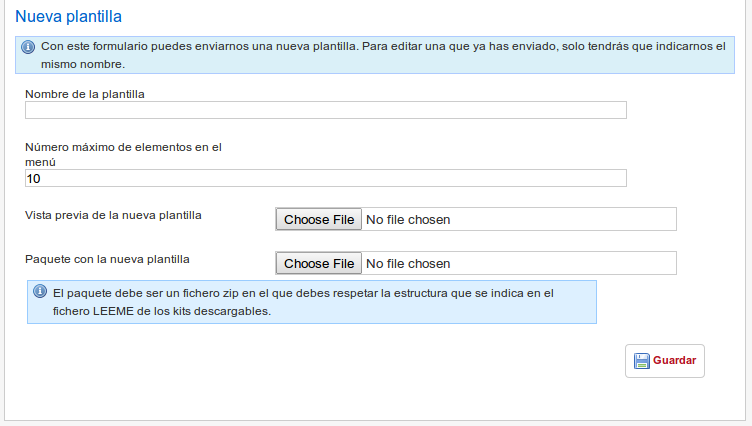
In the New template section, fill in all the details:
- The name you will give your template.
- The maximum number of items to display in the menu (the remaining menu items will be shown under the “More…” menu option).
- A screenshot to serve as a preview of your template.
- The compressed file.
Now you can click Save. From now on your custom template will be available for any event. If your template does not appear in the templates section of the event editor, make sure it is selected as an available template.
Annex
Document of the blocks available in templates.