Personalized forms
SYMPOSIUM lets platform administrators create custom registration forms. In addition, you can choose one of them as the default form for all the registrations or tickets that organizers offer to attendees.
From Administration > Configuration > Personalized forms, click New form to create one:
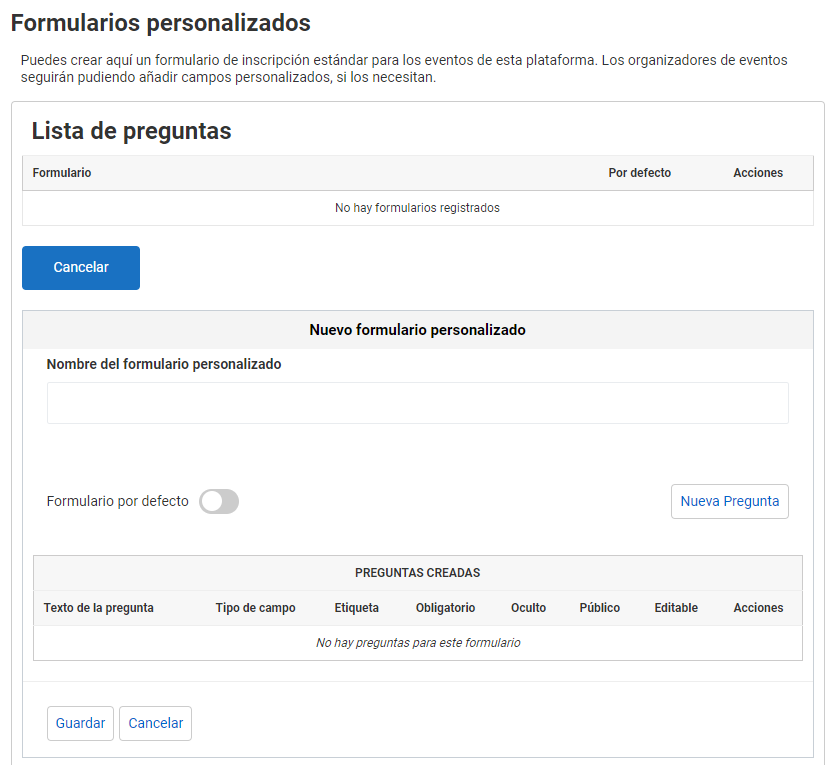
The available question types are:
- Full name.
- First name.
- Last name.
- Tax identifier.
- Phone.
- Email.
- Full address.
- Date of birth.
- Country.
- Postal code.
- Place.
- Other: to allow further customization, in this question you can choose the field type (short text, long text, Yes/No, single choice, multiple choice, date, attached file, country selection or help text).
For all of them, you must enter the question text and a custom label or tag that makes it easier to retrieve the information: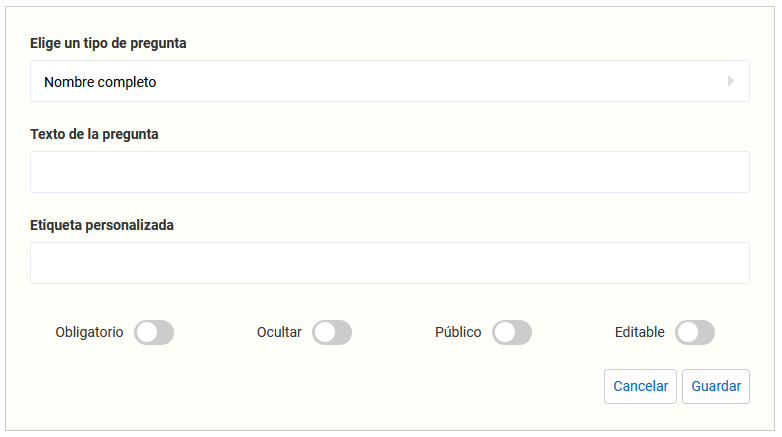 Before you Save each field, you must decide whether or not to enable four options:
- Required: when this option is enabled, answering this question is mandatory.
- Hide: when this option is enabled, the question is not shown to the user.
- Public: when this option is enabled, the answer to this question is public.
- Editable: when this option is enabled, the event manager can hide the question from the user.
After creating a custom registration form, you can edit or delete it.
How this feature affects organizers
Once you choose a default registration form, it is automatically and immediately linked to all the registrations that organizers offer to attendees, whether free or paid. However, it does not apply to existing tickets.
From Attendees > Registration forms, organizers can change the order of the fields. They can also add new ones and copy the predefined ones, as well as hide from the registration process the fields that administrators have configured as editable.
However, organizers cannot edit or delete the default fields. Nor can they prevent a ticket to their event from using the standard registration form. If they are interested in any of these situations, they must ask the administrators, who can carry out the requests from Administration > Configuration > Personalized forms. For example, by unticking the default form setting.
WARNING! Any configuration made in the Personalized forms menu is applied automatically and immediately to new registrations, but not to existing ones. |
Nevertheless, the organization can choose to delete the existing ticket and create it again, as long as it has no attendees.
How to get form answers with API ATTENDEES
You can review all the answers to the registration form from the Attendee list.
In addition, to make it easier to integrate information into external management applications, SYMPOSIUM lets administrators relate each form field to a custom label or tag, as mentioned above.
This means that, using API ATTENDEES from our developer portal, you can get the answers that each attendee provided during the registration process.
If the API ATTENDEES service is included in your institution’s license, you will find its API Key in Administration > Tools > API Keys.