Email server
SYMPOSIUM native mail server
In this case, the platform sends emails using a SYMPOSIUM account and domain as FROM:, usually mailing@symposium.events. We use Amazon SES to send them, with the SPF and DKIM of the symposium.events domain. Messages are sent with the platform’s contact address in the reply-to. In this use case, no additional configuration is required.
Configuring your own server
At the Administrator’s discretion, the platform can be configured to send messages through the institution’s own mail server. In this case, the platform connects to the specified SMTP service. The email account specified by the institution is used as FROM:, and messages reach their destination sent by the partner from its own infrastructure.
In this case, the institution also has control over enabling SPF and DKIM for its own SMTP service, which does not depend on SYMPOSIUM. This is highly advisable because it prevents outgoing messages from being marked as spam. To do so, the technology team must add an include to the SPF record:
include:_spf.symposium.events
Note: Before tackling the email server configuration, check with your technical team. The details required are highly technical and you may need the assistance of the person in charge of the relevant area.
If you decide to stop using the SYMPOSIUM native server and use your institution’s server instead, you must tick the “Use custom configuration?” check box.
1. Configure your server (information for the Systems team)
- Add a rule to your firewall that allows the IP 63.32.121.65 to reach port 25 of your server (or the relevant port)
2. Configure the platform (as administrator of your events platform)
The following fields of the form must be configured:
- Host: the IP or domain of the server that will send the messages.
- Security: lets you choose between standard, SSL or TLS.
- Port: sets the connection port, usually 25 or 465 depending on whether the selected security is standard or SSL respectively.
- Requires authentication?: if so, tick the box and enter the username and password.
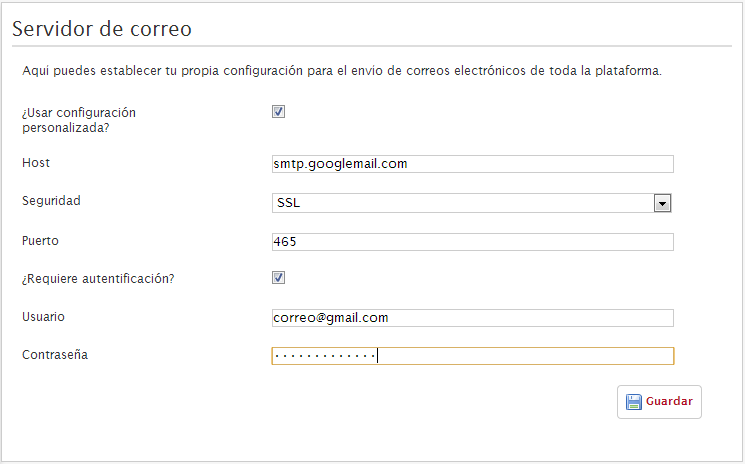
Once the changes are saved, Symposium will send all email communications through that channel.
Configuring a Google account
If your email provider is Google through its business services, see this guide to configure the account that will act as the mail relay.